Technology Details
A technology's page shows which of your assets run it and in which version, the vulnerabilities known for it, and when its releases reach end of life. Use it to plan upgrades.
Before You Start
- Package: External Attack Surface Management (EASM).
- Role: Admin or Member.
Where to Find It
Sidebar: EXTERNAL ATTACK SURFACE MANAGEMENT › TECHNOLOGIES · Tab: TECHNOLOGIES LIST · https://platform.deepinfo.com/app/easm/technologies
Select a technology to open its drawer, then select OPEN IN NEW TAB. You can also open a technology from an asset's TECHNOLOGIES tab, or from the tables on the Technologies OVERVIEW and INSIGHTS tabs.
The page address is https://platform.deepinfo.com/app/easm/technologies/<technology id>.
Read the Screen
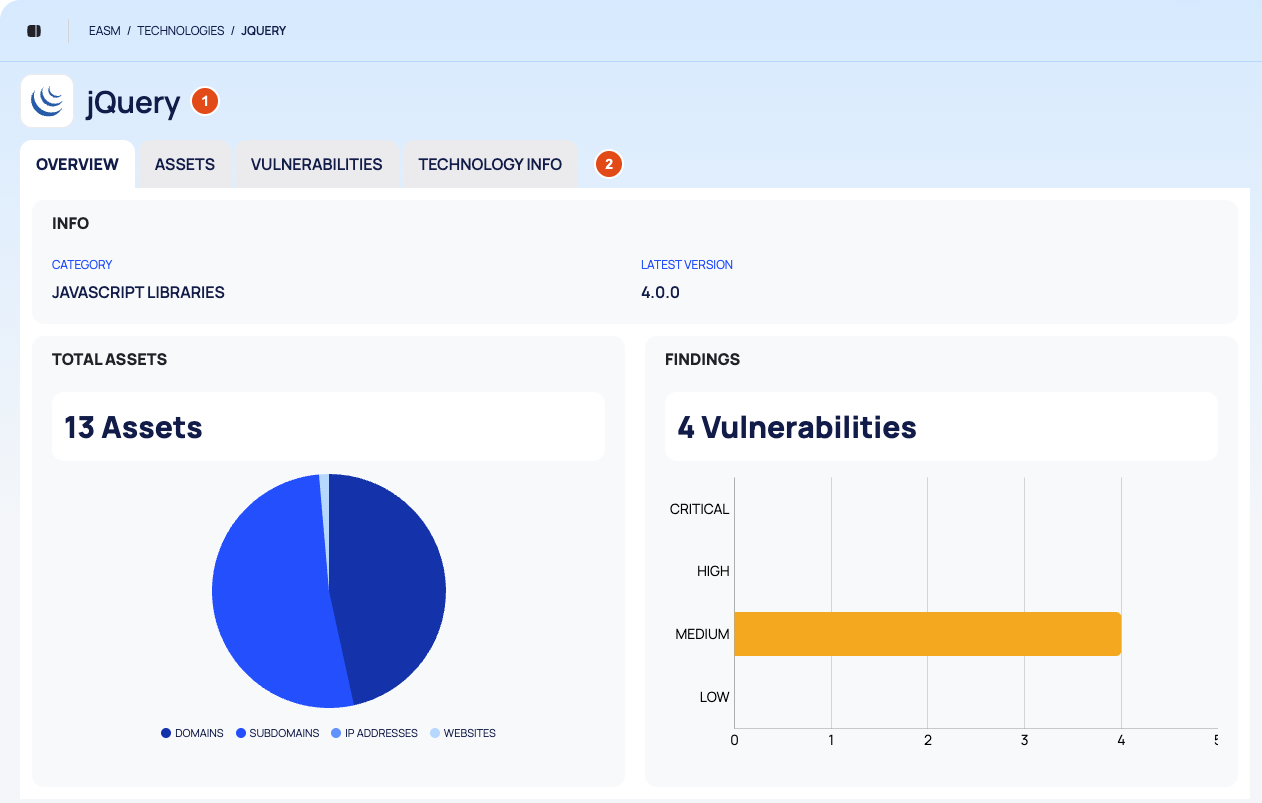
- Header: the breadcrumb EASM / TECHNOLOGIES / followed by the technology's name in capitals, then the name as the page title.
- Tabs: OVERVIEW, ASSETS, VULNERABILITIES and TECHNOLOGY INFO.
OVERVIEW
| Card | What it shows |
|---|---|
| INFO | CATEGORY and LATEST VERSION |
| TOTAL ASSETS | How many of your assets use the technology, split into DOMAINS, SUBDOMAINS, IP ADDRESSES and WEBSITES |
| FINDINGS | The technology's vulnerabilities |
ASSETS
- Header: the number of assets, EXPORT (not available on this tab) and VIEW SETTINGS.
- Columns: ASSET NAME, IDENTIFIED VERSION and VULNERABILITIES (one figure per severity).
Select a row to open the asset drawer.
VULNERABILITIES
The technology's known CVEs.
- Header: the number of vulnerabilities, EXPORT (not available on this tab) and VIEW SETTINGS.
- Chips: ALL, CRITICAL, HIGH, MEDIUM and LOW.
- Columns: CVE ID, SCORE/SEVERITY, PUBLISHED DATE and LAST MODIFIED DATE.
TECHNOLOGY INFO
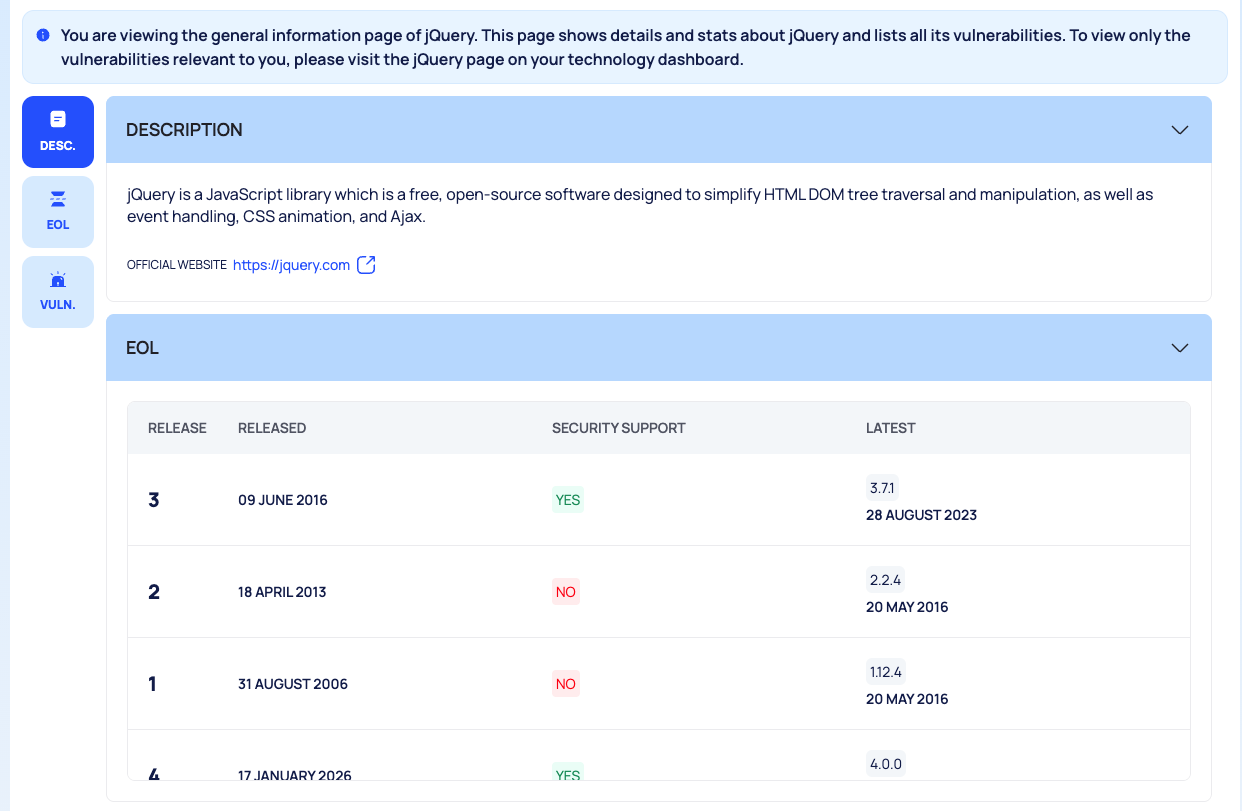
A banner explains that this tab is the general information page of the technology: it describes the technology and lists all its vulnerabilities, not only those relevant to your assets.
- A menu on the left jumps to DESC., EOL and VULN.
- DESCRIPTION and OFFICIAL WEBSITE.
- EOL: the end-of-life table, one row per release, with RELEASE, RELEASED, SECURITY SUPPORT and LATEST.
- A vulnerabilities summary headed with the technology's name, then the full list of its known CVEs with VIEW SETTINGS and the columns CVE ID, SCORE/SEVERITY, VENDOR, PRODUCT, PUBLISHED DATE and MODIFIED DATE.
Plan an Upgrade
- On ASSETS, note which assets run the technology and their IDENTIFIED VERSION.
- Compare those versions with LATEST VERSION on OVERVIEW.
- On TECHNOLOGY INFO, find each version's release in the EOL table and check SECURITY SUPPORT.
- On VULNERABILITIES, select CRITICAL and HIGH to see the most severe CVEs.
- Open the affected assets and plan the upgrade, starting with the assets that run the oldest versions.
To find every technology with an out-of-date version, use the VERSION SCOPE filter on the list; see Review detected technologies.
Good to Know
- If EXPORT on ASSETS or VULNERABILITIES does not download a file, use EXPORT on TECHNOLOGIES LIST to export technologies.
- TECHNOLOGY INFO lists every known CVE of the technology. For the vulnerabilities on your own assets, open the affected assets or VULNERABILITIES LIST; see Prioritize vulnerabilities.
Do This With the API
- The technology: Technology Detail
- The assets that use it: Technology Asset Search
- Its known CVEs: Technology Vulnerabilities
- Its end-of-life dates: Technology End Of Life Status