Set Up Detection Rules
Detection rules tell Brand Risk Protection (BRP) which domain names to look for. Each rule has a keyword and a match type, and can take further keywords and limits on domain extensions. Every domain a rule finds appears on the suspicious list for your review, unless the domain is on your Ignored Assets list.
Before You Start
- Package: BRP.
- Role: Admin or Member.
Where to Find It
Sidebar: BRAND RISK PROTECTION › FRAUDULENT DOMAINS · Tab: SETTINGS › Custom Rules · https://platform.deepinfo.com/app/brp/fraudulent/settings/custom-rules
The SETTINGS tab has a menu on the left with Custom Rules (opens first) and Other Settings. The breadcrumb reads BRP / FRAUDULENT DOMAINS / CUSTOM RULES or … / OTHER SETTINGS.
Read the Rule List
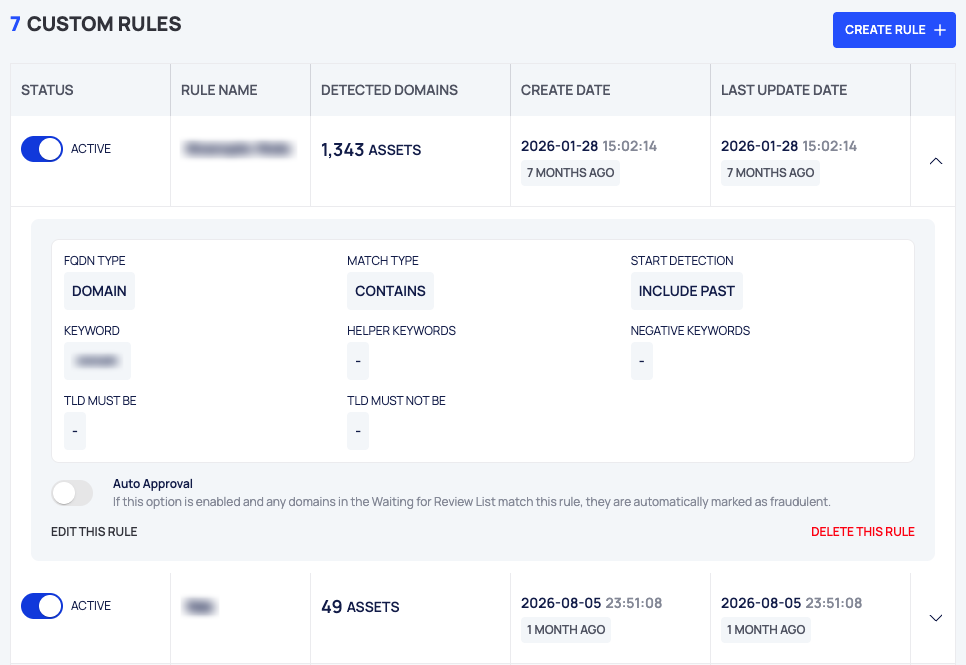
- Count and action: how many custom rules you have, and CREATE RULE.
- The list:
- STATUS: a toggle with ACTIVE or INACTIVE.
- RULE NAME.
- DETECTED DOMAINS: how many domains the rule has detected.
- CREATE DATE and LAST UPDATE DATE.
- A chevron at the end of the row.
- Expanded rule: select a row to see its settings:
- FQDN TYPE (whether the rule looks at domains or subdomains), MATCH TYPE, START DETECTION, KEYWORD, HELPER KEYWORDS, NEGATIVE KEYWORDS, TLD MUST BE and TLD MUST NOT BE. An empty setting shows -.
- The Auto Approval toggle.
- EDIT THIS RULE and DELETE THIS RULE.
Create a Rule
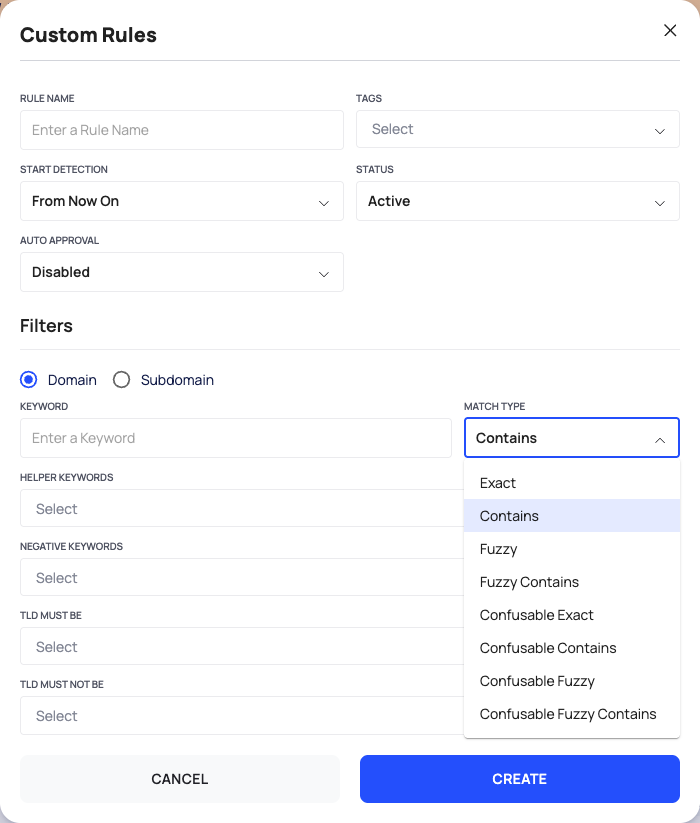
- Select CREATE RULE. The Custom Rules dialog opens.
- Fill in the rule's settings:
- RULE NAME: a name you will recognize in lists and alerts.
- TAGS: optional labels for the rule.
- START DETECTION: From Now On (the default) starts from now; Include Past also covers the past.
- STATUS: Active (the default) or Inactive.
- AUTO APPROVAL: Disabled (the default) or Enabled. See Mark matches as fraudulent automatically.
- Under Filters, describe what to look for:
- Domain (the default) or Subdomain.
- KEYWORD: the word to look for, usually your brand name.
- MATCH TYPE: how the keyword is matched (see below). The default is Contains.
- HELPER KEYWORDS and NEGATIVE KEYWORDS: optional further keywords.
- TLD MUST BE and TLD MUST NOT BE: optional domain extensions to limit the rule to, or to leave out.
- Select CREATE. To leave without saving, select CANCEL.
New domains the rule detects appear on the suspicious list.
Match Types
The MATCH TYPE list offers these options:
- Exact
- Contains
- Fuzzy
- Fuzzy Contains
- Confusable Exact
- Confusable Contains
- Confusable Fuzzy
- Confusable Fuzzy Contains
For advice on which match type fits your brand, write to support@deepinfo.com.
Change a Rule
- Turn it on or off: use the STATUS toggle on the rule's row and confirm. An inactive rule stays in the list with INACTIVE.
- Edit it: expand the rule and select EDIT THIS RULE. The same dialog opens with the rule's settings. START DETECTION cannot be changed once the rule exists. Save with UPDATE.
- Delete it: expand the rule, select DELETE THIS RULE and confirm with REMOVE. If you may need the rule again, set it to inactive instead of deleting it.
Mark Matches as Fraudulent Automatically
Each rule has an Auto Approval setting: AUTO APPROVAL in the dialog, or the Auto Approval toggle in the expanded rule. The platform describes it this way: if the option is enabled and any domains waiting for review match the rule, they are automatically marked as fraudulent.
Use it for rules you trust fully. Domains marked this way skip your review and go straight to the fraudulent list.
Keep Your Own Domains Out
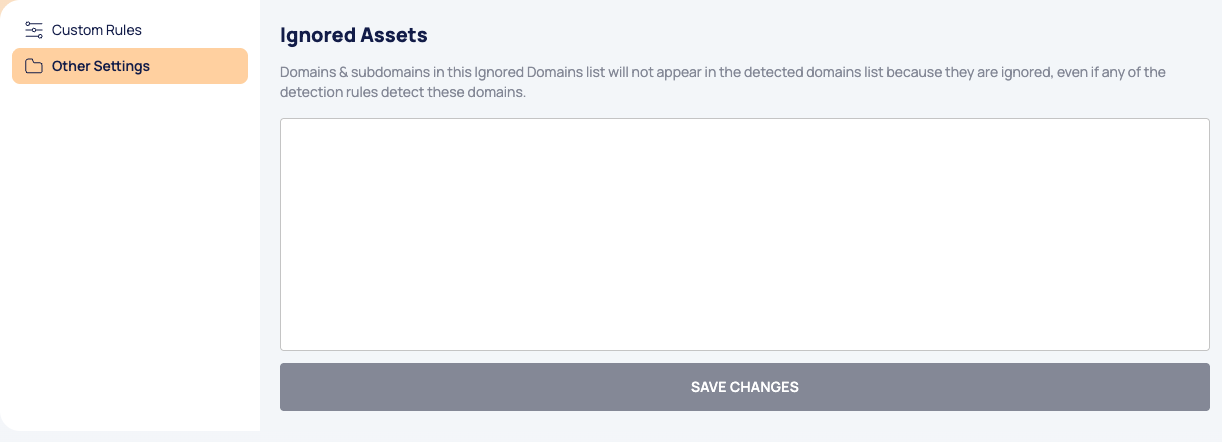
Other Settings holds the Ignored Assets list: domains and subdomains that never appear as detected domains, even when a detection rule matches them. Use it for your own domains and for other names you know are legitimate.
Sidebar: BRAND RISK PROTECTION › FRAUDULENT DOMAINS · Tab: SETTINGS › Other Settings · https://platform.deepinfo.com/app/brp/fraudulent/settings/other-settings
- Select Other Settings in the menu on the left.
- Type the domains in the box, one per line.
- Select SAVE CHANGES. The button becomes available once you change the list.
Good to Know
- Ignored Assets is not the same as Ignored Domains. Ignored Assets keeps names off the detected lists altogether; Ignored Domains lists detected domains you dismissed one by one (see Restore ignored domains).
- A notification rule for New Suspicious Domain or New Fraudulent Domain can be limited to some of your detection rules with its Rule filter; see Create a notification rule.
Do This With the API
- List rules: Fraudulent Rule Search
- Get one: Fraudulent Rule Detail
- Create: Fraudulent Rule Create
- Change (including status and auto approval): Fraudulent Rule Update
- Delete: Fraudulent Rule Delete
- Ignored Assets: Fraudulent Settings Detail and Fraudulent Settings Update