Investigate an Asset
Everything External Attack Surface Management (EASM) knows about one asset is in two places: the drawer that opens from a list, and the full detail page. Use the drawer for a quick look and the detail page to dig in, compare history or rescan.
Before You Start
- Package: EASM.
- Role: Admin or Member.
- Data: the asset must be in your inventory.
Where to Find It
Sidebar: EXTERNAL ATTACK SURFACE MANAGEMENT › ASSETS › INVENTORY · Tab: ASSETS LIST · https://platform.deepinfo.com/app/easm/assets
- Drawer: select a row in Inventory. The same drawer also opens from the rows of the SUBDOMAINS and WEBSITES tabs on an asset's detail page.
- Detail page: select OPEN IN NEW TAB at the top of the drawer, or an asset under LAST 3 ASSETS on
the Inventory OVERVIEW tab. The address is
https://platform.deepinfo.com/app/easm/assets/<asset ID>. The open tab is part of the address, so a link can point straight at, for example, OPEN PORTS.
Read the Drawer
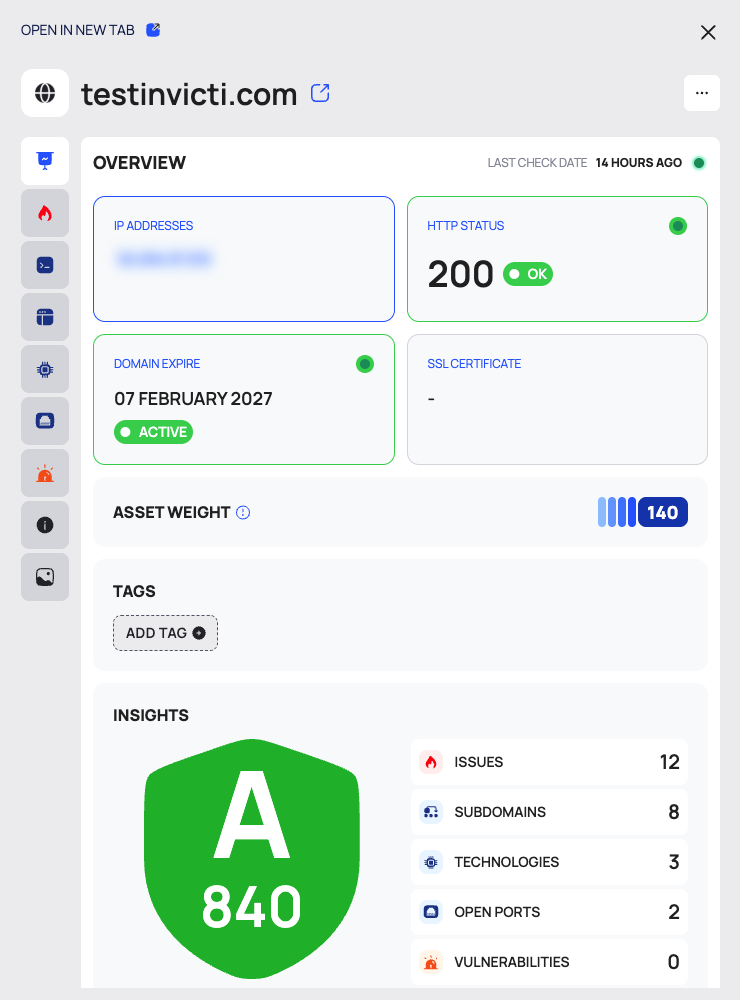
The top of the drawer shows OPEN IN NEW TAB, the asset name with its badges, a link icon that opens the live site, and the … actions menu. The drawer's tabs are icons down the side; hover over an icon to see its name.
| Tab | What it shows |
|---|---|
| OVERVIEW | LAST CHECK DATE; IP ADDRESSES, HTTP STATUS, DOMAIN EXPIRE (domains) and SSL CERTIFICATE; ASSET WEIGHT; TAGS with ADD TAG; INSIGHTS, the grade and score with counters for issues, subdomains, technologies, open ports and vulnerabilities; active ISSUES per severity |
| ISSUES | The asset's active issues, with EXPORT. Each card shows the severity, state, name and category. Select one to open it in a new tab |
| SUBDOMAINS | Only for domains: the domain's subdomains with their IP addresses and HTTP status, with EXPORT |
| WEBSITES | Websites on this host, with EXPORT (not shown for website assets) |
| TECHNOLOGIES | Detected technologies with their version and latest version, with EXPORT |
| OPEN PORTS | Open ports with SERVICE NAME, PRODUCT NAME, STATE and PROTOCOL; START PORT SCAN and a history button |
| VULNERABILITIES | The asset's active vulnerabilities, with EXPORT |
| ASSET INFO | The asset's WHOIS, DNS, SSL and WEBSITE INFO records |
| SCREENSHOT | The latest screenshot of the site, if there is one |
Select a counter under INSIGHTS to jump to its tab. An empty tab says No Result Found.
Read the Detail Page

The header breadcrumb reads EASM / ASSETS / INVENTORY / and the asset name. The page has no back button of its own. It shows the asset name with its badges, LAST CHECK DATE, and the buttons SCAN NOW, CREATE A REPORT and …. Below them are the tabs:
| Tab | What it shows |
|---|---|
| OVERVIEW | INFO (IP addresses, domain expiry, SSL certificate, HTTP status), ASSET WEIGHT, INSIGHTS counters, TAGS with ADD TAG, SCORE with its TIMELINE, and FINDINGS (issues per severity) |
| ISSUES | The asset's issues: ISSUE, STATE, CATEGORY, ACTIVE DAYS, FIRST SEEN, LAST SEEN |
| SUBDOMAINS | Subdomains of a domain, with their rating, weight, issues, ports and certificate |
| WEBSITES | Websites on this host, with their rating, weight, issues, ports and certificate |
| TECHNOLOGIES | TECHNOLOGY, CATEGORY, VERSION, LATEST VERSION, VULNERABILITIES |
| OPEN PORTS | PORT NUMBER, SERVICE, PRODUCT, STATE, PROTOCOL, with port-state filters |
| VULNERABILITIES | The asset's active CVEs: CVE ID, SCORE/SEVERITY, CLASSIFICATION, EPSS, FIRST SEEN DATE, LAST SEEN DATE |
| ASSET INFO | WHOIS, DNS, SSL and WEBSITE INFO, each with its history |
| SCREENSHOT | The latest screenshot, if there is one |
Which tabs appear depends on the asset type: a subdomain has no SUBDOMAINS tab, and a website has neither SUBDOMAINS nor WEBSITES. Selecting a row in SUBDOMAINS, WEBSITES or TECHNOLOGIES opens that item's drawer.
Rescan an Asset
- On the detail page, select SCAN NOW.
- The button stays disabled for five minutes. Hover over it to see when the scan was triggered and whether it is still running.
- While the scan is queued or running, the page reloads itself after 30 seconds.
SCAN NOW is also in the … menu, here, in the drawer and in Inventory. It starts the scan right away, without a confirmation.
Scan the Open Ports
- Open the OPEN PORTS tab, on the detail page or in the drawer.
- Select START PORT SCAN. The results appear as the scan runs.
On the detail page, use the filters ALL, OPEN, OPEN FILTERED, CLOSED, CLOSED FILTERED, FILTERED and UNFILTERED to choose which ports to list. The list starts on OPEN. Select a port to see its SERVICE, PRODUCT, STATE and PROTOCOL.
Look at Earlier Records
EASM keeps snapshots of an asset's records. To see what changed:
- On the detail page, open ASSET INFO (or OPEN PORTS for ports). In ASSET INFO, the links WHOIS, DNS, SSL and INFO on the left jump to each panel.
- Select SHOW HISTORICAL WHOIS RECORDS, SHOW HISTORICAL DNS RECORDS, SHOW HISTORICAL SSL RECORDS or SHOW HISTORICAL WEBSITE INFO RECORDS. For ports, select the history button on the OPEN PORTS tab.
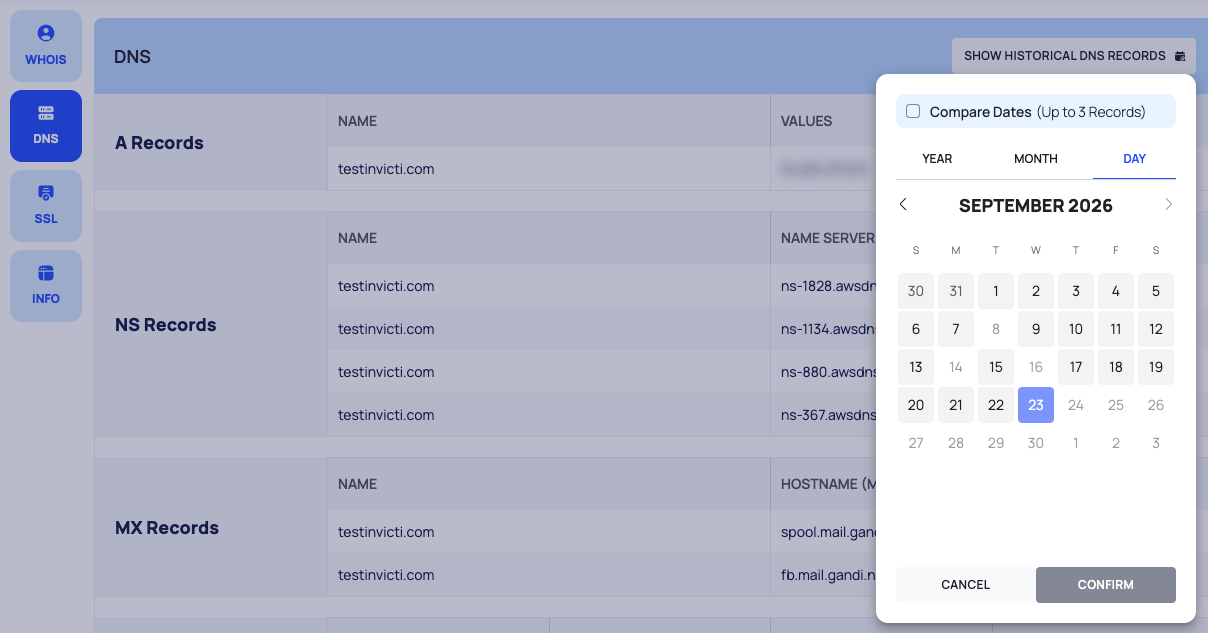
- The date picker opens with YEAR, MONTH and DAY. To view one snapshot, pick its date and select CONFIRM.
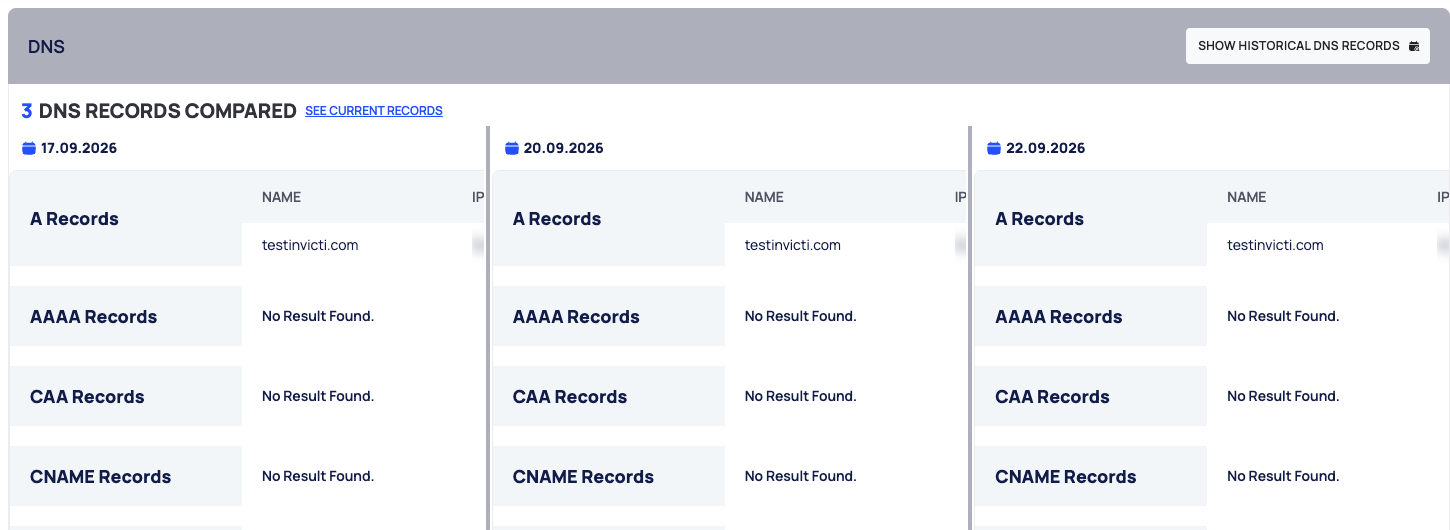
- To compare, tick Compare Dates (Up to 3 Records), pick up to three dates and select COMPARE. The records open in a compare view.
Which panels appear depends on the asset type:
- A subdomain has no WHOIS panel.
- A website asset has no WHOIS or DNS history: its WHOIS panel says that no WHOIS record was found.
- An IP address has no DNS panel, and its WHOIS history is its IP WHOIS history.
Comparing dates works on the detail page; use it rather than the drawer.
Work With the Asset's Issues
On the detail page, the ISSUES tab lists active issues. To include inactive issues, tick SHOW INACTIVES. Use ALL, CRITICAL, HIGH, MEDIUM, LOW and INFORMATION to filter by severity. EXPORT and VIEW SETTINGS work as in other lists.
- Select an issue to open its drawer. A banner says you are viewing this issue only for this asset; View for All Assets opens the issue type across all your assets. The drawer's icon tabs are ISSUE INFO (category, active days, first and last seen, DESCRIPTION with external references, REMEDY) and PROOF, plus VULNERABILITIES for technology issues.
- OPEN IN NEW TAB opens the issue on its own page inside the asset. Its breadcrumb names the asset type, for example EASM / ASSETS / DOMAINS / asset / ISSUES / issue. The page has the tabs ISSUE INFO, PROOF and VULNERABILITIES, and a CHANGE STATE action.
- Tick issues and select CHANGE ALL STATUS to change their state together.
See Change the state of issues and vulnerabilities and Triage issues.
Inactive Assets
Some assets are marked as inactive, for example a domain with no active DNS records or WHOIS information:
- In lists, the name shows SEEMS INACTIVE.
- The detail page turns gray and shows a banner, for example THIS DOMAIN IS CURRENTLY INACTIVE, with REMOVE FROM INVENTORY.
- In the drawer, ASSET WEIGHT shows 0 and the score shows
-.
If the asset is no longer relevant, select REMOVE FROM INVENTORY and confirm with REMOVE. You return to Inventory.
Good to Know
- CREATE A REPORT (and CREATE REPORT in the … menu) creates a new asset report as soon as the page opens, with an automatic name. See Generate and download a PDF report.
- The … menu also holds, under ASSET SETTINGS, SET AS MAIN ASSET (or REVERT TO NORMAL ASSET), SET ASSET WEIGHT, SET DISCOVERY SETTINGS and ADD NEW TAG, and under OTHER ACTIONS, REMOVE THIS ASSET. See Tag, weight and configure assets and Remove and restore assets. For how weight affects the score, see How security scores work.
- You cannot export an asset's open ports, or its technologies from the detail page.
- If the detail page cannot load the asset, it returns you to Inventory.
Do This With the API
- Get one asset: Asset Detail
- Rescan it: Asset Instant Scan and Asset Instant Scan Status
- Open ports: Asset Open Port List and Asset Instant Open Port Scan
- History: WHOIS, DNS, SSL, website data, port scans and IP WHOIS