Require Two-Factor Authentication
An admin can require two-factor authentication (2FA) for everyone in the organization. Once it is required, everyone without 2FA must set it up before they can continue to use the platform.
Before You Start
- You must be an admin. Members do not see this page; if they open it, Account Details opens instead. No package is needed.
- You need 2FA on your own account. If it is not on yet, the platform sets it up with you as the first step, so have an authenticator app ready. See Use two-factor authentication.
Where to Find It
Sidebar: SETTINGS › ORGANIZATION SETTINGS › Security · https://platform.deepinfo.com/app/settings/org-security
The breadcrumb on this page reads ORGANIZATION SECURITY. The Two Factor Authentication card shows Enabled (green) when 2FA is required, or Disabled (red) when it is not.
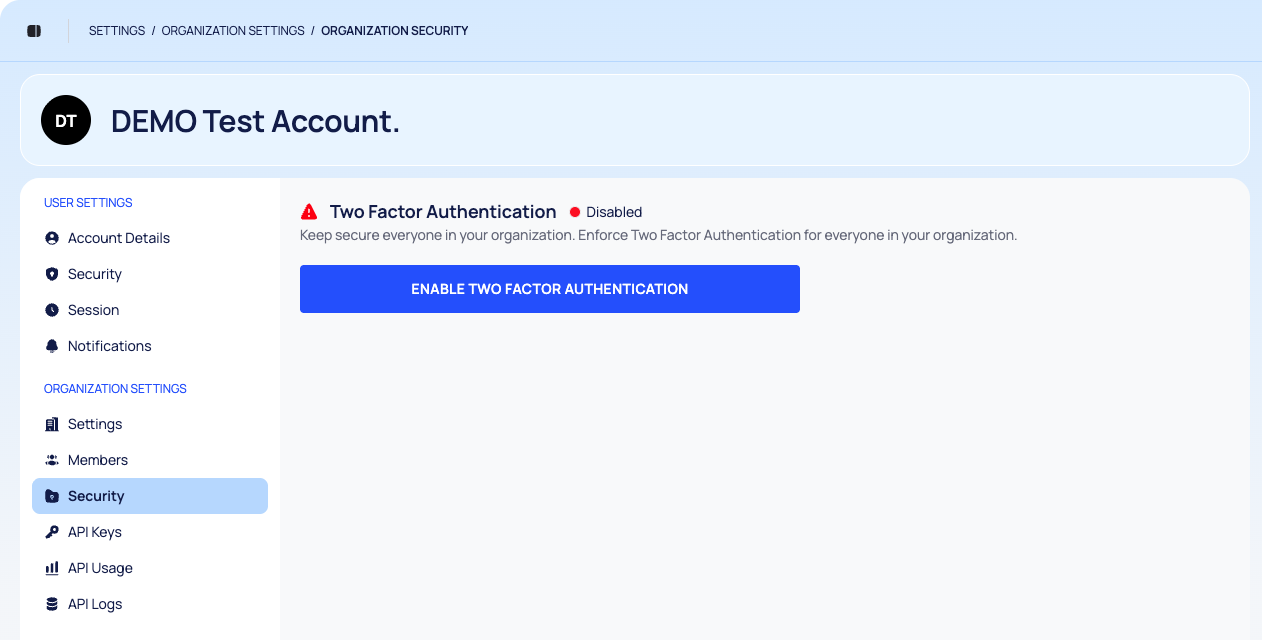
Require 2FA for Everyone
Go to SETTINGS › ORGANIZATION SETTINGS › Security.
Select ENABLE TWO FACTOR AUTHENTICATION.
If your own account already has 2FA, confirm with ENABLE.
If it does not, the 2FA set-up window opens first. Scan the QR code, enter the 6-digit code, select VERIFY, and save your recovery codes with DOWNLOAD CODE AND CLOSE. The requirement is switched on when you finish.
The card now shows Enabled, and the platform confirms with "Two Factor Authentication has been enabled."
Stop Requiring 2FA
- Go to SETTINGS › ORGANIZATION SETTINGS › Security.
- Select DISABLE TWO FACTOR AUTHENTICATION.
- Confirm with DISABLE.
This changes only the organization setting. Everyone who has 2FA on their own account keeps it until they turn it off in SETTINGS › USER SETTINGS › Security.
What Everyone Else Sees
This applies to admins and members alike.
- People without 2FA are stopped on their next sign-in or page load. A Two-Factor Authentication page tells them that the organization requires it, and they must set it up before they continue. The steps are in Use two-factor authentication.
- People with 2FA see no change, except that they cannot turn their own 2FA off. If they try, the platform shows "Two Factor Authentication is required in your organization."
Good to Know
- Tell your team first. Everyone without 2FA needs an authenticator app on their phone the next time they use the platform.
- Lost phone. Someone who has lost both the phone and the recovery codes cannot pass the second step. They should contact support@deepinfo.com.