Review Your Sign-In History
Session lists your own sign-in history. Use it to check where and from which browser your account was used.
Before You Start
No package is needed, and any role can open this page. You see only your own entries.
Where to Find It
Sidebar: SETTINGS › USER SETTINGS › Session · https://platform.deepinfo.com/app/settings/user-session
The breadcrumb on this page reads SESSIONS.
Read the Screen
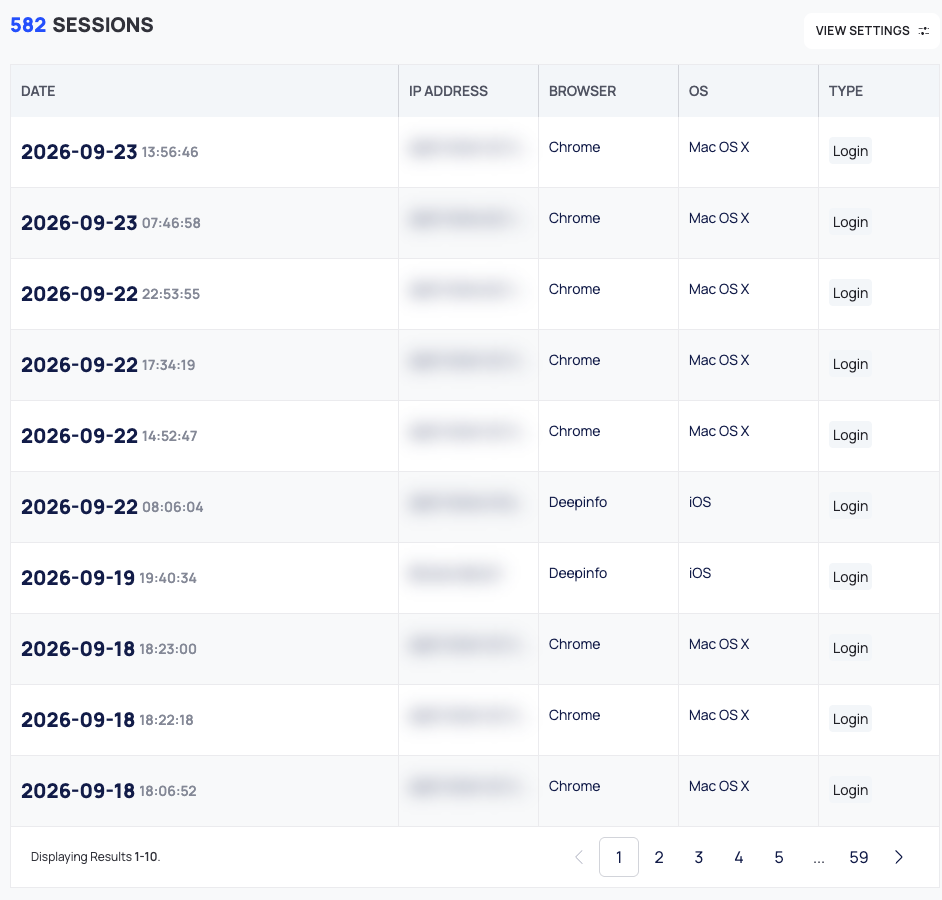
The count at the top, <n> SESSIONS, shows how many entries there are, with VIEW SETTINGS next to it. The table has these columns:
| Column | What it shows |
|---|---|
| DATE | The date and time of the entry, in your browser's local time |
| IP ADDRESS | The IP address the entry came from |
| BROWSER | The browser |
| OS | The operating system |
| TYPE | The type of entry: Login for each sign-in, and Signed up for the entry from when your account was created |
A Country column is available but hidden by default.
The newest entry is at the top, and the table shows 10 entries per page at first. Below the table, "Displaying Results" and the page numbers take you through older entries.
Show More Columns or Rows
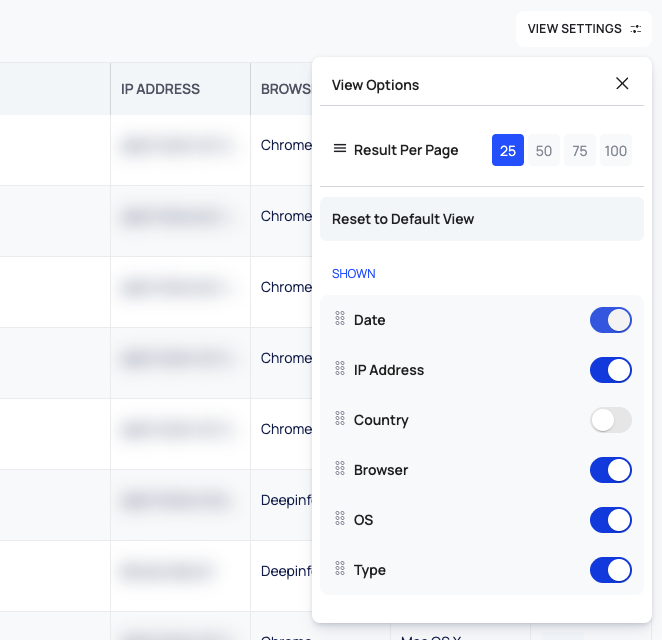
- Select VIEW SETTINGS. View Options opens.
- Under Result Per Page, choose 25, 50, 75 or 100.
- Under SHOWN, turn on the switch next to Country to show that column, or turn off a column you do not need.
- To go back to the default layout, select Reset to Default View.
Good to Know
- Read-only. You cannot sign out other sessions from this page, and the table cannot be filtered or sorted.
- An entry you do not recognize? Change your password and turn on two-factor authentication.
- For the whole organization. Admins can see every member's activity on the Members Activity tab. See Manage members and invitations.