Find Your Way Around
Every platform page has the same frame: the sidebar on the left, and a header row at the top with the breadcrumb on the left and three menus on the right. Many pages also split their content into in-page tabs under the page title.
Before You Start
No package or role is needed. The sidebar shows the same modules to every user, including modules that your organization's package does not include; those open to a lock screen. The profile menu has one more item for admins. See What you can access.
Where to Find It
On every page after you sign in, for example the Global Dashboard: Sidebar: GLOBAL DASHBOARD · https://platform.deepinfo.com/app/global-dashboard
The Sidebar
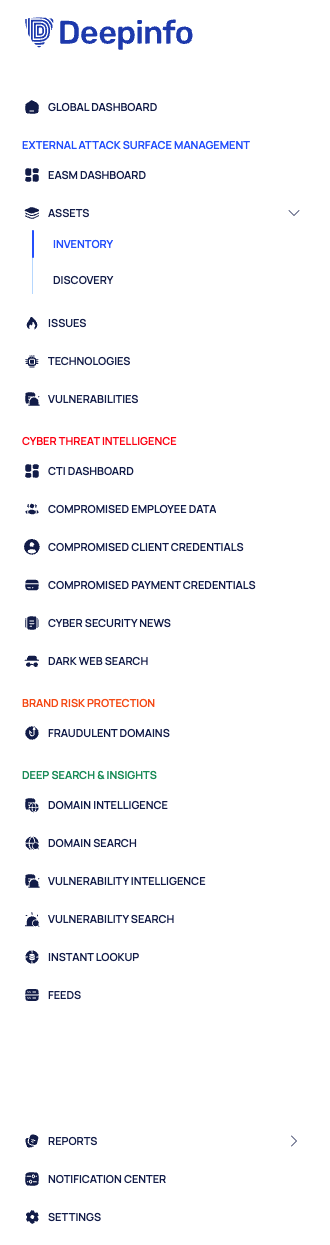
The sidebar lists everything you can open, from top to bottom:
- The Deepinfo logo and GLOBAL DASHBOARD. Both open the Global Dashboard.
- The module groups, each under a colored heading. The headings are labels, not links.
- REPORTS, NOTIFICATION CENTER and SETTINGS.
| Group heading | Color | Items |
|---|---|---|
| EXTERNAL ATTACK SURFACE MANAGEMENT | Blue | EASM DASHBOARD · ASSETS (INVENTORY, DISCOVERY) · ISSUES · TECHNOLOGIES · VULNERABILITIES |
| CYBER THREAT INTELLIGENCE | Red | CTI DASHBOARD · COMPROMISED EMPLOYEE DATA · COMPROMISED CLIENT CREDENTIALS · COMPROMISED PAYMENT CREDENTIALS · CYBER SECURITY NEWS · DARK WEB SEARCH |
| BRAND RISK PROTECTION | Orange | FRAUDULENT DOMAINS |
| DEEP SEARCH & INSIGHTS | Green | DOMAIN INTELLIGENCE · DOMAIN SEARCH · VULNERABILITY INTELLIGENCE · VULNERABILITY SEARCH · INSTANT LOOKUP · FEEDS |
| No heading | None | REPORTS (REPORTS, SCHEDULED REPORTS) · NOTIFICATION CENTER · SETTINGS |
ASSETS and REPORTS have a chevron. Select one to show the items in brackets below it.
The guide has a section for each area: the Global Dashboard, External Attack Surface Management (EASM), Cyber Threat Intelligence (CTI), Brand Risk Protection (BRP), Deep Search & Insights (DSI), Reports, Notification Center and Settings.
Collapse the Sidebar
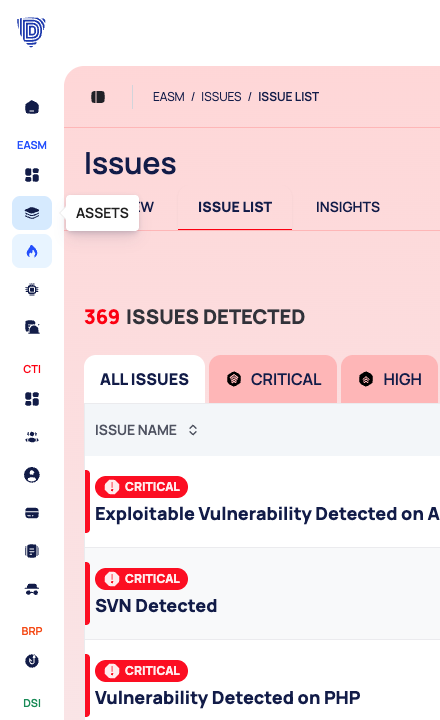
The button to the left of the breadcrumb collapses the sidebar into a narrow column of icons (Collapse sidebar), and opens it again (Expand sidebar).
When the sidebar is collapsed, the groups keep their short names EASM, CTI, BRP and DSI. Hover over an icon to see the item's name, for example ASSETS.
The Breadcrumb
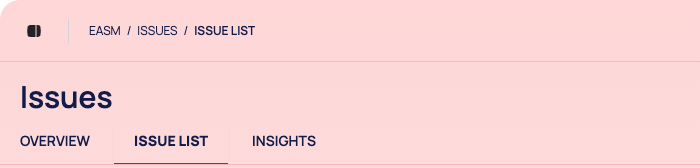
The breadcrumb at the top left shows where you are. It starts with the short name of the area, for example:
- DEEPINFO / GLOBAL DASHBOARD
- EASM / ISSUES / ISSUE LIST
- DSI / DOMAIN SEARCH
- SETTINGS / USER SETTINGS / ACCOUNT DETAILS
Some parts of the breadcrumb are links. For example, ISSUES in EASM / ISSUES / ISSUE LIST opens the OVERVIEW tab of Issues.
In-Page Tabs
Many pages have tabs under the page title. Each tab has its own address, so you can bookmark or share it. Selecting the item in the sidebar opens the list tab; OVERVIEW holds the summary cards.
| Sidebar item | In-page tabs |
|---|---|
| INVENTORY | OVERVIEW · ASSETS LIST · INSIGHTS |
| DISCOVERY | OVERVIEW · DISCOVERED ASSETS · SETTINGS |
| ISSUES | OVERVIEW · ISSUE LIST · INSIGHTS |
| TECHNOLOGIES | OVERVIEW · TECHNOLOGIES LIST · INSIGHTS |
| VULNERABILITIES | OVERVIEW · VULNERABILITIES LIST · INSIGHTS |
| COMPROMISED EMPLOYEE DATA | OVERVIEW · COMPROMISED EMPLOYEES · EXPOSED CREDENTIALS |
| FRAUDULENT DOMAINS | OVERVIEW · FRAUDULENT DOMAINS · SETTINGS |
How This Guide Gives Directions
Each page in this guide says where to find a screen in one line: Sidebar: is the path in the sidebar, and Tab: is the in-page tab, followed by the page's address. For example:
Sidebar: EXTERNAL ATTACK SURFACE MANAGEMENT › ISSUES · Tab: ISSUE LIST · https://platform.deepinfo.com/app/easm/issues
The + Menu
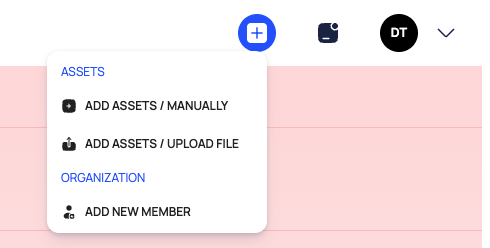
The blue + button at the top right is a shortcut for adding things.
| Group | Item | Opens |
|---|---|---|
| ASSETS | ADD ASSETS / MANUALLY | The EASM page where you type assets in. See Add assets |
| ASSETS | ADD ASSETS / UPLOAD FILE | The EASM page where you upload a file of assets. See Add assets |
| ORGANIZATION | ADD NEW MEMBER | SETTINGS › ORGANIZATION SETTINGS › Members, where admins invite people. Members who are not admins land on Account Details instead |
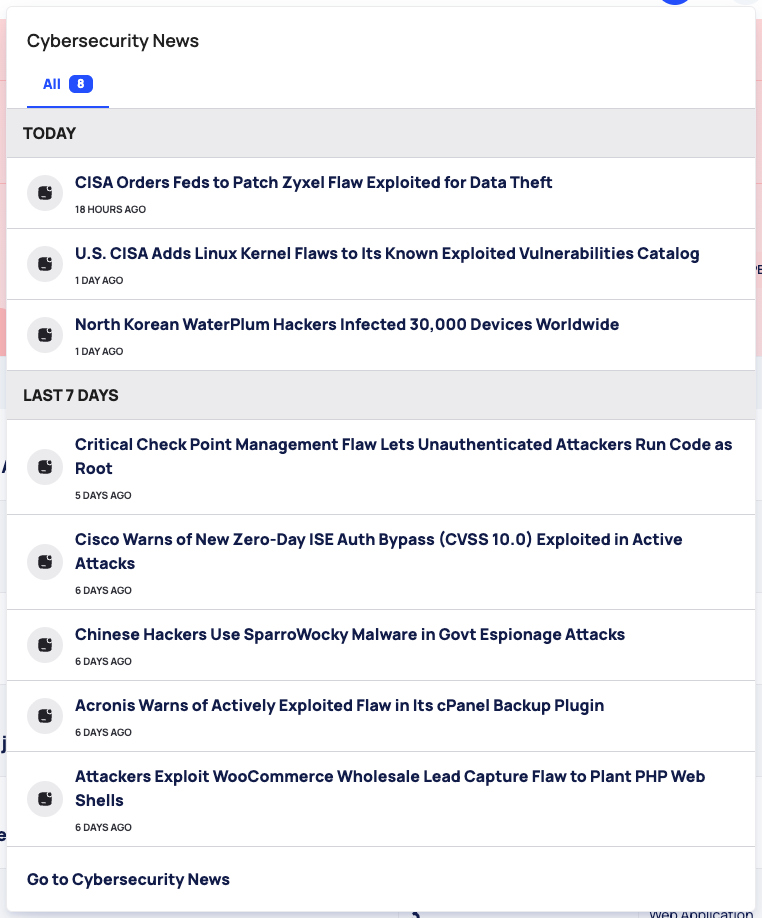
The Cybersecurity News Menu
The newspaper icon next to + opens Cybersecurity News, a short list of recent articles under the tab All, which shows how many there are:
- TODAY: articles published within about the last day.
- LAST 7 DAYS: up to five articles from the past week.
Each entry shows the title and how long ago it was published, such as 12 HOURS AGO. Select one to open the article. Go to Cybersecurity News at the bottom opens the full news list, the same page as CYBER SECURITY NEWS in the sidebar. See Cyber security news.
The Profile Menu
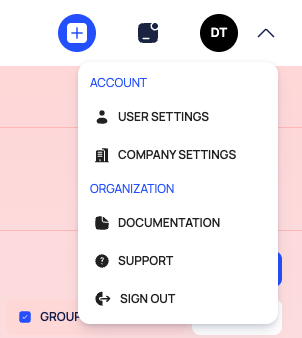
The button at the far right shows your organization's logo, or its initials when it has no logo, with a chevron. It is not your own photo. It opens this menu:
| Item | What it does |
|---|---|
| USER SETTINGS | Opens your Account Details in Settings |
| COMPANY SETTINGS | Opens the organization's Settings page. Admins only |
| DOCUMENTATION | Opens this documentation site in a new tab |
| SUPPORT | Opens an email to support@deepinfo.com |
| SIGN OUT | Signs you out and returns to the sign-in page |
The items sit under the headings ACCOUNT (USER SETTINGS and COMPANY SETTINGS) and ORGANIZATION (the rest).
Good to Know
- No global search. Search inside each list instead. See Search, filter and export lists.
- One organization per account. Your account belongs to exactly one organization, so there is no organization switcher.
- No language setting. The platform is in English.
- Page links are shareable. Platform addresses work as bookmarks and in messages to colleagues. A signed-out colleague is asked to sign in first and then lands on the page.
- Some links open a new browser tab, for example the figure cards on the Global Dashboard and OPEN IN NEW TAB in a record's side panel.
- Narrow windows. On a small screen, collapse the sidebar to give the page more room.
- Page not found. A platform address that does not exist shows PAGE NOT FOUND in the breadcrumb and a message that the page could not be found. GO BACK TO DASHBOARD there opens the EASM dashboard. To reach the Global Dashboard, select GLOBAL DASHBOARD in the sidebar.
Do This With the API
- The articles in the Cybersecurity News menu: Security News Search.