External Attack Surface Management (EASM)
EASM keeps an inventory of your internet-facing assets and reports what it finds on them: issues, vulnerabilities (CVEs) and the technologies they run. Discovery finds candidate assets related to yours, and a security score grades your organization, each asset and each issue type from A to F.
Before You Start
- Package: EASM. Without it, EASM pages are replaced by a notice that the package is not included, with a TALK TO US button that opens an email to support@deepinfo.com.
- Role: Admin or Member.
- Data: at least one asset. While your inventory is empty, every EASM page sends you to Add assets.
Where to Find It
Sidebar: EXTERNAL ATTACK SURFACE MANAGEMENT › EASM DASHBOARD · https://platform.deepinfo.com/app/easm/dashboard
EASM is the blue EXTERNAL ATTACK SURFACE MANAGEMENT group in the sidebar (EASM when the sidebar is collapsed). Most items open a page with in-page tabs under the title:
| Sidebar item | In-page tabs | Guide page |
|---|---|---|
| EASM DASHBOARD | None | EASM dashboard |
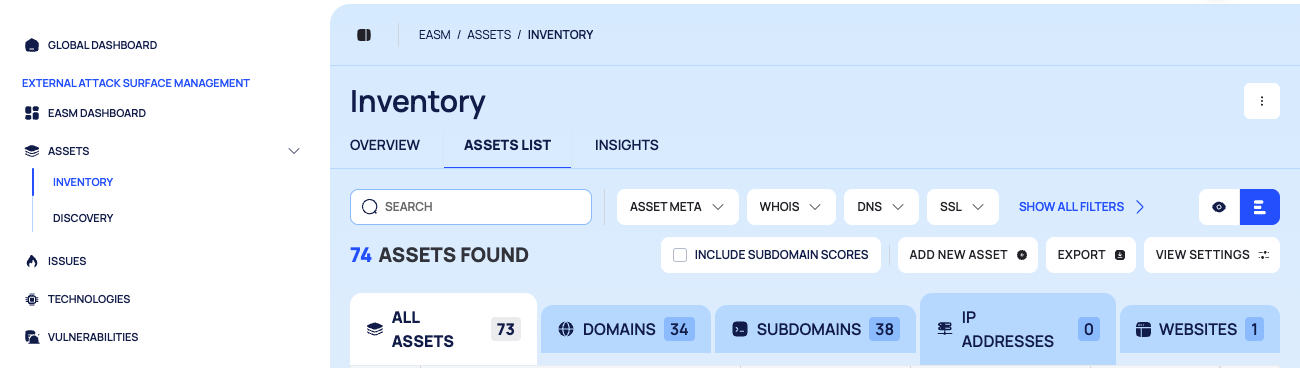
| ASSETS › INVENTORY | OVERVIEW · ASSETS LIST · INSIGHTS | Browse your asset inventory, Asset insights |
| ASSETS › DISCOVERY | OVERVIEW · DISCOVERED ASSETS · SETTINGS | Review discovered assets, Tune smart discovery |
| ISSUES | OVERVIEW · ISSUE LIST · INSIGHTS | Triage issues, Issue insights |
| TECHNOLOGIES | OVERVIEW · TECHNOLOGIES LIST · INSIGHTS | Review detected technologies, Technology insights |
| VULNERABILITIES | OVERVIEW · VULNERABILITIES LIST · INSIGHTS | Prioritize vulnerabilities, Vulnerability insights |
ASSETS expands in place when you select it. The OVERVIEW tabs hold the summary cards of each area; the list tabs hold the records. The header breadcrumb starts with EASM, for example EASM / ISSUES / ISSUE LIST.
The + button in the header also has ADD ASSETS / MANUALLY and ADD ASSETS / UPLOAD FILE.
Concepts
Assets
An asset is one item EASM monitors. It is one of these types:
| Type | Tab label | Example |
|---|---|---|
| Domain | DOMAINS | acme.example |
| Subdomain | SUBDOMAINS | www.acme.example |
| IP address | IP ADDRESSES | 192.0.2.10 |
| Website | WEBSITES | www.acme.example:8443 |
A website's name includes its port (host:port). All your assets together form your inventory. Some
messages and dialogs say "portfolio"; it means the same thing, your own monitored assets.
Asset names can carry badges: MAIN ASSET, SEEMS INACTIVE, and icons for a login page, an internationalized name (IDN), a parked domain or a redirect. You can also tag assets. Browse your asset inventory explains each one.
Discovery
Discovery rules look for assets related to the ones you already have. Each candidate starts in review. You approve it into your inventory or ignore it. See Review discovered assets.
Issues and Issue Types
An issue type is a kind of finding, for example an expired SSL certificate. An issue is one issue type found on one asset. The ISSUE LIST shows issue types by default, with the number of affected assets, and can switch to one row per issue. Issue types belong to categories and have one of these severities: CRITICAL, HIGH, MEDIUM, LOW and INFORMATION.
Vulnerabilities
A vulnerability is a CVE that affects at least one of your assets. The VULNERABILITIES LIST shows one row per CVE. States are kept per asset: each CVE on each asset has its own state, and you change it there.
States
Every issue, and every vulnerability on an asset, has a state. The platform sets NEWLY DETECTED, UNRESOLVED, REAPPEARED, NOT APPLICABLE and VERIFIED RESOLVED. Every scan checks an issue again and sets VERIFIED RESOLVED when the signal is gone, so nobody has to mark a fix. You can set IGNORED, RISK ACCEPTED, MARKED AS RESOLVED and MARKED AS FALSE POSITIVE, and revert them. See Change the state of issues and vulnerabilities.
Technologies
EASM detects the software, frameworks and services your assets run, with their versions and known CVEs. They are listed under TECHNOLOGIES; see Review detected technologies.
Security Score
Your organization, each asset and each issue type get a score and an A to F grade. See How security scores work.
Pages in This Section
Start here:
- EASM dashboard: the one-page summary.
- How security scores work: grades, bands and asset weight.
- Add assets: type them or upload a file.
- Browse your asset inventory: the ASSETS LIST and its OVERVIEW tab.
- Investigate an asset: the asset drawer and detail page.
- Review discovered assets: approve or ignore candidates.
- Triage issues: the ISSUE LIST and its OVERVIEW tab.
- Change the state of issues and vulnerabilities.
- Prioritize vulnerabilities: the VULNERABILITIES LIST and its OVERVIEW tab.
Then, as you need them:
- Assets: Tag, weight and configure assets, Remove and restore assets, Asset insights.
- Discovery: Tune smart discovery, Create custom discovery rules.
- Issues: Issue type details, Issue insights.
- Vulnerabilities: Vulnerability details, Vulnerability insights.
- Technologies: Review detected technologies, Technology details, Technology insights.
Do This With the API
- Your assets and their risk signals: Asset Search