Reports
The Reports screen is a catalog of these kinds of output:
- PDF reports summarize your attack surface, one asset or one CVE. The platform generates them from your data, you read them in the browser, and you save them as PDF. Every copy is kept.
- CSV and JSON exports download a complete dataset, such as all your assets or all your exposed employee credentials, as one file.
Scheduled Reports, the second item under REPORTS in the sidebar, generates a PDF report daily, weekly or monthly and emails it to the members you choose.
Before You Start
- Package: your organization's package must include Reports. Reports and Notifications are included together. If they are not included, the screen is replaced by a notice with a TALK TO US button, which opens an email to support@deepinfo.com. See What you can access.
- Role: Admin or Member.
Where to Find It
Sidebar: REPORTS › REPORTS · https://platform.deepinfo.com/app/platform/reports
REPORTS has a chevron. Select it to show its items, REPORTS and SCHEDULED REPORTS.
Read the Screen
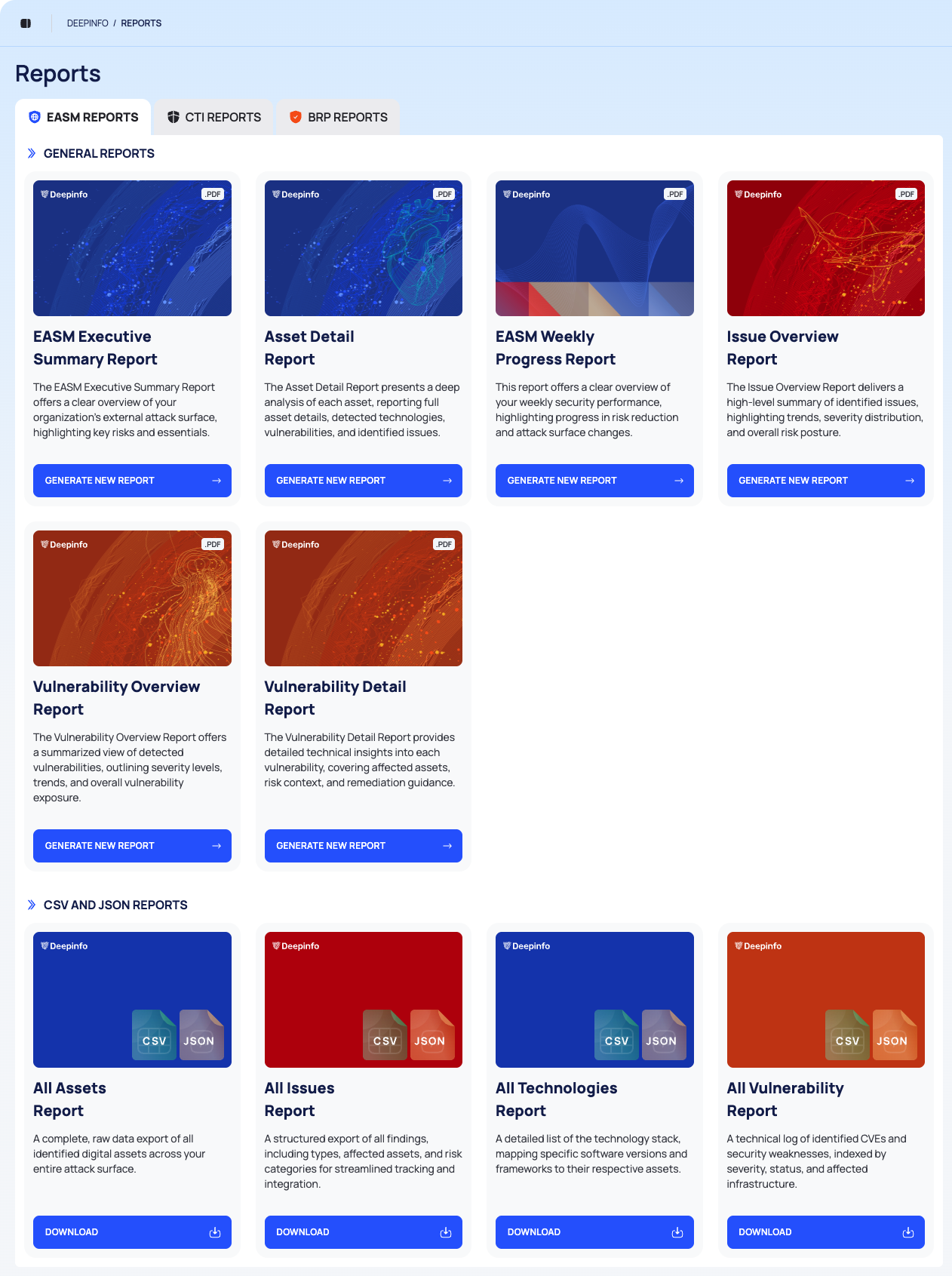
- Breadcrumb and title: DEEPINFO / REPORTS and Reports.
- Tabs: EASM REPORTS, CTI REPORTS and BRP REPORTS, one for each module (External Attack Surface Management, Cyber Threat Intelligence and Brand Risk Protection). EASM REPORTS opens first.
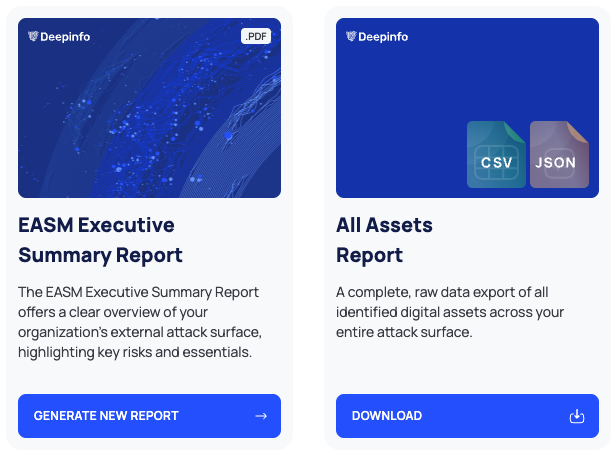
- GENERAL REPORTS: the PDF reports. Only the EASM REPORTS tab has this section. Each card has a .PDF badge, a title, a short description and a GENERATE NEW REPORT button.
- CSV AND JSON REPORTS: the exports, on every tab. Each card shows CSV and JSON icons and a DOWNLOAD button.
Click the body of a PDF report card, not its button, to open the report's drawer. The drawer explains what the report includes and lists the copies generated so far. See Generate and download a PDF report.
PDF Reports
Every PDF report is on the EASM REPORTS tab.
| Report | What it covers |
|---|---|
| EASM Executive Summary Report | An overview of your external attack surface: totals and score, then your assets, issues, technologies and vulnerabilities. |
| Asset Detail Report | One asset you choose: its issues, technologies, vulnerabilities and open ports. |
| EASM Weekly Progress Report | What changed over the week: assets, issues, technologies, vulnerabilities and open ports. |
| Issue Overview Report | Your issues: an overview, trends, the severity distribution and the list of issues. |
| Vulnerability Overview Report | Your vulnerabilities: severity, trends, and the most critical, most seen and most recently detected CVEs. |
| Vulnerability Detail Report | One CVE you choose: its details, the assets it affects, its impact and the affected product. |
What each report contains lists the sections of each report.
CSV and JSON Exports
| Tab | Export | Contains |
|---|---|---|
| EASM REPORTS | All Assets Report | Your assets |
| EASM REPORTS | All Issues Report | Your issues |
| EASM REPORTS | All Technologies Report | Your detected technologies |
| EASM REPORTS | All Vulnerability Report | Your vulnerabilities |
| CTI REPORTS | All Compromised Employee Credentials Report | Your employees' exposed credentials |
| CTI REPORTS | All Compromised Client Credentials Report | Your clients' exposed credentials |
| CTI REPORTS | All Compromised Payment Credentials Report | Exposed payment cards |
| BRP REPORTS | All Fraudulent Domains Report | Your fraudulent domains |
| BRP REPORTS | All Suspicious Domains Report | Your suspicious domains |
See Export all data as CSV or JSON.
Scheduled Reports
REPORTS › SCHEDULED REPORTS lists the reports that are sent on a schedule. You choose a PDF report, a frequency (DAILY, WEEKLY or MONTHLY) and the members who receive it by email. See Schedule a report.
Pages in This Section
- Generate and download a PDF report: create a report for your organization, one asset or one CVE, save it as PDF and reopen past reports.
- Schedule a report: have a PDF report emailed daily, weekly or monthly.
- What each report contains: the sections of each PDF report.
- Export all data as CSV or JSON: download a whole dataset as one file.
Good to Know
- A saved PDF report is a snapshot. When you reopen it from the drawer's REPORTS HISTORY, it shows the data from the moment it was generated. It is not generated again.
- Reports cannot be deleted or renamed in the platform. The API can delete a report; see Generate and download a PDF report.
- An export here always contains the whole dataset. To export only the records that match a filter, filter the list on its own screen, for example INVENTORY or FRAUDULENT DOMAINS, and use its EXPORT button. See Search, filter and export lists.