CTI Dashboard
The Cyber Threat Intelligence (CTI) dashboard sums up, on one page, the credentials found in leaked data for your organization: those of your employees, of your customers and of payment cards. Each section links to the full lists.
Before You Start
- Package: CTI. Without it, the dashboard is replaced by a lock screen; see What you can access.
- Role: Admin or Member.
Where to Find It
Sidebar: CYBER THREAT INTELLIGENCE › CTI DASHBOARD · https://platform.deepinfo.com/app/cti/dashboard
From the Global dashboard, the CTI card at the top and the GO TO CTI DASHBOARD button open this page too.
Read the Screen
The breadcrumb reads CTI / CYBER THREAT INTELLIGENCE DASHBOARD and the page title is Cyber Threat Intelligence Dashboard. From top to bottom:
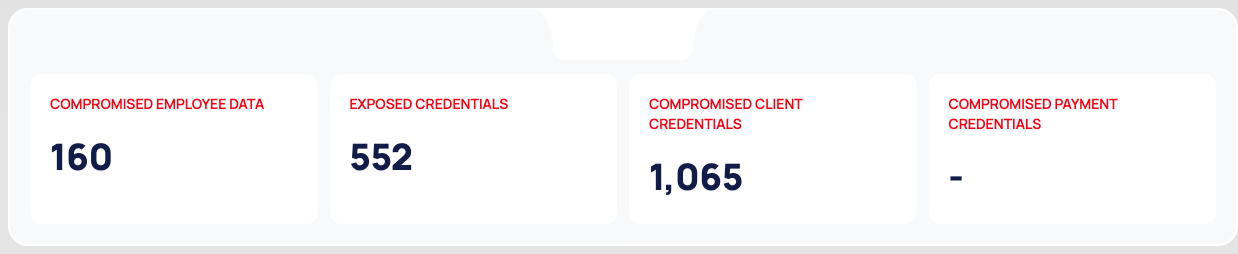
- Summary cards. Four cards with the current totals: COMPROMISED EMPLOYEE DATA, EXPOSED CREDENTIALS, COMPROMISED CLIENT CREDENTIALS and COMPROMISED PAYMENT CREDENTIALS. A card shows - when there is nothing to count.
- COMPROMISED EMPLOYEE DATA section.
- COMPROMISED CLIENT CREDENTIALS section.
- COMPROMISED PAYMENT CREDENTIALS section.
Each section has a GO TO … PAGE button that opens the section's page in a new browser tab.
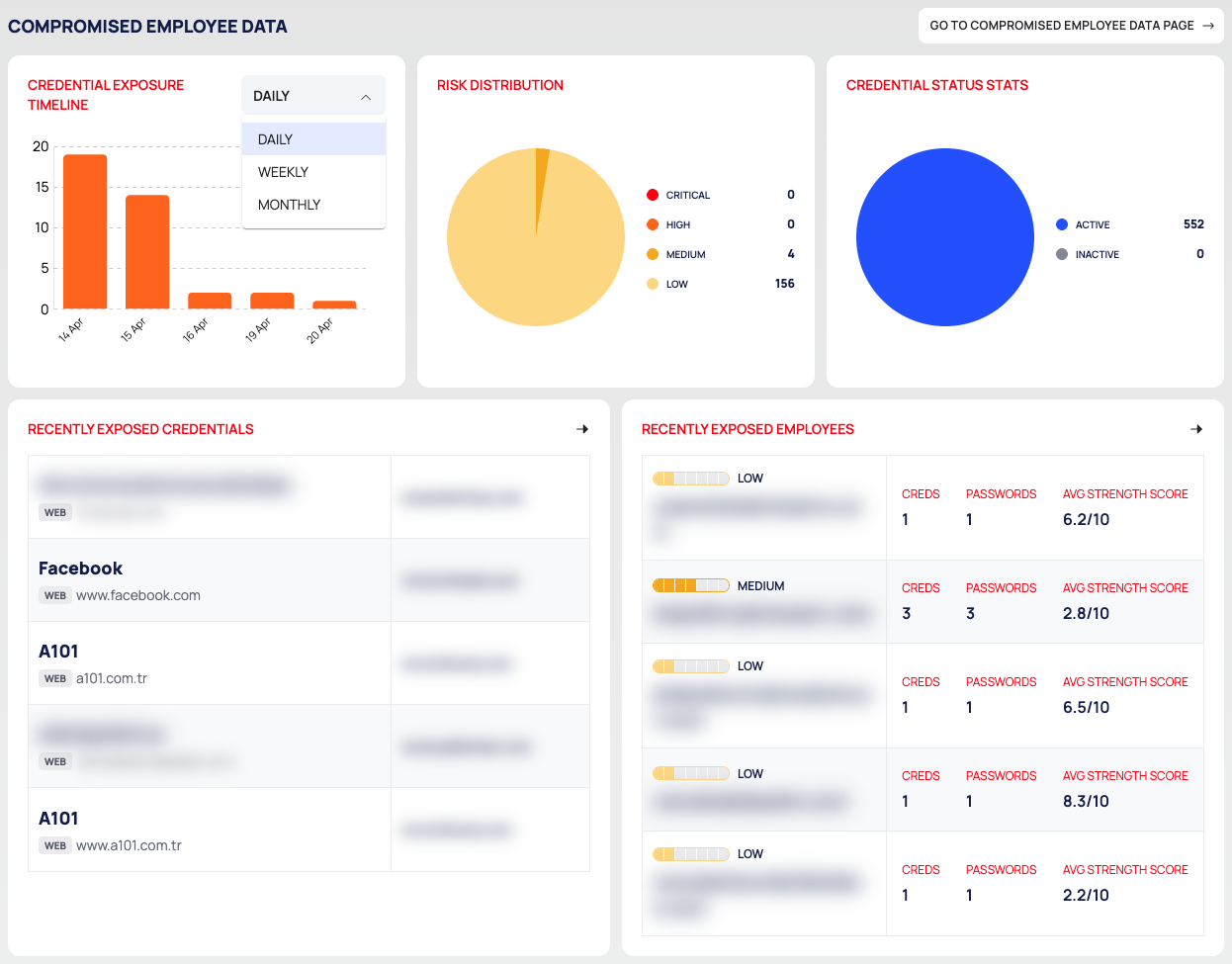
COMPROMISED EMPLOYEE DATA
GO TO COMPROMISED EMPLOYEE DATA PAGE opens the overview.
| Card | What it shows |
|---|---|
| CREDENTIAL EXPOSURE TIMELINE | A column chart of exposed employee credentials per period. Choose DAILY (the default), WEEKLY or MONTHLY in the card's interval list. |
| RISK DISTRIBUTION | A pie of compromised employees by risk level: CRITICAL, HIGH, MEDIUM, LOW. |
| CREDENTIAL STATUS STATS | A pie of employee credentials that are ACTIVE and INACTIVE. See Change the state of exposed credentials. |
| RECENTLY EXPOSED CREDENTIALS | The five most recent exposed credentials. Each row shows the service, a platform tag such as WEB, the host and the employee's email address. The heading and its arrow open the EXPOSED CREDENTIALS tab. |
| RECENTLY EXPOSED EMPLOYEES | The five most recently exposed employees. Each row shows the risk level, the email address, CREDS, PASSWORDS and AVG STRENGTH SCORE (out of 10). The heading and its arrow open the COMPROMISED EMPLOYEES tab; a row opens that employee's page. |
COMPROMISED CLIENT CREDENTIALS
GO TO COMPROMISED CLIENT CREDENTIALS PAGE opens Compromised Client Credentials.
- CREDENTIAL EXPOSURE TIMELINE: exposed client credentials per period.
- RECENTLY EXPOSED CLIENTS: the latest client credentials, each with the client's email address and the date it was found.
COMPROMISED PAYMENT CREDENTIALS
GO TO COMPROMISED PAYMENT CREDENTIALS PAGE opens Compromised Payment Credentials.
- CREDENTIAL EXPOSURE TIMELINE: exposed payment credentials per period.
- RECENTLY EXPOSED PAYMENTS: the latest payment card records, or No Result Found. when there are none.
Good to Know
- Five bars at most. The CREDENTIAL EXPOSURE TIMELINE of the employee section shows up to five periods. The same chart on the overview shows up to twelve.
- CREDS and PASSWORDS. In RECENTLY EXPOSED EMPLOYEES, both columns can show the number of unique passwords. To see how many credentials an employee has, open the employee and read CREDENTIAL LEAK.
- No score. The CTI dashboard has no security score. Security scores belong to External Attack Surface Management (EASM).
- No filters or export here. To filter or export, open the lists. The CTI REPORTS tab of REPORTS has full exports of each credential type.