Search Domains
Domain Search queries Deepinfo's data on domains and subdomains across the internet. Search by name, or combine filters on registration (WHOIS), DNS, certificates (SSL), website data and name properties. Each result opens a full record of the domain.
Before You Start
- Package: Deep Search & Insights (DSI), with Domain Search included. Without it, the page shows a notice that it is not included in your package.
- Role: Admin or Member.
Where to Find It
Sidebar: DEEP SEARCH & INSIGHTS › DOMAIN SEARCH · https://platform.deepinfo.com/app/dsi/domain-search
The breadcrumb reads DSI / DOMAIN SEARCH. The page uses page tabs; see Page tabs.
Read the Screen
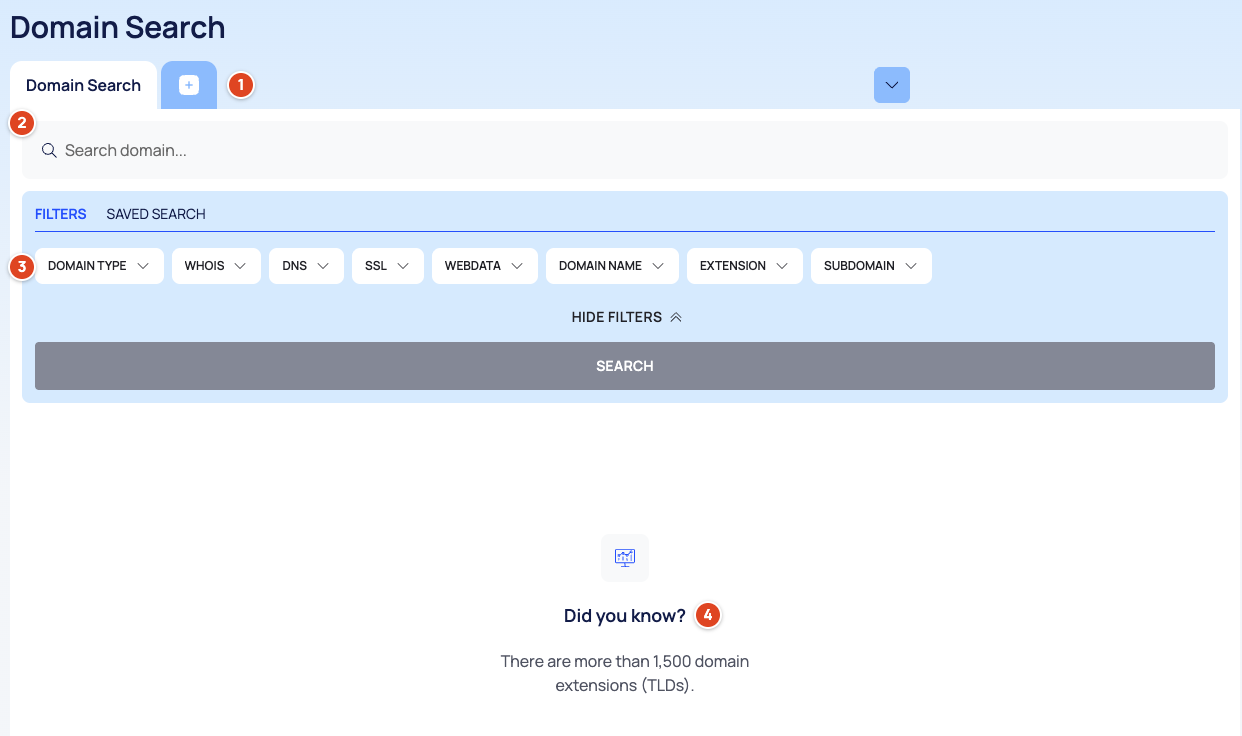
- Page tabs: the first tab is Domain Search.
- Search box (Search domain...) with the tabs FILTERS and SAVED SEARCH. Saving searches is not available, so SAVED SEARCH has no effect.
- Filter groups: DOMAIN TYPE, WHOIS, DNS, SSL, WEBDATA, DOMAIN NAME, EXTENSION and SUBDOMAIN, then HIDE FILTERS and SEARCH.
- Before your first search, a Did you know? panel shows a fact about domains.
Search by Typing
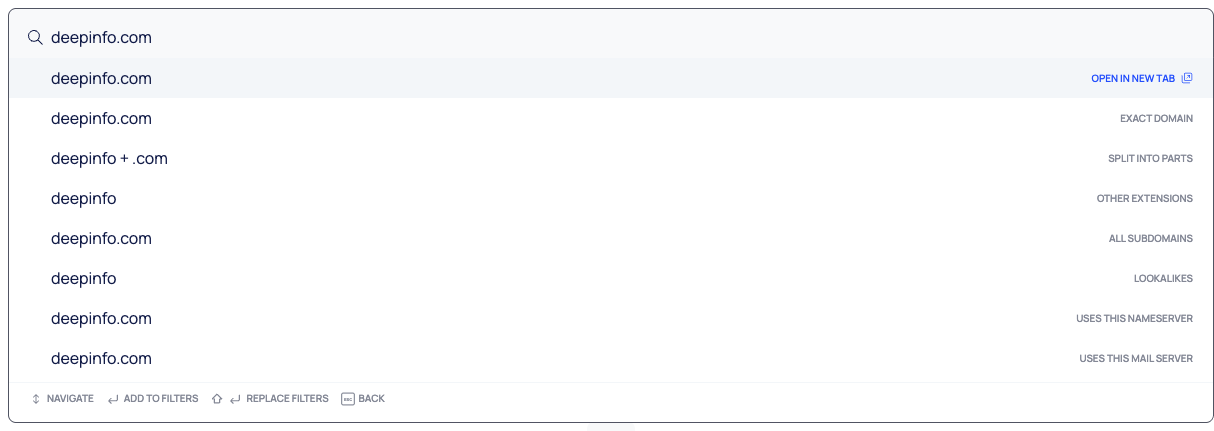
- Type a domain name, for example
acme.example, in the search box. - A list of suggestions opens. For a domain name they are:
- OPEN IN NEW TAB: open the domain's record in a new page tab (see Domain details).
- EXACT DOMAIN: search for this name.
- SPLIT INTO PARTS: search the name and the extension separately.
- OTHER EXTENSIONS: the same name under other extensions.
- ALL SUBDOMAINS: the domain's subdomains.
- LOOKALIKES: names that look like this one.
- USES THIS NAMESERVER and USES THIS MAIL SERVER: domains that share its name server or mail server.
- Pick one with the mouse, or move through the list with the keyboard; the hints at the bottom of the list show the keys (NAVIGATE, ADD TO FILTERS, REPLACE FILTERS, BACK).
Other input, such as an email address, an IP address, a URL or a plain keyword, gets its own suggestions.
Picking EXACT DOMAIN opens a new page tab and runs the search at once. Its results can include the domain's subdomains; to keep only domains, add a DOMAIN TYPE filter.
Search With Filters
- Select a filter group, for example WHOIS, and pick a field.
- Choose the rule (MUST, MUST NOT or SHOULD), the operator and the value.
- Add more rules if you need them, then select SEARCH.
The FILTERS APPLIED bar shows each rule with its type, group, field, operator and value, for example
MUST Domain Name → Domain Name EQUAL 'acme.example'. CLEAR FILTERS removes them all.
| Group | Examples of fields |
|---|---|
| DOMAIN TYPE | Domains only or subdomains only |
| WHOIS | Create, expiry and update dates; registrant details; registrar; name servers; privacy |
| DNS | A, AAAA, CNAME, MX, NS, SOA and TXT records; IP history |
| SSL | Validity dates, fingerprints, subject and issuer, self-signed and valid flags |
| WEBDATA | HTTP status codes, redirection, final URL, headers, cookies |
| DOMAIN NAME | Name, length, keywords, language, and whether it contains numbers, hyphens or confusable characters |
| EXTENSION | Extension, type (gTLD or ccTLD), IDN |
| SUBDOMAIN | Subdomain name, length and level |
See Search, filter and export lists for how rules combine.
Read the Results
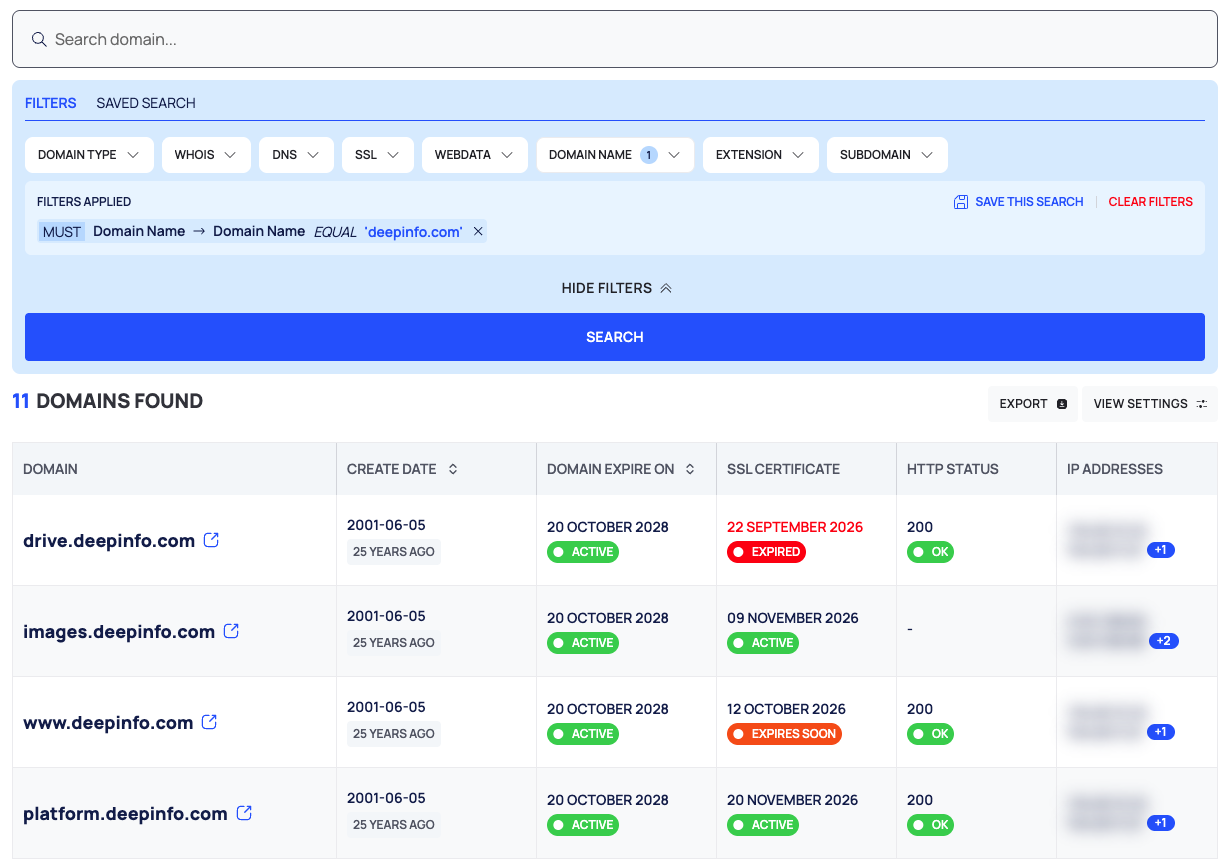
- Count line: how many domains were found, then EXPORT and VIEW SETTINGS.
- Columns:
- DOMAIN
- CREATE DATE (sortable)
- DOMAIN EXPIRE ON (sortable)
- SSL CERTIFICATE: the expiry date and ACTIVE, EXPIRES SOON or EXPIRED
- HTTP STATUS: OK, or the status or error found
- IP ADDRESSES: two addresses, then +n for the rest
- Select a row to open the domain's drawer; see Domain details.
Sort, Page Size and Columns
VIEW SETTINGS opens View Options:
- Sort By: pick a field and an order, then APPLY (CLEAR resets it). The fields are Domain, Extension, DNS Last Change Date, SSL Last Change Date, Whois Last Change Date, Whois Create Date, Whois Expiry Date and Whois Update Date.
- Result Per Page: 25, 50, 75 or 100.
- SHOWN: turn columns on or off.
- Reset to Default View.
Export the Results
- Select EXPORT.
- In the DOWNLOAD dialog, choose the FILE FORMAT (CSV or JSON) and the EXPORT SCOPE (DEFAULT, BASIC or EXTENDED).
- Select DOWNLOAD.
The export covers your current search; there is no choice between all and filtered records here. The dialog does not describe what each scope contains.
Good to Know
- Domain Search looks at the internet as a whole. For the assets you monitor, use External Attack Surface Management (EASM).
Do This With the API
- Search: Domain Search
- The query model: Search and filters, Pagination