Domain Details and Reverse Lookups
Every domain in Domain Search has a full record: registration (WHOIS) with its history, DNS with its history, the certificate, website data, facts about the name itself, and lists of related domains. You can read it in a drawer next to your results, or open it in a page tab of its own.
Before You Start
- Package: Deep Search & Insights (DSI), with Domain Search and domain details included.
- Role: Admin or Member.
Where to Find It
Sidebar: DEEP SEARCH & INSIGHTS › DOMAIN SEARCH, then a result · https://platform.deepinfo.com/app/dsi/domain-search
- Drawer: select a row in the Domain Search results.
- Page tab: select OPEN IN NEW TAB at the top of the drawer, or type a domain name in the search box and pick OPEN IN NEW TAB from the suggestions. The tab is named after the domain.
The Drawer
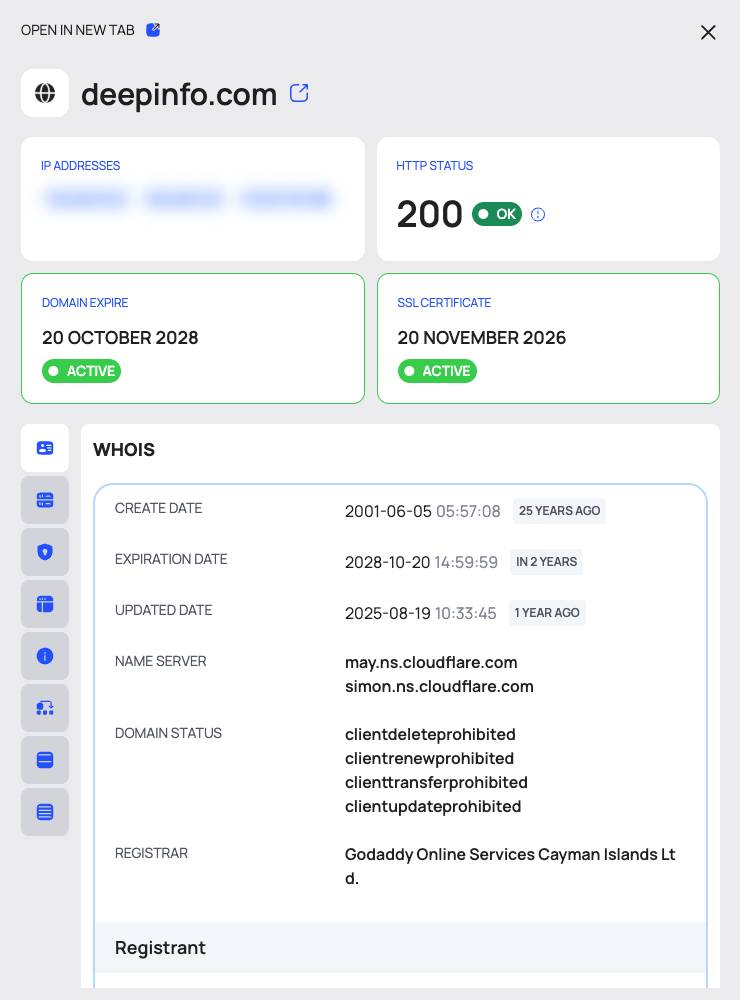
- OPEN IN NEW TAB at the top.
- Summary: IP ADDRESSES, HTTP STATUS, DOMAIN EXPIRE and SSL CERTIFICATE.
- Tabs (icons; the open tab's name is its heading): WHOIS, DNS, SSL, WEBSITE INFO, DOMAIN INFO, SUBDOMAINS, ASSOCIATED DOMAINS and OTHER TLDS.
SUBDOMAINS loads as soon as you open it: the number of subdomains, EXPORT, and a list with DOMAIN and IP ADDRESS.
The Domain's Page Tab
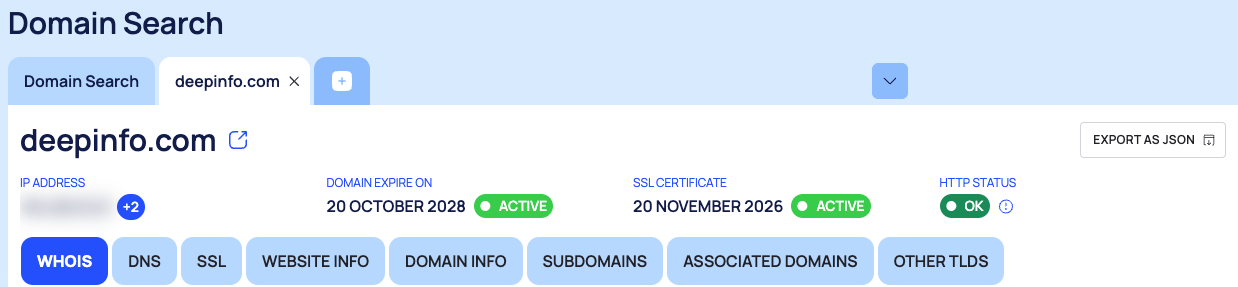
At the top:
- The domain name with an external-link icon, and EXPORT AS JSON (it does not download anything; see Good to know).
- IP ADDRESS (with +n when there are more), DOMAIN EXPIRE ON, SSL CERTIFICATE and HTTP STATUS.
- A section menu to jump down the page: WHOIS, DNS, SSL, WEBSITE INFO, DOMAIN INFO, SUBDOMAINS, ASSOCIATED DOMAINS and OTHER TLDS.
Sections:
| Section | What it shows |
|---|---|
| Whois | CREATE DATE, EXPIRATION DATE, UPDATED DATE, NAME SERVER, DOMAIN STATUS, REGISTRAR, and the Registrant block (EMAIL, NAME, ORGANIZATION, address, PHONE:). SHOW HISTORICAL WHOIS RECORDS |
| DNS | A, AAAA, NS, MX and TXT Records. SHOW HISTORICAL DNS RECORDS |
| SSL | Details, Fingerprint, Signature and Extensions |
| Website Info | Http Status (FIRST STATUS CODE, FINAL STATUS CODE, REDIRECTION, FINAL URL, FINAL FQDN, FINAL DOMAIN) and Http Headers |
| Domain Info | DOMAIN NAME, EXTENSION, EXTENSION TYPE, NAME (SLD), NAME (LATINIZED), LENGTH, KEYWORDS, KEYWORD COUNT, KEYWORD LANGUAGE, and whether the name contains letters, numbers, hyphens or confusable characters |
| Subdomain, Associated Domains, Other TLDs | Each starts closed; select SHOW THE LIST to load it |
A field shows - when the record has no value for it.
See Older WHOIS and DNS Records
- In the Whois section, select SHOW HISTORICAL WHOIS RECORDS. In DNS, select SHOW HISTORICAL DNS RECORDS.
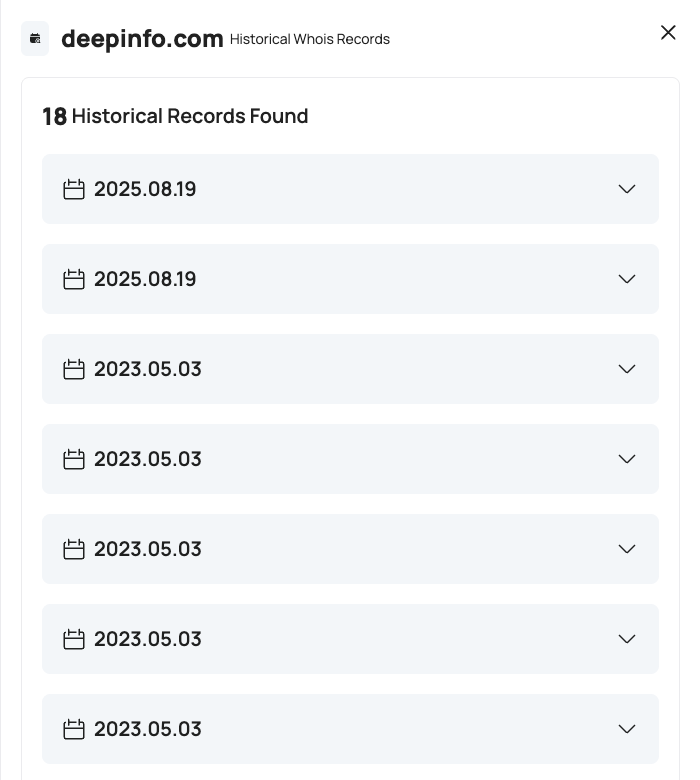
- A drawer opens, titled Historical Whois Records (or Historical DNS Records), with the number of records found and their dates.
Find Domains That Share a Detail (Reverse Lookups)
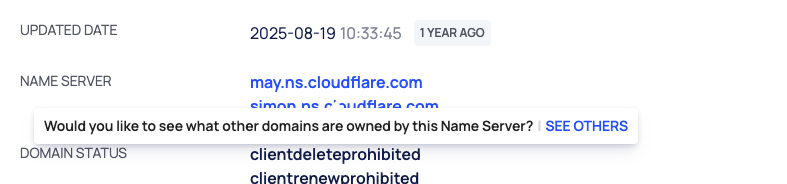
Some values in the record, such as a name server, are clickable. Hover over one: a tooltip asks whether you would like to see what other domains are owned by it, with SEE OTHERS. Select SEE OTHERS to list the domains that share that IP address, name server, mail server or registrant email.
Good to Know
- EXPORT AS JSON at the top of the page tab does not download anything. To get a domain's record as data, use Domain Detail in the API.
- The external-link icon opens the domain itself in your browser.
Do This With the API
- The record: Domain Detail
- History: WHOIS History, DNS History
- Related domains: Subdomain Finder, Associated Domain Finder, All TLDs
- Reverse lookups: Reverse IP, Reverse NS, Reverse MX, Reverse WHOIS Email
- API only: Same-Time Registered Domain Finder