Review Detected Technologies
External Attack Surface Management (EASM) detects the software, frameworks and services your assets run, for example a web server, an operating system or a JavaScript library. The technology list shows each one with its versions, the latest version, how many assets use it and its known vulnerabilities.
Before You Start
- Package: EASM.
- Role: Admin or Member.
Where to Find It
Sidebar: EXTERNAL ATTACK SURFACE MANAGEMENT › TECHNOLOGIES · Tab: TECHNOLOGIES LIST · https://platform.deepinfo.com/app/easm/technologies
The OVERVIEW tab (https://platform.deepinfo.com/app/easm/technologies/overview) holds the summary cards, and INSIGHTS the analysis; see Technology insights.
Read the Screen
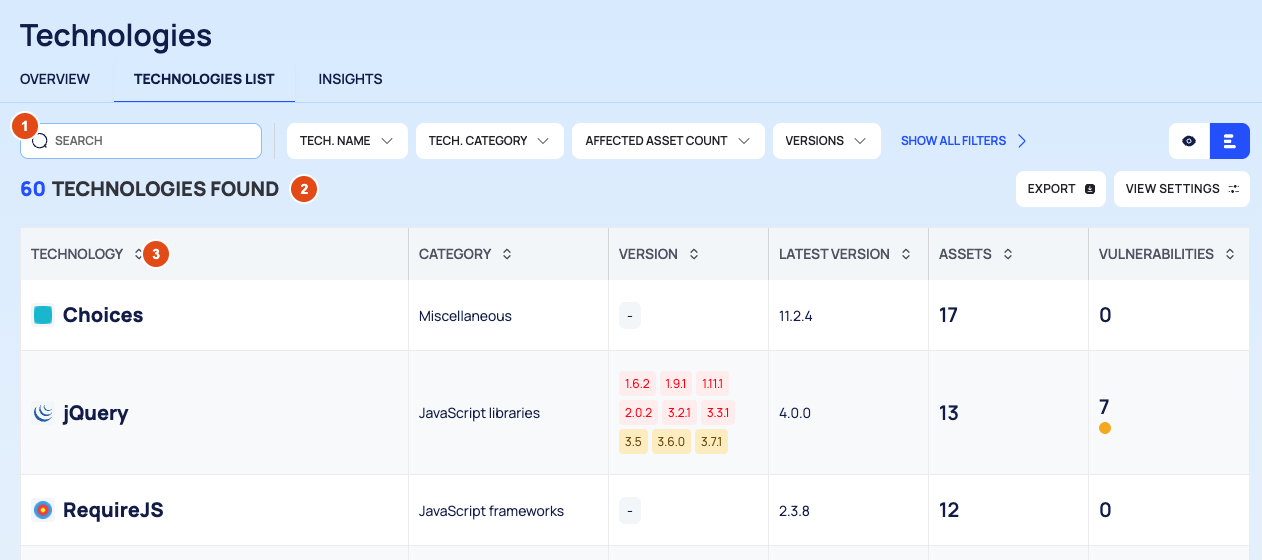
- Filter bar: SEARCH (by technology name) and the filter chips TECH. NAME, TECH. CATEGORY, AFFECTED ASSET COUNT, VERSIONS, VERSION SCOPE, LATEST VERSION and TOTAL VULN. COUNT.
- Result line: the number of technologies found, EXPORT and VIEW SETTINGS.
- The list:
| Column | What it shows |
|---|---|
| TECHNOLOGY | The technology's name |
| CATEGORY | Its category, for example a JavaScript library |
| VERSION | The versions found on your assets, one per line |
| LATEST VERSION | The latest known version |
| ASSETS | How many of your assets use it |
| VULNERABILITIES | Its known vulnerabilities |
The OVERVIEW Tab
| Card | What it shows |
|---|---|
| TOTAL TECHNOLOGIES | The number of technologies, with the change over the LAST 30 DAYS |
| TOP CATEGORIES | The categories with the most technologies |
| MOST USED TECHNOLOGIES | Technologies found on many of your assets |
| VULNERABILITY STATS | The vulnerabilities of your technologies, per severity |
| OUTDATED TECHNOLOGIES | Technologies with an out-of-date version: TECHNOLOGY, VERSION, LATEST VERSION |
| MOST VULNERABLE TECHNOLOGIES | Technologies with the most vulnerabilities: TECHNOLOGY, VULNERABILITIES |
Find Outdated Technologies
- Select the VERSION SCOPE chip.
- Choose Out of Date as the value and select APPLY.
The list now shows only the technologies with an out-of-date version on your assets. The ASSETS and VULNERABILITIES columns then count only the out-of-date use. To go back, choose All.
Filter and Sort the List
- SEARCH matches the technology name.
- Each filter chip takes one condition, with no Must / Must Not / Should choice. For example, VERSION SCOPE takes Equal and a Value. Select APPLY, or CANCEL to close it.
- Select a column header to sort: once for descending order, again for ascending, and a third time to go back to the default order. All six columns sort.
- VIEW SETTINGS › View Options › Sort By sorts by Technology, Categories, Affected Asset Count, Versions, Latest Versions or Vulnerability Stats. Result Per Page sets 25, 50, 75 or 100 rows.
Open a Technology
Select a row to open the technology drawer. The tabs on its left edge are icons; hover over one to see its name. OPEN IN NEW TAB opens the full technology page; see Technology details.
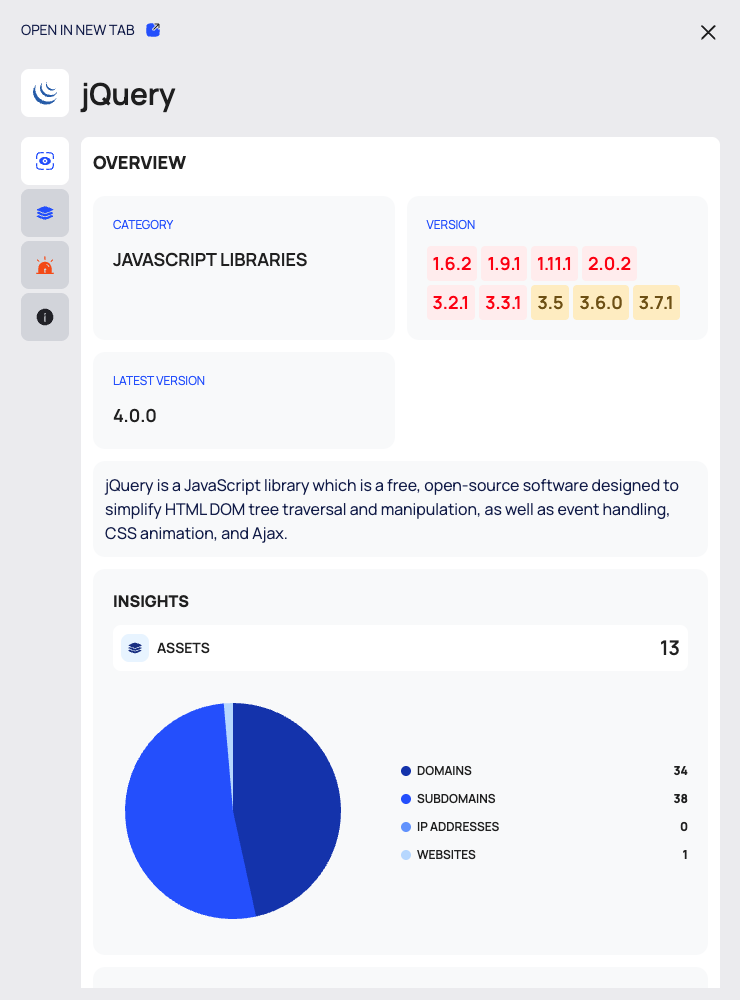
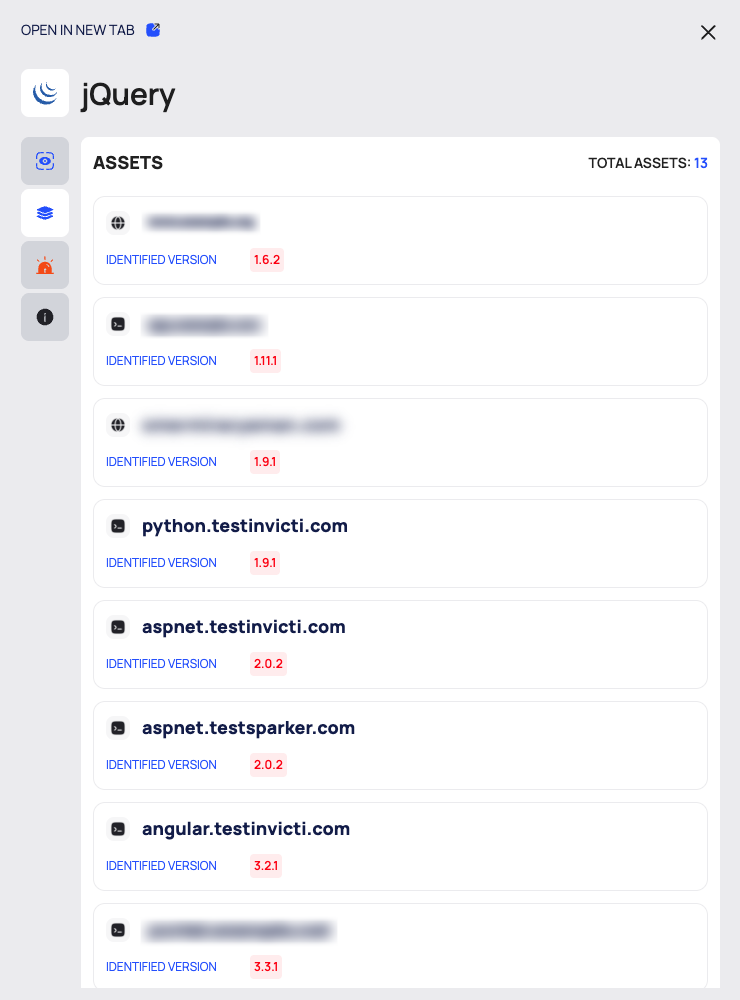
| Tab | What it shows |
|---|---|
| OVERVIEW | CATEGORY, the VERSION list, LATEST VERSION, a description, INSIGHTS with the number of assets that use it, and FINDINGS with its vulnerabilities |
| ASSETS | Every asset that uses it, each with its IDENTIFIED VERSION |
| VULNERABILITIES | The technology's known CVEs, each with PUBLISHED DATE and LAST MODIFIED DATE |
| TECHNOLOGY INFO | DESCRIPTION, OFFICIAL WEBSITE, the EOL (end-of-life) table and the list of the technology's CVEs |
Export the List
- Select EXPORT. The DOWNLOAD dialog opens.
- Under RECORDS, choose ALL, or FILTERED for only the technologies that match your filters (offered when filters are applied).
- Under FILE FORMAT, choose CSV or JSON, then select DOWNLOAD.
For the dialog's options, see Search, filter and export lists.
Good to Know
- TECHNOLOGY INFO describes the technology in general, not only its use on your assets.
- In the drawer, the CVE cards can show the published date as LAST MODIFIED DATE. The technology page's VULNERABILITIES tab shows both dates correctly.
- Technologies also appear per asset, on an asset's TECHNOLOGIES tab; see Investigate an asset.
Do This With the API
- Search technologies: Technology Search
- Export as CSV or JSON: Technology Export
- One technology: Technology Detail
- The assets that use a technology: Technology Asset Search