Tag, Weight and Configure Assets
Every asset has a few settings of its own: its tags, its weight, whether it is a main asset, and whether discovery uses it to look for related assets. You change them from the asset's … menu.
Before You Start
- Package: External Attack Surface Management (EASM).
- Role: Admin or Member.
- Data: at least one asset in your inventory.
Where to Find It
Sidebar: EXTERNAL ATTACK SURFACE MANAGEMENT › ASSETS › INVENTORY · Tab: ASSETS LIST · https://platform.deepinfo.com/app/easm/assets
Open the … menu at the end of an asset's row. The same menu is at the top of the asset drawer and on the asset's own page (see Investigate an asset).
Read the Menu
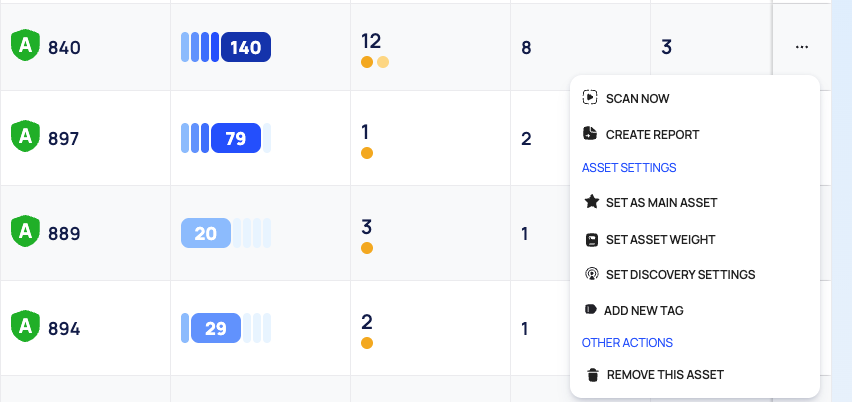
| Section | Item | What it does |
|---|---|---|
| SCAN NOW | Starts a rescan of the asset at once, with no confirmation. See Investigate an asset | |
| CREATE REPORT | Opens a report for this asset in a new tab. Opening it creates a new report. See Generate and download a PDF report | |
| ASSET SETTINGS | SET AS MAIN ASSET (or REVERT TO NORMAL ASSET) | Makes the asset a main asset, or turns it back into a normal one |
| SET ASSET WEIGHT | Sets how important the asset is | |
| SET DISCOVERY SETTINGS | Turns discovery on or off for this asset | |
| ADD NEW TAG | Adds a tag to the asset | |
| OTHER ACTIONS | REMOVE THIS ASSET (or REMOVE FROM INVENTORY for an inactive asset) | Removes the asset. See Remove and restore assets |
Tag Assets
Tags are your own labels, for example a business unit or an environment. Use them to find and filter assets.
- Open the asset's … menu and select ADD NEW TAG. You can also select ADD TAG in the TAGS block, on the drawer's overview or on the asset page's OVERVIEW tab.
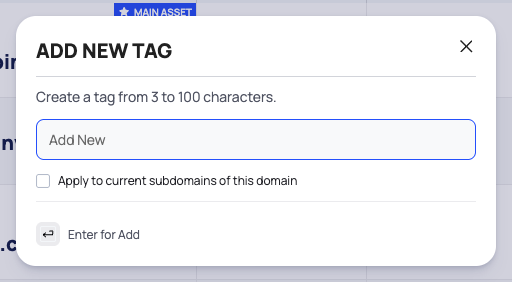
- The ADD NEW TAG dialog opens. Type the tag in Add New. A tag has 3 to 100 characters.
- To give the same tag to the subdomains the domain has now, tick Apply to current subdomains of this domain.
- Press Enter to add the tag.
Once your assets have tags:
- Inventory shows them in the TAGS column (the WEBSITES tab has no TAGS column).
- To filter by tag, open ASSET META in the filter bar and pick Tags.
- To list only tagged assets, open VIEW SETTINGS and tick Show Only Tagged Assets.
Rename, Remove or Delete a Tag
Select a tag in the TAGS block to open its menu:
- Edit renames the tag. A tag is shared, so the new name applies to every asset that has it. Confirm with UPDATE.
- Remove takes the tag off this asset only.
- Delete deletes the tag from every asset. Confirm with DELETE.
Warning
Delete removes the tag from all your assets, not just this one. To take a tag off one asset, use Remove.
Set an Asset's Weight
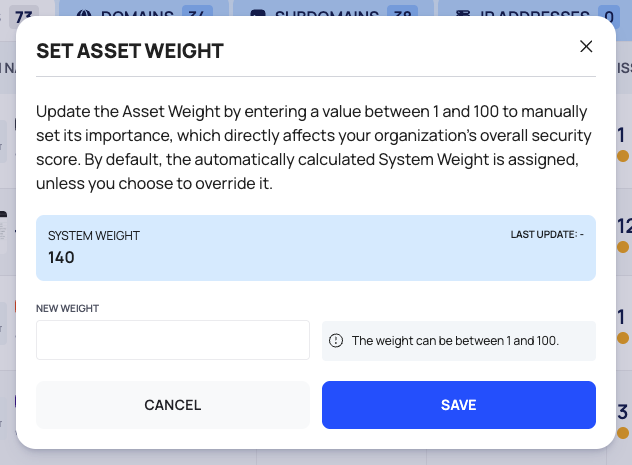
The asset weight says how important an asset is to your organization: a higher weight marks a more critical asset. The platform calculates a SYSTEM WEIGHT for every asset, and you can override it with your own weight. The weight directly affects your organization's overall security score.
- Open the asset's … menu and select SET ASSET WEIGHT.
- The dialog shows the SYSTEM WEIGHT and when it was last updated (LAST UPDATE:). If you set a weight before, it also shows your USER WEIGHT.
- Enter a number from 0 to 1000 in NEW WEIGHT.
- Select SAVE.
To go back to the system weight, clear NEW WEIGHT and select SAVE.
The ASSET WEIGHT shown for an asset, in Inventory and in its drawer, is your weight when you have set one, and the system weight otherwise. See How security scores work for how weight and score relate.
Set a Main Asset
The confirmation describes the main asset as "the primary asset for all related assets, configurations, and reports".
- Open the asset's … menu and select SET AS MAIN ASSET.
- Read the confirmation and select CONFIRM.
The asset now carries the MAIN ASSET ribbon (a star) in lists, in its drawer and on its page. A subdomain can be a main asset too.
To undo it, open the same menu and select REVERT TO NORMAL ASSET. The confirmation keeps the title SET AS MAIN ASSET but explains that the asset will no longer be the primary asset. Select CONFIRM.
Enable or Disable Discovery for an Asset
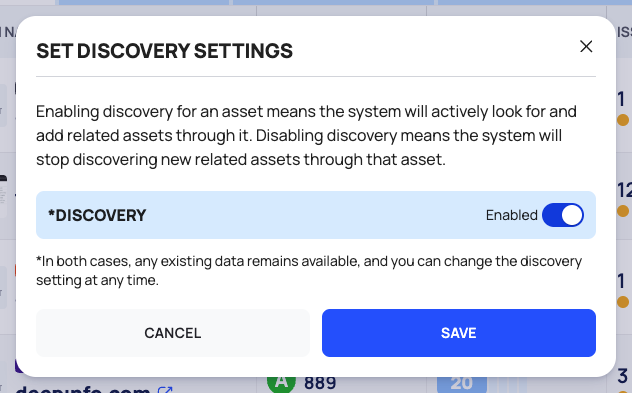
Discovery looks for new assets related to the ones you have. With discovery enabled for an asset, discovery uses it as a starting point. With discovery disabled, discovery stops finding new related assets through it.
- Open the asset's … menu and select SET DISCOVERY SETTINGS.
- Set the *DISCOVERY switch to Enabled or Disabled.
- Select SAVE.
Either way, the data you already have stays available, and you can change the setting again at any time. To find the assets for which discovery is on or off, filter Inventory by ASSET META › Discovery Enabled.
To tune discovery for your whole organization rather than one asset, see Tune smart discovery.
Good to Know
- In the platform you change these settings one asset at a time. The only exception is Apply to current subdomains of this domain when you add a tag. The API can tag assets, set weights and turn discovery on or off for every asset that matches a filter in one call.
- The weight you set yourself is between 0 and 1000.
- An inactive asset shows an ASSET WEIGHT of 0.
Do This With the API
- Add tags: Asset Set Tag
- Take a tag off one asset: Asset Remove Tag
- Rename a tag: Asset Tag Update
- Delete a tag from every asset: Asset Tag Delete
- Set the weight: Asset Set Weight
- Mark a main asset, or turn discovery on or off for one asset: Asset Update
- Turn discovery on or off for many assets: Asset Enable Discovery