Tune Smart Discovery
Discovery runs rules that look for assets related to yours and puts what they find in the Discovery review list. Deepinfo manages the smart rules, and you can tune them: turn them on or off, tell them what not to start from, and let them approve what they find. You can also keep assets out of discovery altogether.
Before You Start
- Package: External Attack Surface Management (EASM).
- Role: Admin or Member.
- These settings apply to discovery for your whole organization. To turn discovery on or off for a single asset, see Tag, weight and configure assets.
Where to Find It
Sidebar: EXTERNAL ATTACK SURFACE MANAGEMENT › ASSETS › DISCOVERY · Tab: SETTINGS · https://platform.deepinfo.com/app/easm/discoveries/settings/smart-discovery
The SETTINGS tab has its own menu on the left:
- Smart Discovery: the rules Deepinfo runs for you (this page).
- Custom Rules: your own rules; see Create custom discovery rules.
- Other Settings: the Ignored Assets list (this page), at https://platform.deepinfo.com/app/easm/discoveries/settings/other-settings.
Concepts
- Smart discovery rules and smart monitoring rules are run and maintained by Deepinfo. Both put the assets they find in the Discovery review list. In that list, a bulb icon on a rule badge marks a smart rule.
- Seed asset: one of your assets that a rule starts from. An asset is used as a seed when discovery is enabled for it.
- Seed value: the input a rule started from when it found an asset. On the Discovery list, hover over a rule badge to see it.
- Auto approval: assets that a rule finds go straight into your inventory, without waiting for your review.
Read the Smart Discovery Page
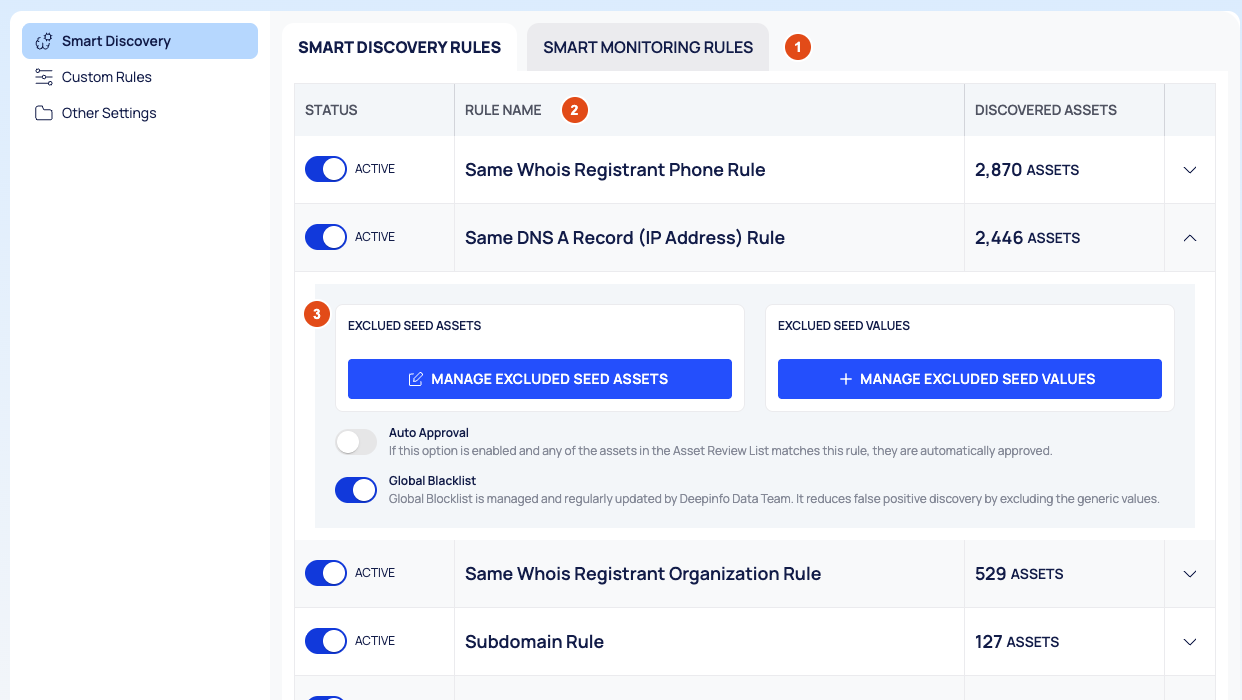
Tabs: SMART DISCOVERY RULES and SMART MONITORING RULES.
The rules table:
Column What it shows STATUS A switch, and ACTIVE when the rule runs RULE NAME The rule DISCOVERED ASSETS How many assets the rule has discovered (chevron) Expands the rule's settings An expanded rule shows its excluded seed assets and seed values, Auto Approval and Global Blacklist, described below.
When this page was written, the smart rules were:
| Smart discovery rules | Smart monitoring rules |
|---|---|
| Same Whois Registrant Phone Rule | DNS A Records Smart Rule |
| Same DNS A Record (IP Address) Rule | SSL Certificate SANs Smart Rule |
| Same Whois Registrant Organization Rule | HTTP Redirection Follow Smart Rule |
| Subdomain Rule | DNS CNAME Record Smart Rule |
| Same SSL Certificate Rule | IP CIDR Smart Monitoring Rule |
| Same DNS MX Record (Mail Server) Rule | IP DNS PTR Record Smart Rule |
| Same DNS NS Record (Name Server) Rule | |
| Same SSL Subject Organization Rule | |
| Same Whois Name Server Rule | |
| Same Whois Registrant Email Rule | |
| Same Whois Registrant Apex Email Rule | |
| Same Whois Registrant Email (Historical) Rule |
Deepinfo maintains these rules, so your list can differ.
Change a Rule's Status
- Select the rule's STATUS switch.
- A Confirmation asks whether you want to activate or inactivate the rule. Select ACTIVATE or INACTIVATE.
The STATUS column then shows whether the rule is ACTIVE or INACTIVE.
Exclude Seed Assets
If a rule finds unrelated assets because it starts from one of your assets, exclude that asset from the rule.
- Expand the rule. Its excluded seed assets are listed under EXCLUED SEED ASSETS (the label is spelled this way on screen).
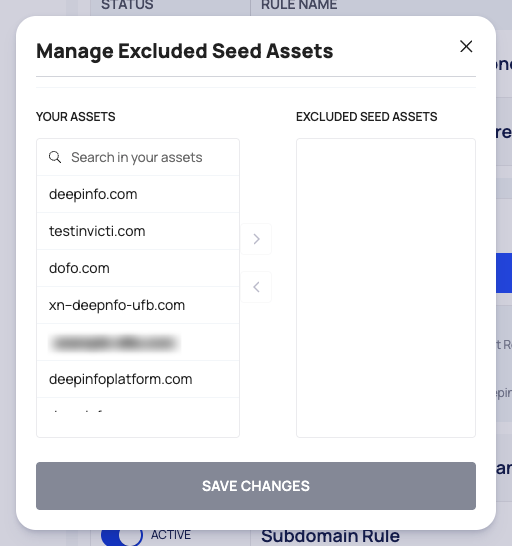
- Select MANAGE EXCLUDED SEED ASSETS.
- In Manage Excluded Seed Assets, find the asset under YOUR ASSETS (use Search in your assets) and move it to EXCLUDED SEED ASSETS. YOUR ASSETS lists your whole inventory.
- Select SAVE CHANGES and confirm.
To take an asset off the list, select × on its chip under EXCLUED SEED ASSETS and confirm with REMOVE.
In this dialog, internationalized names appear in their punycode form (starting with xn--), not as they
appear in Inventory.
Exclude Seed Values
If a rule finds unrelated assets because of one seed value, exclude that value. Smart discovery rules have this setting; smart monitoring rules do not.
- Expand the rule and find EXCLUED SEED VALUES.
- Select + MANAGE EXCLUDED SEED VALUES.
- In Manage Excluded Seed Values, enter the values, one per line.
- Select SAVE CHANGES.
To find a seed value, hover over the rule's badge on an asset in the Discovery list.
Approve a Rule's Findings Automatically
- Expand the rule and select the Auto Approval switch. Its description explains that assets in the review list that match the rule are approved automatically.
- The Confirmation asks whether you want to enable auto approval for the rule. Select YES, or DISCARD to leave it off.
Turning it off works the same way.
Caution
Auto-approved assets go into your inventory without a review, and an approval cannot be undone from Discovery. To take such an asset out again, remove it; see Remove and restore assets. To find auto-approved assets, filter Inventory by ASSET META › Creation Method.
Use the Global Blacklist
Deepinfo's data team maintains a global list of generic values and keeps it up to date. With it, a rule ignores those values, which reduces false-positive discoveries.
- Expand the rule and select the Global Blacklist switch.
- Confirm with YES, or select DISCARD.
Keep Assets Out of Discovery for Good
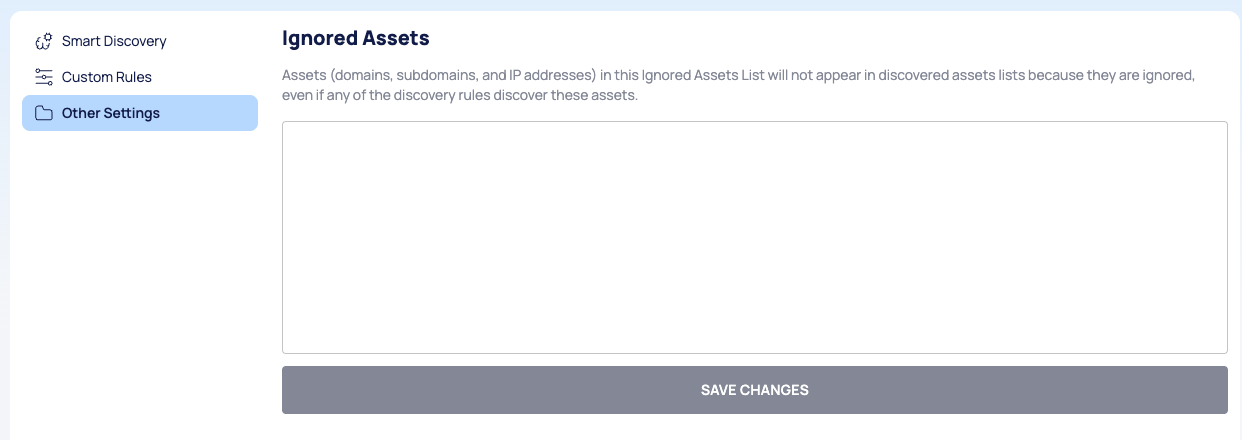
The Ignored Assets list on Other Settings holds domains, subdomains and IP addresses that never appear in the discovered-asset lists, even when a rule finds them.
- In the SETTINGS tab menu, select Other Settings.
- Under Ignored Assets, enter the assets, one per line. Each line must be a domain, a subdomain or a public IPv4 address.
- Select SAVE CHANGES. It is available once you have changed the list.
Good to Know
- Rule switches, Auto Approval and Global Blacklist always ask for confirmation before they change.
- SAVE CHANGES stays unavailable until you change something in its dialog or form.
- To dismiss a single candidate rather than keep an asset out for good, you can also ignore it in the Discovery list; see Review discovered assets.
Do This With the API
- List the smart discovery rules: Asset Discovery Smart Discovery Rule List
- Tune a smart discovery rule: Asset Discovery Smart Discovery Rule Update
- List the smart monitoring rules: Asset Discovery Smart Monitoring Rule List
- Tune a smart monitoring rule: Asset Discovery Smart Monitoring Rule Update
- Read the Ignored Assets list: Asset Discovery Settings Detail
- Replace the Ignored Assets list: Asset Discovery Settings Update