Global Dashboard
The Global Dashboard puts the headline numbers of External Attack Surface Management (EASM), Cyber Threat Intelligence (CTI) and Brand Risk Protection (BRP) on one page. Start here to see what changed, then follow a card into the module where you can act on it.
Before You Start
- Package: the page itself is not locked by package. Each section shows the figures of its own module.
- Role: Admin or Member.
Where to Find It
Sidebar: GLOBAL DASHBOARD · https://platform.deepinfo.com/app/global-dashboard
The Deepinfo logo at the top of the sidebar also opens this page. After you sign in, the platform opens the Global Dashboard by default. If you signed in from a link to another page, it opens that page instead.
Read the Screen
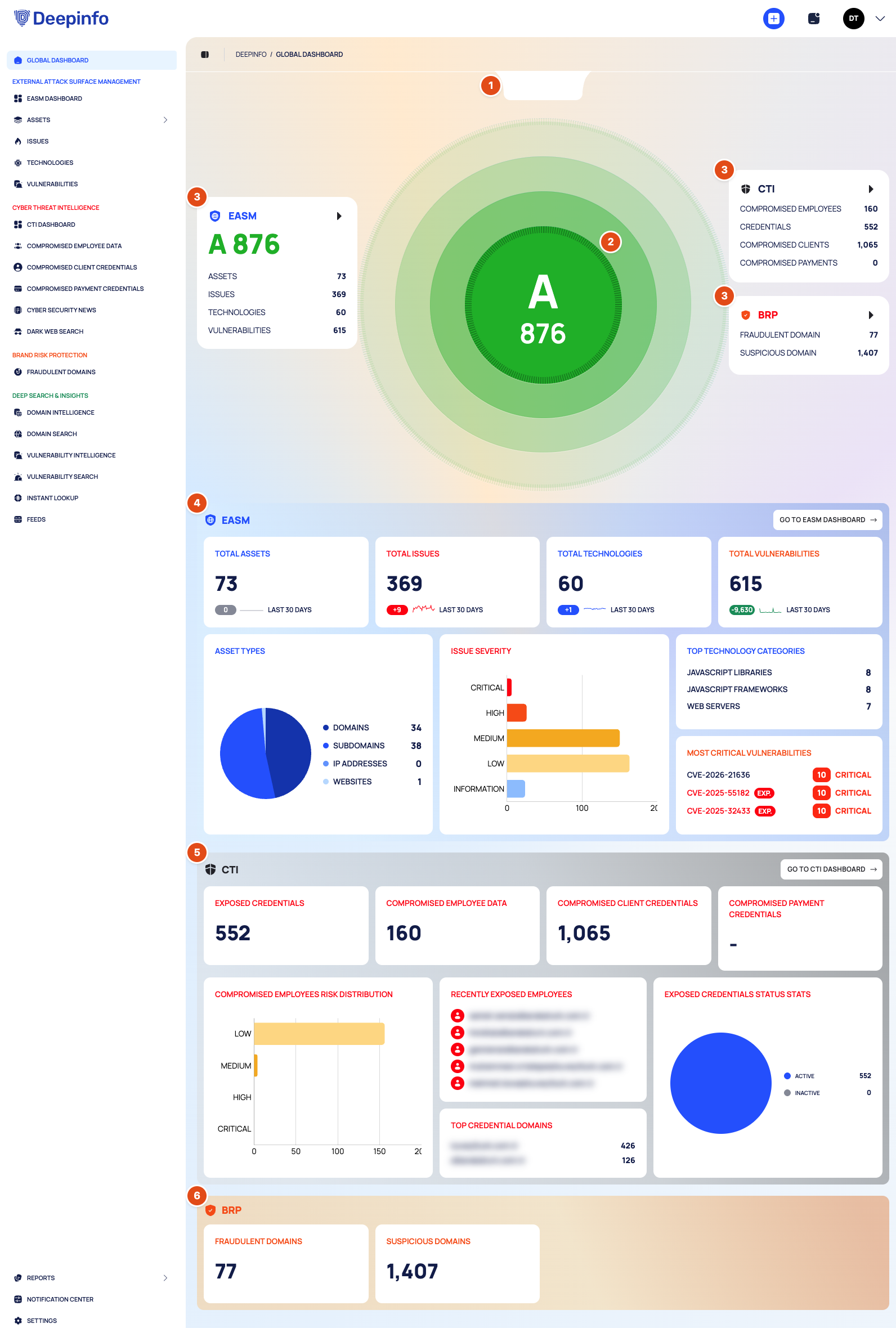
The header breadcrumb reads DEEPINFO / GLOBAL DASHBOARD.
Organization logo. A tab at the top of the page shows your organization's logo. It stays empty until an admin uploads a logo.
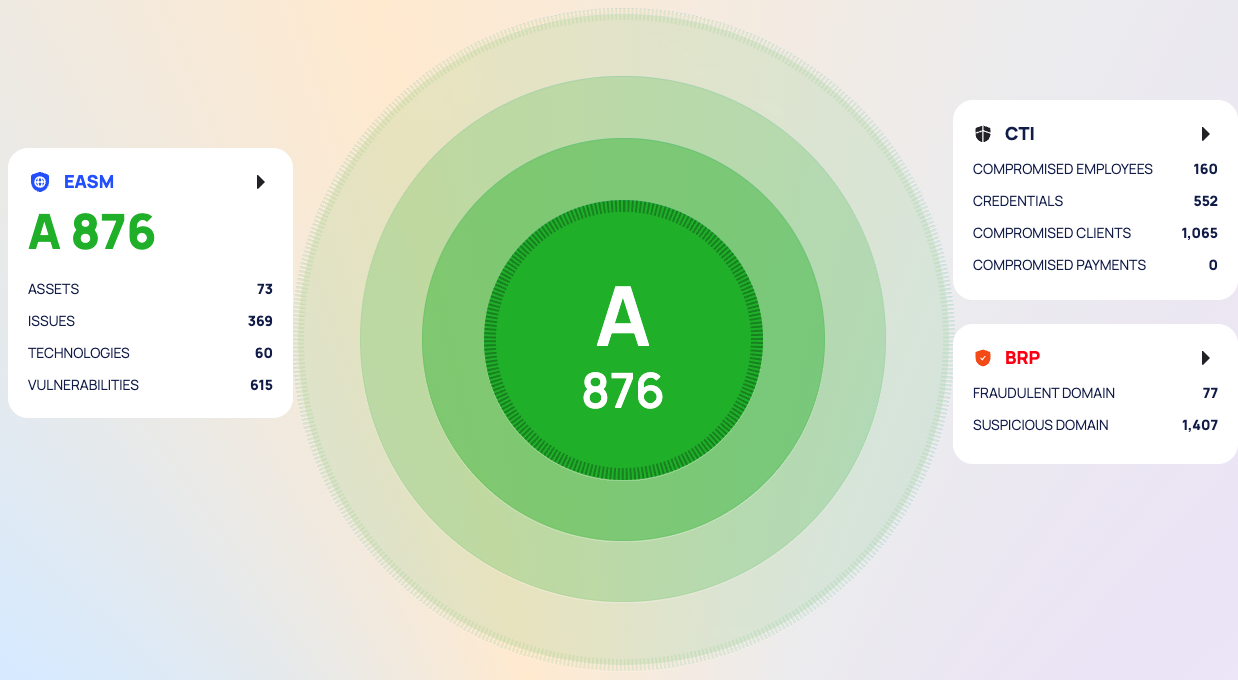
Security score radar. The center of the radar shows your organization's EASM security grade (A to F) and its score. See How security scores work.
Module cards around the radar. Each card opens its module in the same tab:
- EASM (left of the radar): the grade and score, and the ASSETS, ISSUES, TECHNOLOGIES and VULNERABILITIES counts. Opens the EASM dashboard.
- CTI (right): the COMPROMISED EMPLOYEES, CREDENTIALS, COMPROMISED CLIENTS and COMPROMISED PAYMENTS counts. Opens the CTI dashboard.
- BRP (right): the FRAUDULENT DOMAIN and SUSPICIOUS DOMAIN counts. Opens FRAUDULENT DOMAINS (see Brand Risk Protection).
The CTI and BRP cards show counts only. The only score on this page is the EASM security score.
EASM section, with the GO TO EASM DASHBOARD button.
CTI section, with the GO TO CTI DASHBOARD button. See Cyber Threat Intelligence (CTI).
BRP section. It has no button of its own; use its cards.
EASM Section
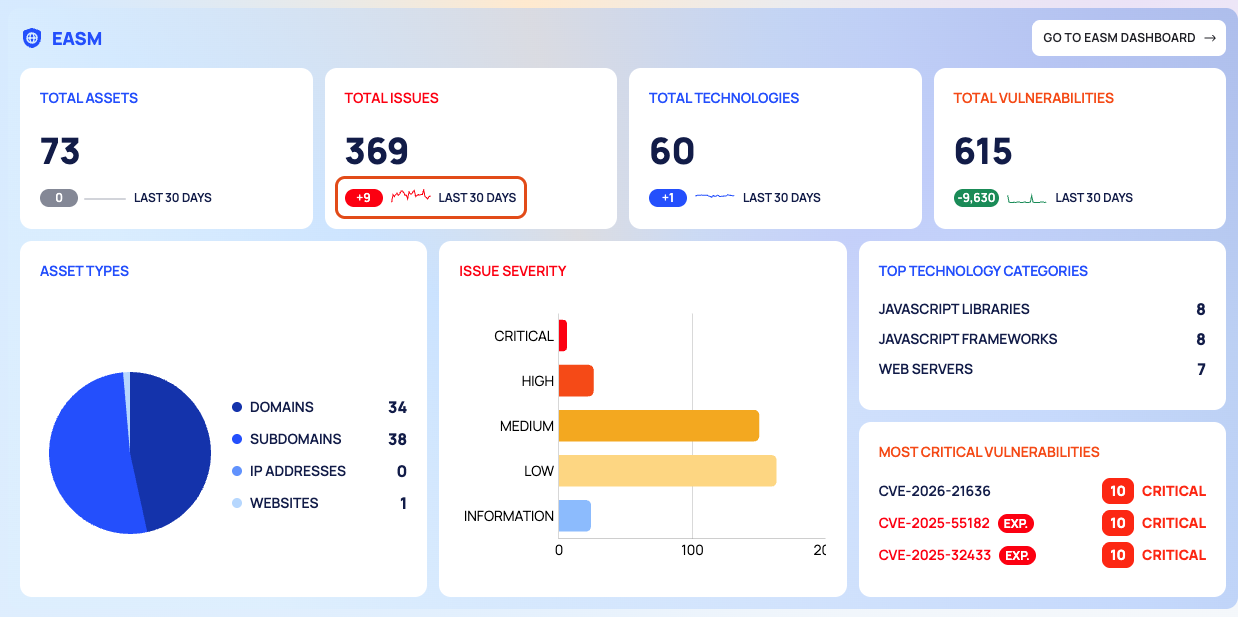
| Card | What it shows | Opens |
|---|---|---|
| TOTAL ASSETS | Number of assets, with a 30-day trend | Inventory |
| TOTAL ISSUES | Number of issues, with a 30-day trend | Issue List |
| TOTAL TECHNOLOGIES | Number of detected technologies, with a 30-day trend | Technologies |
| TOTAL VULNERABILITIES | Number of vulnerabilities, with a 30-day trend | Vulnerability List |
| ASSET TYPES | Pie chart of DOMAINS, SUBDOMAINS, IP ADDRESSES and WEBSITES | None |
| ISSUE SEVERITY | One bar per severity, from CRITICAL at the top to INFORMATION | None |
| TOP TECHNOLOGY CATEGORIES | The technology categories with the highest counts | None |
| MOST CRITICAL VULNERABILITIES | Three CVEs, each with its score and severity. A red EXP. badge marks a CVE in the CISA KEV catalog | That CVE's page |
The TOTAL cards show the current total, a line of the last 30 daily values and a change pill
labeled LAST 30 DAYS. The pill shows how much the value changed over those 30 days: the latest daily value
minus the value 30 days earlier, for example +12, -3 or 0. After a sharp drop, the decrease can be larger
than the current total.
CTI Section
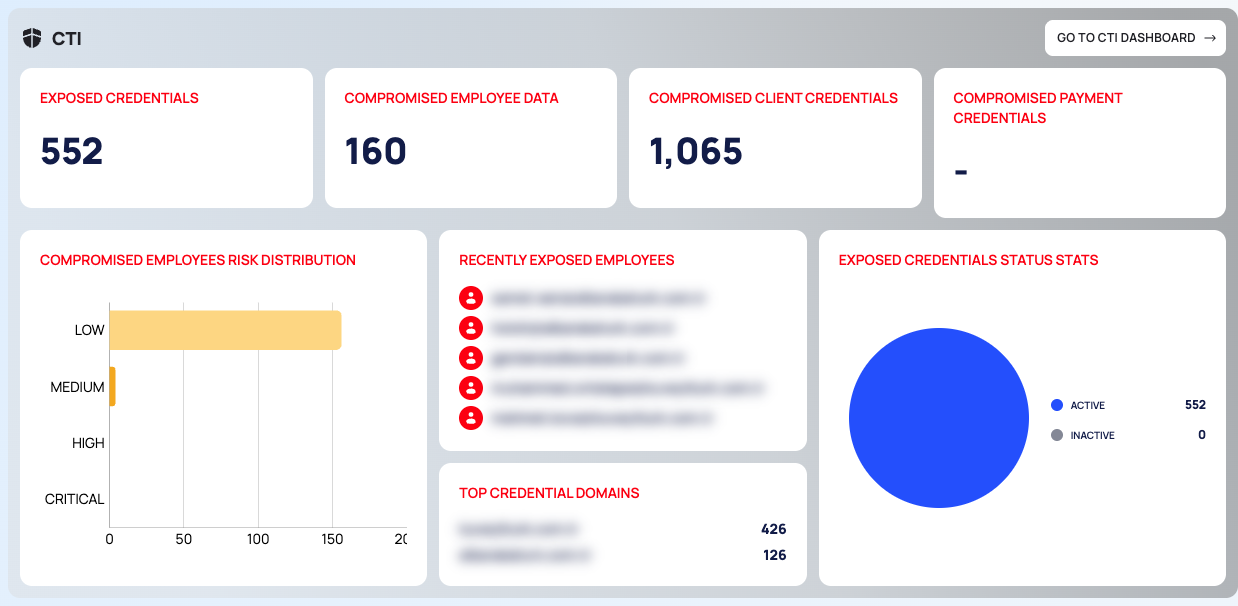
| Card | What it shows | Opens |
|---|---|---|
| EXPOSED CREDENTIALS | Number of exposed employee credentials | COMPROMISED EMPLOYEE DATA, EXPOSED CREDENTIALS tab (Review exposed credentials) |
| COMPROMISED EMPLOYEE DATA | Number of compromised employee accounts | COMPROMISED EMPLOYEE DATA, COMPROMISED EMPLOYEES tab (Investigate compromised employees) |
| COMPROMISED CLIENT CREDENTIALS | Number of compromised client credentials | COMPROMISED CLIENT CREDENTIALS |
| COMPROMISED PAYMENT CREDENTIALS | Number of compromised payment credentials; - when there are none |
COMPROMISED PAYMENT CREDENTIALS |
| COMPROMISED EMPLOYEES RISK DISTRIBUTION | Compromised employees per risk level: LOW, MEDIUM, HIGH and CRITICAL | None |
| RECENTLY EXPOSED EMPLOYEES | The email addresses of the five most recently exposed employees | None |
| TOP CREDENTIAL DOMAINS | Domain names, each with its count | None |
| EXPOSED CREDENTIALS STATUS STATS | Pie chart of ACTIVE and INACTIVE exposed credentials | None |
RECENTLY EXPOSED EMPLOYEES shows real email addresses of people in your organization. Keep that in mind when you share your screen.
BRP Section

| Card | What it shows | Opens |
|---|---|---|
| FRAUDULENT DOMAINS | Lookalike domains marked as fraudulent | FRAUDULENT DOMAINS (Track fraudulent domains) |
| SUSPICIOUS DOMAINS | Lookalike domains your rules found that are waiting for review | FRAUDULENT DOMAINS (Review suspicious domains) |
States, Colors and Scores
Security grade. The radar and the EASM card use these grades. What each grade means is explained in How security scores work.
| Score | Grade | Color |
|---|---|---|
| 800 and above | A | green |
| 700 and above | B | light green |
| 600 and above | C | yellow |
| 500 and above | D | orange |
| 400 and above | E | red |
| 300 and above | F | dark red |
| below 300 or no score | - |
gray |
Change pills on the TOTAL cards.
| Card | Increase | Decrease | No change |
|---|---|---|---|
| TOTAL ASSETS, TOTAL TECHNOLOGIES | blue | blue | gray |
| TOTAL ISSUES, TOTAL VULNERABILITIES | red | green | gray |
Good to Know
- The page has no filters, date range or export. Trends always cover the last 30 days.
- The section cards, and the rows of MOST CRITICAL VULNERABILITIES, open in a new browser tab. The cards around the radar and the GO TO buttons open in the same tab.
- A top list with nothing in it shows
-. A trend with no data, or with no change at all, shows as a flat gray line.
Do This With the API
- Security score over time: Security Score Timeline
- Asset counts per type: Asset Type Stats
- Issue counts per severity: Issue Severity Stats
- Vulnerability counts per severity: Vulnerability Severity Stats
- Exposed employee credentials: Compromised Employee Credential Search
- Compromised employee accounts: Compromised Employee Account Search
- Compromised client credentials: Compromised Client Credential Search
- Compromised payment credentials: Compromised Payment Credential Search
- Compromised employees per risk level: Compromised Employee Account Risk Distribution Stats
- Compromised employee accounts per domain: Compromised Employee Accounts Domain Stats
- Fraudulent and suspicious domain counts: Suspicious Domain State Stats