Review Compromised Payment Credentials
Compromised Payment Credentials lists payment card data related to your organization that was found in leaked data. Use it to see which cards are exposed, where the records come from and how often each card was seen.
Before You Start
- Package: Cyber Threat Intelligence (CTI).
- Role: Admin or Member.
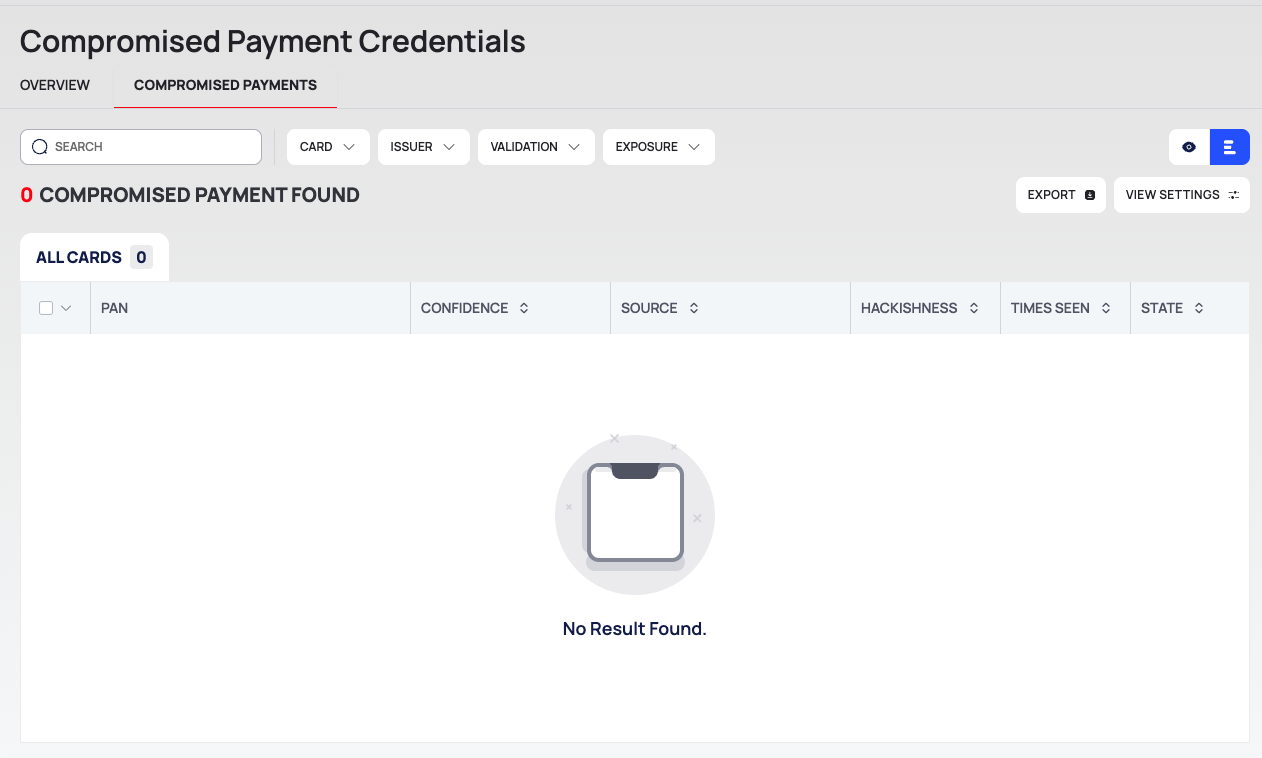
- Data: the page stays empty until payment card data is found for your organization. Until then, the COMPROMISED PAYMENTS count shows - and the lists show No Result Found.
Where to Find It
Sidebar: CYBER THREAT INTELLIGENCE › COMPROMISED PAYMENT CREDENTIALS · Tab: COMPROMISED PAYMENTS · https://platform.deepinfo.com/app/cti/compromised-payment-credentials/list
The page has two tabs: OVERVIEW (https://platform.deepinfo.com/app/cti/compromised-payment-credentials) and COMPROMISED PAYMENTS. The sidebar item opens COMPROMISED PAYMENTS. The GO TO COMPROMISED PAYMENT CREDENTIALS PAGE button on the CTI dashboard opens the page too.
Read the OVERVIEW Tab
- COMPROMISED PAYMENTS: the number of compromised payment records, with a change indicator marked BY YEAR.
- CREDENTIAL EXPOSURE TIMELINE: exposed payment records per period.
- RECENTLY EXPOSED PAYMENTS: the latest payment records.
Read the COMPROMISED PAYMENTS Tab
The breadcrumb reads CTI / COMPROMISED PAYMENT CREDENTIALS / COMPROMISED PAYMENTS. From top to bottom:
- Filter row: the SEARCH box and the filter chips CARD, ISSUER, VALIDATION and EXPOSURE.
- Result line: the number of records found, EXPORT and VIEW SETTINGS.
- Tab: ALL CARDS, with the count.
- The list:
| Column | What it shows |
|---|---|
| PAN | The card number (primary account number) |
| CONFIDENCE | The platform's confidence level for the record |
| SOURCE | The source the record comes from |
| HACKISHNESS | A hackishness score, as on dark web search results |
| TIMES SEEN | How many times the card was seen |
| STATE | The record's state; see Change the state of exposed credentials |
| LAST SEEN | When the card was last seen |
The filter chips work like the other CTI lists; see Search, filter and export lists.
Export the List
- Filter the list if you want only part of it.
- Select EXPORT. The DOWNLOAD window opens.
- Choose RECORDS (ALL or FILTERED), FILE FORMAT (CSV or JSON) and EXPORT SCOPE (DEFAULT, BASIC or EXTENDED).
- Select EXPORT.
Good to Know
- Full export. The CTI REPORTS tab of REPORTS has All Compromised Payment Credentials Report, described as including the card brand, BIN and current status. See Export all data as CSV or JSON.
- Alerts. A notification rule on New Payment Credential Detected tells you when new card data is found. It can be filtered by Card Brand (Visa, Mastercard, Amex, Discover, UnionPay) and BIN. See Create a notification rule.
- Handle with care. Card data is sensitive; see Handle leaked data safely.