Issue Type Details
An issue type is one kind of finding, for example an expired SSL certificate. Its page shows that issue type across all your assets: its score, how long it stays open, which assets have it and in what state, and how to fix it.
Before You Start
- Package: External Attack Surface Management (EASM).
- Role: Admin or Member.
- Terms: an issue is one issue type on one asset. See Triage issues.
Where to Find It
Sidebar: EXTERNAL ATTACK SURFACE MANAGEMENT › ISSUES · Tab: ISSUE LIST · https://platform.deepinfo.com/app/easm/issues
Then open the issue type in one of these ways:
- In the list grouped by issue type, select a row to open the issue type drawer, then select OPEN IN NEW TAB.
- In the drawer of a single issue, select View for All Assets in the blue banner.
- In quick view, the right side shows the selected issue type's page; OPEN IN NEW TAB opens it on its own.
- On the EASM dashboard or the Issues OVERVIEW tab, select a row in MOST CRITICAL ISSUES or MOST SEEN ISSUES.
The page address is https://platform.deepinfo.com/app/easm/issues/<issue type id>.
Read the Screen
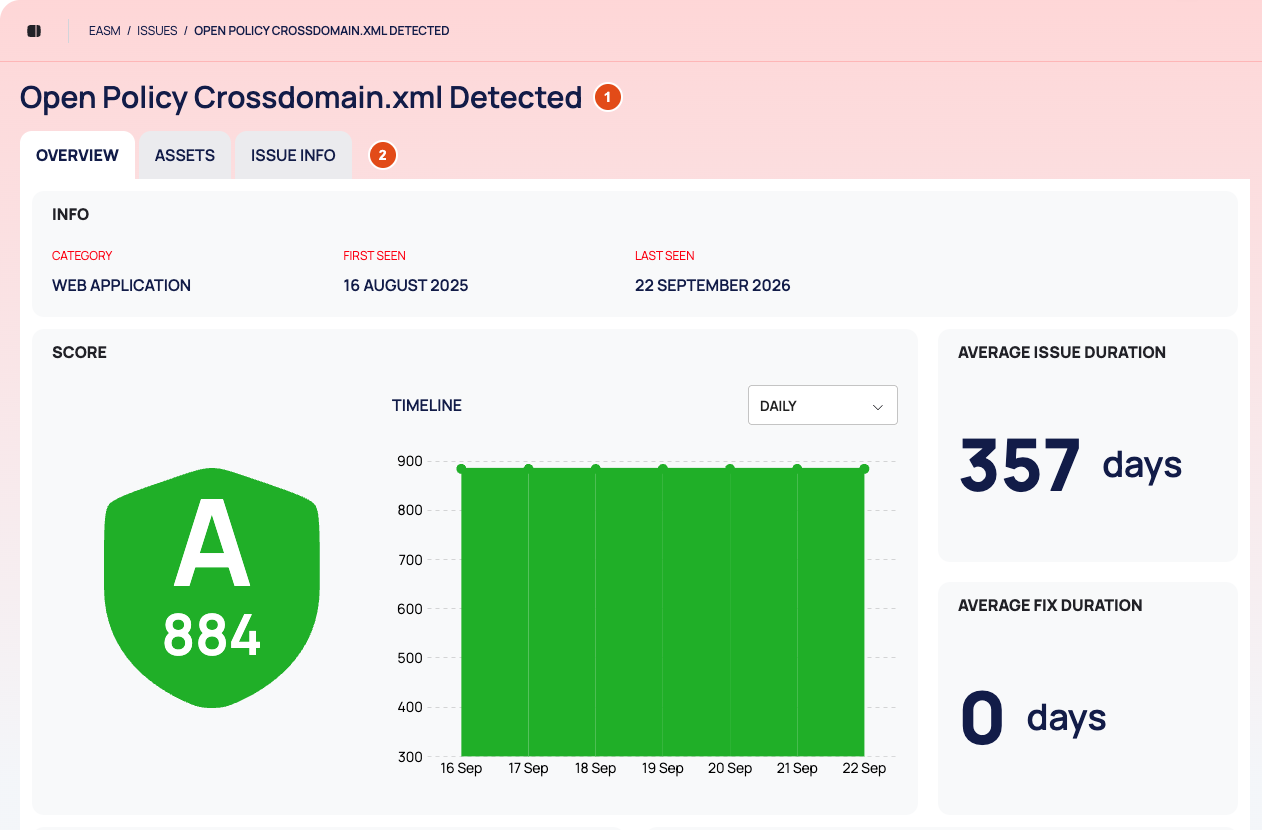
- Header: the breadcrumb EASM / ISSUES / followed by the issue type's name in capitals, then the name as the page title.
- Tabs: OVERVIEW, ASSETS, VULNERABILITIES (only for issue types about a technology) and ISSUE INFO.
OVERVIEW
| Card | What it shows |
|---|---|
| INFO | CATEGORY, FIRST SEEN and LAST SEEN |
| SCORE | The issue type's A to F grade and score, and a TIMELINE chart. Choose DAILY, WEEKLY or MONTHLY in the dropdown |
| AVERAGE ISSUE DURATION | The average duration of issues of this type, in days |
| AVERAGE FIX DURATION | The average time taken to fix them, in days |
| TOTAL ASSETS | How many assets have this issue, split into DOMAINS, SUBDOMAINS, IP ADDRESSES and WEBSITES. Select the chart to open ASSETS |
| STATES | The issues of this type by state, active and inactive |
ASSETS
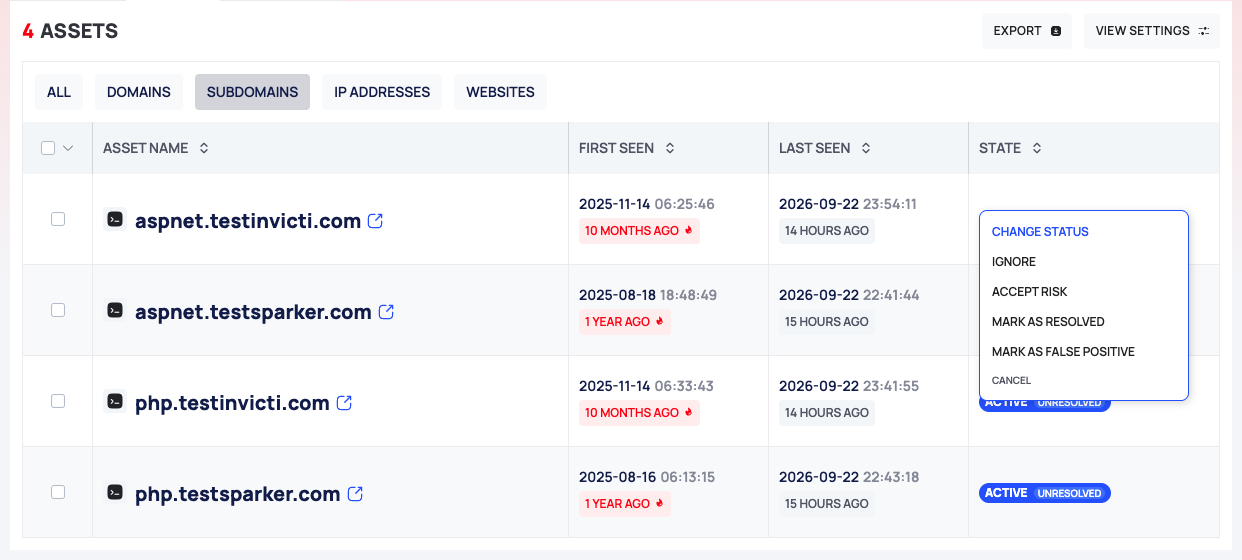
- Header: the number of assets, EXPORT and VIEW SETTINGS.
- Chips: ALL, DOMAINS, SUBDOMAINS, IP ADDRESSES and WEBSITES narrow the list to one asset type.
- Columns: ASSET NAME, FIRST SEEN, LAST SEEN and STATE.
The tab lists the assets where the issue is active. Select a row to open the asset drawer. Select a STATE chip to change the state of the issue on that asset.
VULNERABILITIES
For an issue type about a technology, this tab lists the known CVEs of that technology.
- Header: the number of vulnerabilities, EXPORT (not available on this tab) and VIEW SETTINGS.
- Chips: ALL, CRITICAL, HIGH, MEDIUM and LOW.
- Columns: CVE ID, SCORE/SEVERITY, PUBLISHED DATE and LAST MODIFIED DATE. The columns do not sort.
Select a row to open the CVE drawer.
ISSUE INFO
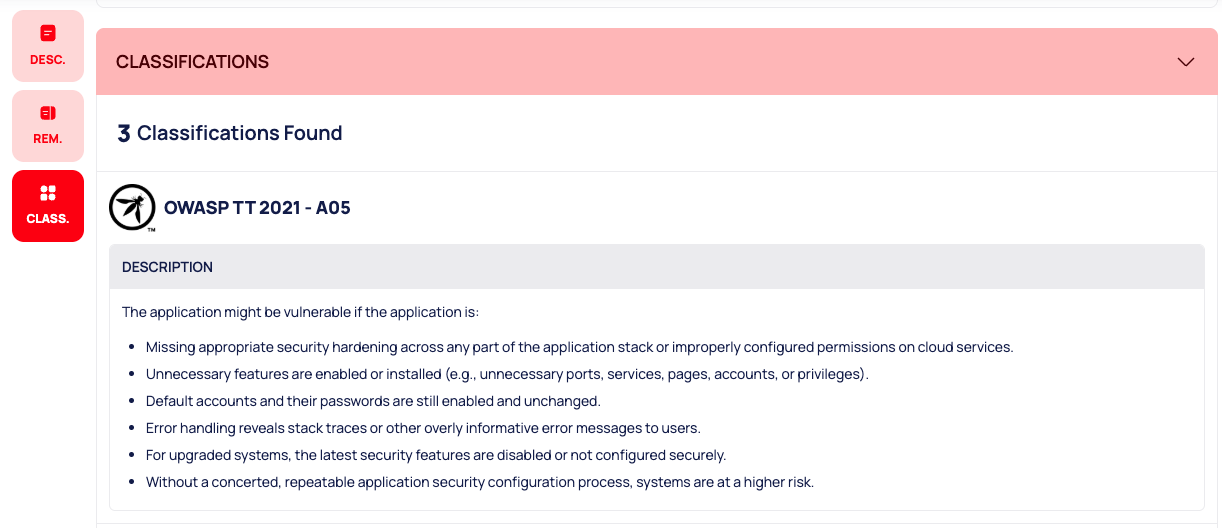
- A menu on the left jumps to DESC., REM. and CLASS.
- DESCRIPTION, with External References.
- REMEDY: how to fix the issue.
- CLASSIFICATIONS: the compliance and weakness frameworks the issue type maps to, with the number found. Each shows the framework's logo, its identifier and a DESCRIPTION. Frameworks include OWASP Top 10 (2021), CWE, CAPEC and WASC. Some issue types have no classification.
Work Through an Issue Type
- On ISSUE INFO, read the DESCRIPTION and the REMEDY.
- On OVERVIEW, check how many assets are affected and how the score has moved.
- On ASSETS, narrow the list with a chip, for example DOMAINS, and open each asset to check it.
- Fix the issue on the asset, or record your decision by changing its state: select the STATE chip, or tick several rows (or SELECT THIS PAGE) and use CHANGE ALL STATUS. See Change the state of issues and vulnerabilities.
- For an issue type about a technology, open VULNERABILITIES and start with the CRITICAL chip.
To export the affected assets, select EXPORT on ASSETS. For the export options, see Search, filter and export lists.
States, Colors and Scores
- The grade on SCORE uses the same A to F bands as asset scores. See How security scores work.
- For severity colors, see Triage issues. For the states, see Change the state of issues and vulnerabilities.
Good to Know
- ASSETS lists active issues only. To see this issue type's inactive issues, untick GROUP BY ISSUE TYPES on ISSUE LIST, tick SHOW INACTIVES and filter by ISSUE.
- If you open the address of an issue type that no longer exists, the platform returns you to ISSUE LIST with an error message.
- In the issue type drawer, the CVE cards can show the published date as LAST MODIFIED DATE. The VULNERABILITIES tab on this page shows both dates correctly.
- For one issue on one asset, with its proof, see Investigate an asset.
Do This With the API
- The issue type: Issue Type Detail
- Its score over time: Issue Type Security Score Timeline
- Average issue and fix durations: Issue Duration Stats
- Affected assets per type: Issue Asset Type Stats
- The issues of this type, per asset: Issue Search
- Export them: Issue Export
- The technology's known CVEs: Technology Vulnerabilities