Change Your Password
Change your password from Settings when you know your current one. If you forgot it, reset it from the sign-in page instead.
Before You Start
- No package is needed, and any role can change their own password.
- You need your current password. If you do not know it, see Reset a forgotten password.
Where to Find It
Sidebar: SETTINGS › USER SETTINGS › Security · https://platform.deepinfo.com/app/settings/user-security
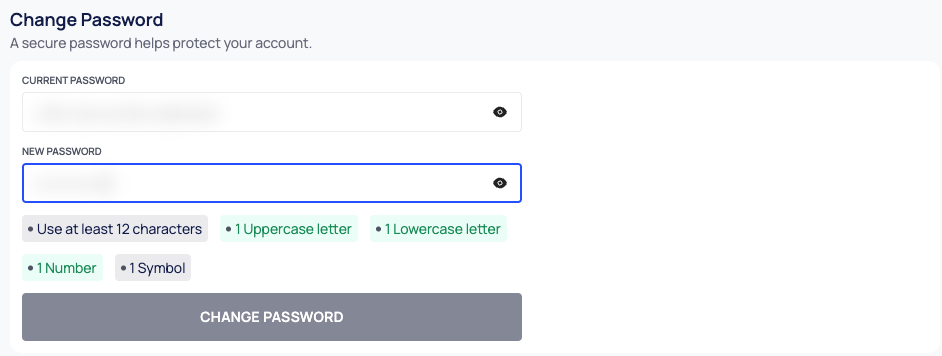
The Change Password card is at the top of the page.
Change Your Password
- Go to SETTINGS › USER SETTINGS › Security.
- In Change Password, enter your CURRENT PASSWORD.
- Enter your NEW PASSWORD. The rules below the field turn green as you meet them.
- Select CHANGE PASSWORD. The button stays disabled until the form is complete and every rule is met.
The platform confirms with "Your password has been updated." and clears the form.
Password Rules
Your new password must meet five rules, shown below the field: Use at least 12 characters, 1 Uppercase letter, 1 Lowercase letter, 1 Number and 1 Symbol. Only some characters count as a symbol: see the full list under Password rules.
If the new password is not strong enough, the page shows "Password is too weak."
Good to Know
- Two-factor authentication is on the same page, in the Two Factor Authentication card. See Use two-factor authentication.