Create and Manage API Keys
API keys authenticate calls to the Deepinfo API (https://api.deepinfo.com). You create and manage them
on the API Keys page. A badge marks the default key: the platform also uses the default key for
its own calls to the API.
Before You Start
No package is needed to open this page, and any role can use it: API Keys is not limited to admins.
Where to Find It
Sidebar: SETTINGS › ORGANIZATION SETTINGS › API Keys · https://platform.deepinfo.com/app/settings/org-api-keys
Read the Screen
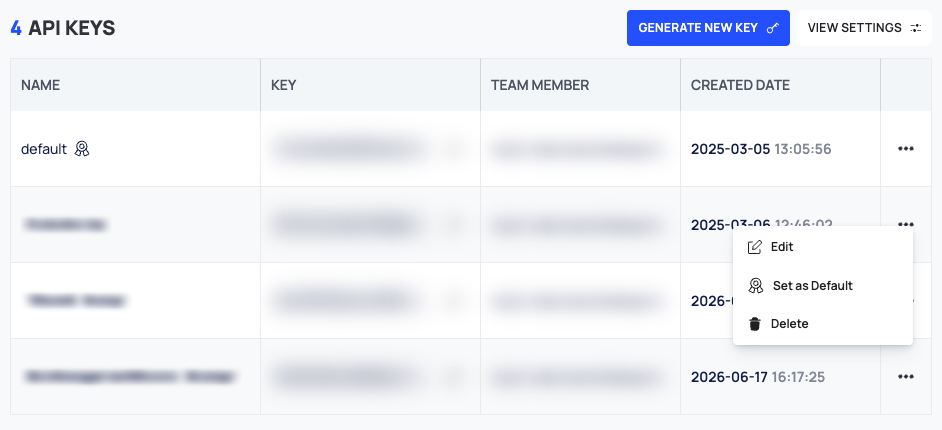
The count of keys, <n> API KEYS, is at the top, with GENERATE NEW KEY and VIEW SETTINGS next to it. The table has these columns:
| Column | What it shows |
|---|---|
| NAME | The key's name. A badge marks the default key (tooltip Default API Key) |
| KEY | The key itself, in full, with a Copy button |
| TEAM MEMBER | The email address of the member the key belongs to |
| CREATED DATE | The date and time the key was created |
| ⋯ | The actions menu: Edit, Set as Default and Delete |
Keys belong to members. As an admin, you see the keys of every member in the organization.
Generate a Key
- Select GENERATE NEW KEY. The Generate a New API Key window opens.
- Enter a Name, or leave it empty to get a random 9-character name.
- Select GENERATE.
- The new key appears in the API KEY field. Select COPY AND CLOSE to copy it to your clipboard and close the window.
Store the key in a secret store or an environment variable, not in code.
Rename a Key
- In the key's row, open ⋯ and select Edit.
- Change the Name. A name is required.
- Select UPDATE.
Set the Default Key
- In the key's row, open ⋯ and select Set as Default.
- Confirm with SET DEFAULT.
The badge moves to that key.
Delete a Key
- In the key's row, open ⋯ and select Delete.
- In Delete API Key, select DELETE.
A deleted key can no longer be used to call the API. You cannot delete the default key: make another key the default first.
Replace an Exposed Key
If a key may have leaked, replace it:
- Generate a new key.
- Switch your integration to the new key.
- If the exposed key is the default, set the new key as default.
- Delete the exposed key.
There is no rotate or regenerate action: replacing a key always means generating a new one and deleting the old one.
Why the Default Key Matters
The platform uses the default key when it calls the Deepinfo API for you, for example when you run a Deep Search & Insights (DSI) search or an instant lookup. These calls appear in API Logs under the default key, next to the calls from your own integrations. Searches and lookups made this way can use quota on API Usage.
Good to Know
- The keys are shown in full. The KEY column shows each key in plain text, and so does the KEY column in API Logs. Treat screenshots of these pages as secret.
- The default key cannot be deleted. In its ⋯ menu, Set as Default and Delete are unavailable.
Do This With the API
- Authentication: send the key in the
apikeyheader of every request. - Rate limits: how many requests a key can make, and the quota.
- Errors: what a missing or invalid key (401) and an endpoint outside your package (403) return.