Search Vulnerabilities
Vulnerability Search queries Deepinfo's database of CVEs (publicly known vulnerabilities), whether or not they affect your assets. Search by CVE ID, vendor or product, or build filters on CVSS metrics, weaknesses and exploitability, then open a CVE to read it in full.
Before You Start
- Package: Deep Search & Insights (DSI), with Vulnerability Search included (and vulnerability details, to open a CVE).
- Role: Admin or Member.
Where to Find It
Sidebar: DEEP SEARCH & INSIGHTS › VULNERABILITY SEARCH · https://platform.deepinfo.com/app/dsi/vulnerability-search
The breadcrumb reads DSI / VULNERABILITY SEARCH. The page uses page tabs; see Page tabs.
Search
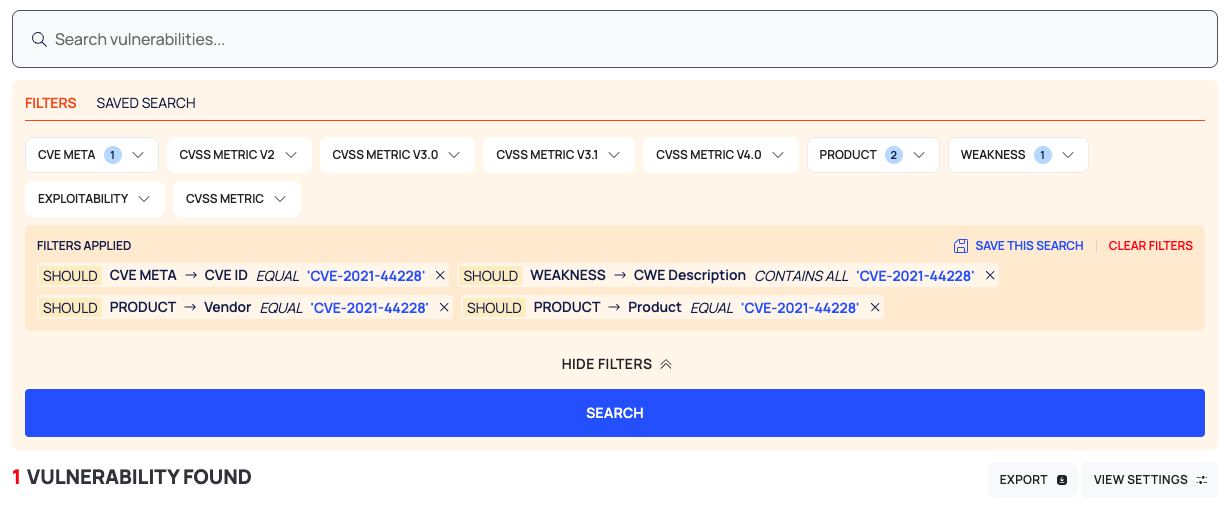
- Type in the search box (Search vulnerabilities...): a CVE ID, a vendor, a product or a word from a weakness description. Press Enter.
- The platform turns your text into four SHOULD rules, so a CVE matches on any of them:
- CVE META · CVE ID · EQUAL
- WEAKNESS · CWE Description · CONTAINS ALL
- PRODUCT · Vendor · EQUAL
- PRODUCT · Product · EQUAL
- To narrow the search, add rules from the filter groups (below), then select SEARCH.
CLEAR FILTERS in the FILTERS APPLIED bar removes all rules. Saving searches is not available: SAVED SEARCH and SAVE THIS SEARCH have no effect.
Filter Groups
| Group | Examples of fields |
|---|---|
| CVE META | CVE ID, published and last modified dates, status, description, references |
| CVSS METRIC V2, CVSS METRIC V3.0, CVSS METRIC V3.1, CVSS METRIC V4.0, CVSS METRIC | The CVSS scores and vector metrics of each version |
| PRODUCT | Vendor, product, product type, affected versions, CPE names |
| WEAKNESS | CWE ID and name, OWASP Top 10 2021 category, CAPEC ID |
| EXPLOITABILITY | EPSS and its percentile; the CISA KEV fields (date added, due date, required action, known ransomware use) |
See Search, filter and export lists for how MUST, MUST NOT and SHOULD combine.
Read the Results
- Count line: how many vulnerabilities were found, then EXPORT and VIEW SETTINGS.
- Columns:
- CVE ID, with an EXPLOITABLE marker for CVEs in the CISA KEV catalog, and the weakness (CWE)
- SCORE/SEVERITY
- CLASSIFICATION: the impact on confidentiality, integrity and availability, for example C/I/A: H/H/H
- EPSS
- VENDOR and PRODUCT: the first few, then n MORE
- PUBLISHED DATE and MODIFIED DATE
- The results come 25 per page and cannot be sorted. VIEW SETTINGS › View Options only lets you choose the columns (SHOWN) or Reset to Default View.
Read a CVE
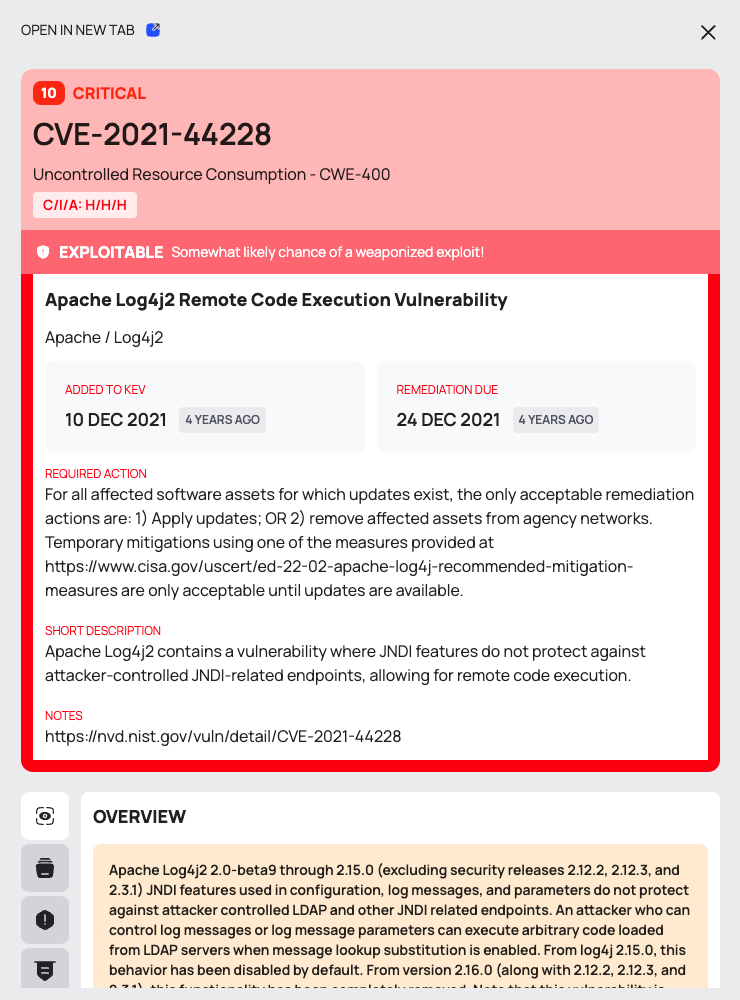
- Select a row. The CVE opens in a drawer:
- Header: the score, the severity, the CVE ID, the weakness (CWE) and C/I/A.
- CISA KEV banner, when the CVE is in the catalog: EXPLOITABLE, the vulnerability's KEV name, the vendor and product, ADDED TO KEV, REMEDIATION DUE, REQUIRED ACTION, SHORT DESCRIPTION and NOTES.
- Tabs (icons): OVERVIEW, CISA KEV CATALOG (with VENDOR / PROJECT, PRODUCT, DATE ADDED, KNOWN RANSOMWARE USE, SHORT DESCRIPTION, REQUIRED ACTION, and a RANSOMWARE tag when ransomware use is known), WEAKNESS IDENTITY, CVSS METRICS, AFFECTED PRODUCT and REFERENCES.
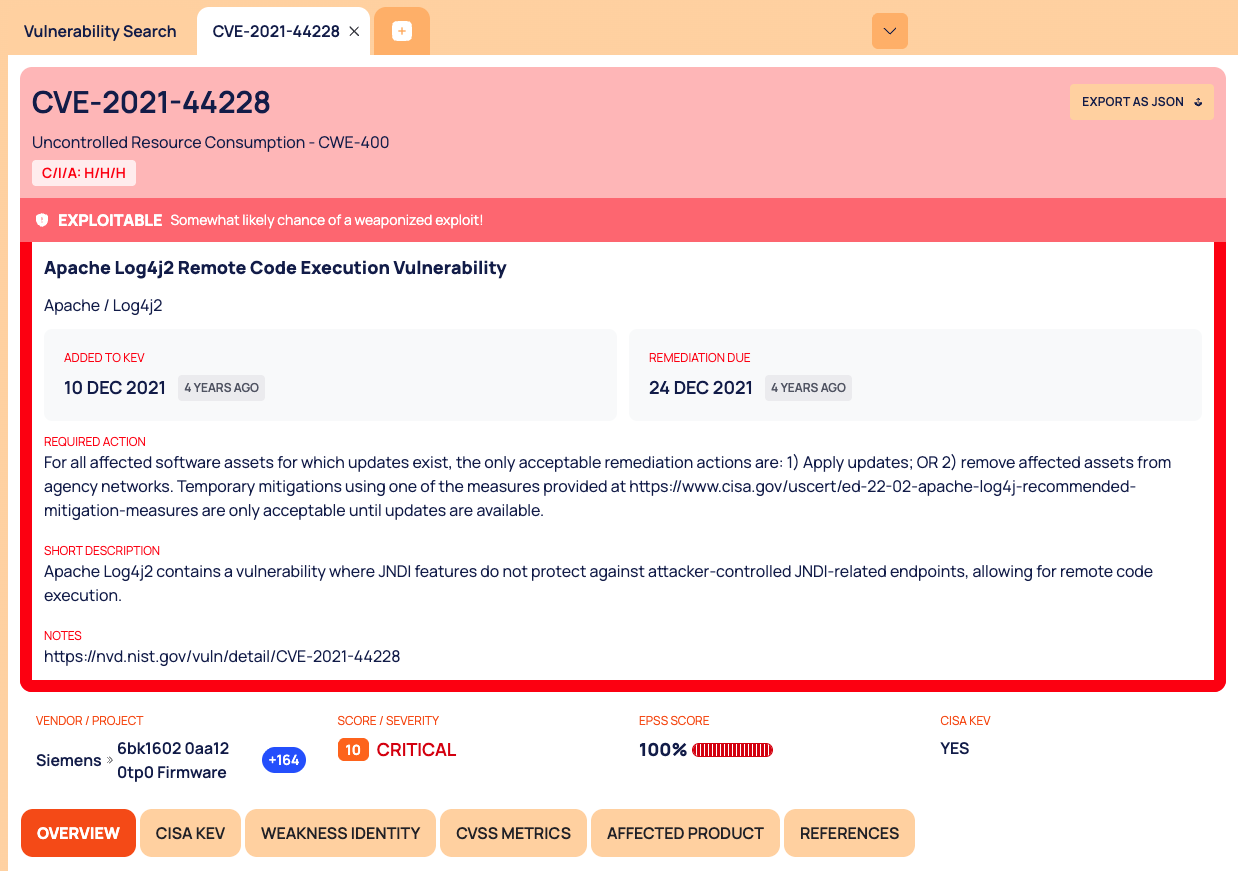
- To keep the CVE open while you search on, select OPEN IN NEW TAB. The CVE gets its own page tab with:
- EXPORT AS JSON and the CISA KEV banner;
- a summary strip: VENDOR / PROJECT (the first vendor and product, with the number of others), SCORE / SEVERITY, EPSS SCORE and CISA KEV (YES when the CVE is in the catalog);
- a section menu: OVERVIEW, CISA KEV, WEAKNESS IDENTITY, CVSS METRICS, AFFECTED PRODUCT and REFERENCES.
The Glossary explains CVSS, EPSS, CISA KEV and the C/I/A letters.
Export the Results
- Select EXPORT.
- In the DOWNLOAD dialog, choose the FILE FORMAT (CSV or JSON).
- Select DOWNLOAD.
Good to Know
- Vulnerability Search covers every CVE in Deepinfo's database. To see which CVEs affect your own assets, use Prioritize vulnerabilities.
- For statistics rather than a search, see Vulnerability intelligence.
Do This With the API
- Search: Vulnerability Search
- One CVE: Vulnerability Detail