Export All Data as CSV or JSON
The CSV AND JSON REPORTS cards on the Reports screen each download one complete dataset as a single file. No filters are applied.
Before You Start
- Package: your organization's package must include Reports. See Reports.
- Role: Admin or Member.
Where to Find It
Sidebar: REPORTS › REPORTS · https://platform.deepinfo.com/app/platform/reports
The exports are in the CSV AND JSON REPORTS section of each tab: EASM REPORTS, CTI REPORTS and BRP REPORTS, one for each module (External Attack Surface Management, Cyber Threat Intelligence and Brand Risk Protection).
The Exports
| Tab | Card | File name |
|---|---|---|
| EASM REPORTS | All Assets Report | deepinfo-all-assets-<date>-<time> |
| EASM REPORTS | All Issues Report | deepinfo-all-issues-<date>-<time> |
| EASM REPORTS | All Technologies Report | deepinfo-all-technologies-<date>-<time> |
| EASM REPORTS | All Vulnerability Report | deepinfo-all-vulnerabilities-<date>-<time> |
| CTI REPORTS | All Compromised Employee Credentials Report | deepinfo-all-compromised-employee-credentials-<date>-<time> |
| CTI REPORTS | All Compromised Client Credentials Report | deepinfo-all-compromised-client-credentials-<date>-<time> |
| CTI REPORTS | All Compromised Payment Credentials Report | deepinfo-all-compromised-payment-credentials-<date>-<time> |
| BRP REPORTS | All Fraudulent Domains Report | deepinfo-all-fraudulent-domains-<date>-<time> |
| BRP REPORTS | All Suspicious Domains Report | deepinfo-all-fraudulent-suspicious-domains-<date>-<time> |
<date> is YYYYMMDD and <time> is HHmmss, the moment you downloaded the file. The extension is .csv
or .json.
The Cyber Threat Intelligence (CTI) exports contain your employees' exposed credentials, your clients' exposed credentials and exposed payment cards, as found in leaked data.
Download an Export
- In the sidebar, select REPORTS › REPORTS and choose the tab: EASM REPORTS, CTI REPORTS or BRP REPORTS.
- In CSV AND JSON REPORTS, select DOWNLOAD on the card you need. Clicking the card itself does the same.
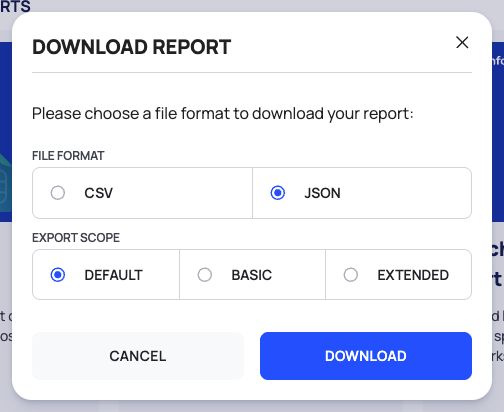
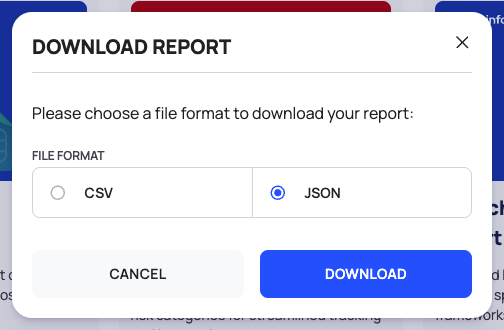
- The DOWNLOAD REPORT popup opens: "Please choose a file format to download your report:". Under FILE FORMAT, choose CSV or JSON. JSON is selected by default.
- For All Assets Report only, choose an EXPORT SCOPE: DEFAULT, BASIC or EXTENDED. DEFAULT is selected by default.
- Select DOWNLOAD. Your browser saves the file, and the message "Your report has been generated and downloaded to your device." appears.
To close the popup without downloading, select CANCEL.
Good to Know
- Everything, every time. These exports ignore any filters you set on list screens. To export only part of a list, filter the list on its own screen, for example INVENTORY or FRAUDULENT DOMAINS, and select its EXPORT button. When a filter is set, the DOWNLOAD dialog there offers RECORDS: ALL or FILTERED. See Search, filter and export lists.
- The scopes are not explained in the platform. The popup does not say what BASIC or EXTENDED adds to or removes from the DEFAULT export.
- Handle credential exports with care. The CTI exports come from leaked data about your employees, clients and payment cards. Store and share the files as carefully as the credentials themselves. See Handle leaked data safely.
Do This With the API
The same datasets can be exported through the API. There you can also send filters, so the file contains only the records you need. The filter syntax is described in Search & filters.