Browse Your Asset Inventory
Inventory lists every asset External Attack Surface Management (EASM) monitors, with the signals you need to decide where to look first: security rating, active issues, vulnerabilities, open ports, certificate and domain expiry, HTTP status and your tags.
Before You Start
- Package: EASM.
- Role: Admin or Member.
- Data: at least one asset. See Add assets.
Where to Find It
Sidebar: EXTERNAL ATTACK SURFACE MANAGEMENT › ASSETS › INVENTORY · Tab: ASSETS LIST · https://platform.deepinfo.com/app/easm/assets
The EASM dashboard's GO TO ASSETS PAGE opens it too. Inventory has three in-page tabs:
| Tab | What it holds | Deep link |
|---|---|---|
| OVERVIEW | Summary cards for your inventory (see The OVERVIEW tab) | /app/easm/assets/overview |
| ASSETS LIST | The list of assets, described on this page | /app/easm/assets |
| INSIGHTS | How your assets are spread across registrars, DNS, hosting, certificates and HTTP status; see Asset insights | /app/easm/assets/insights |
Read the Screen
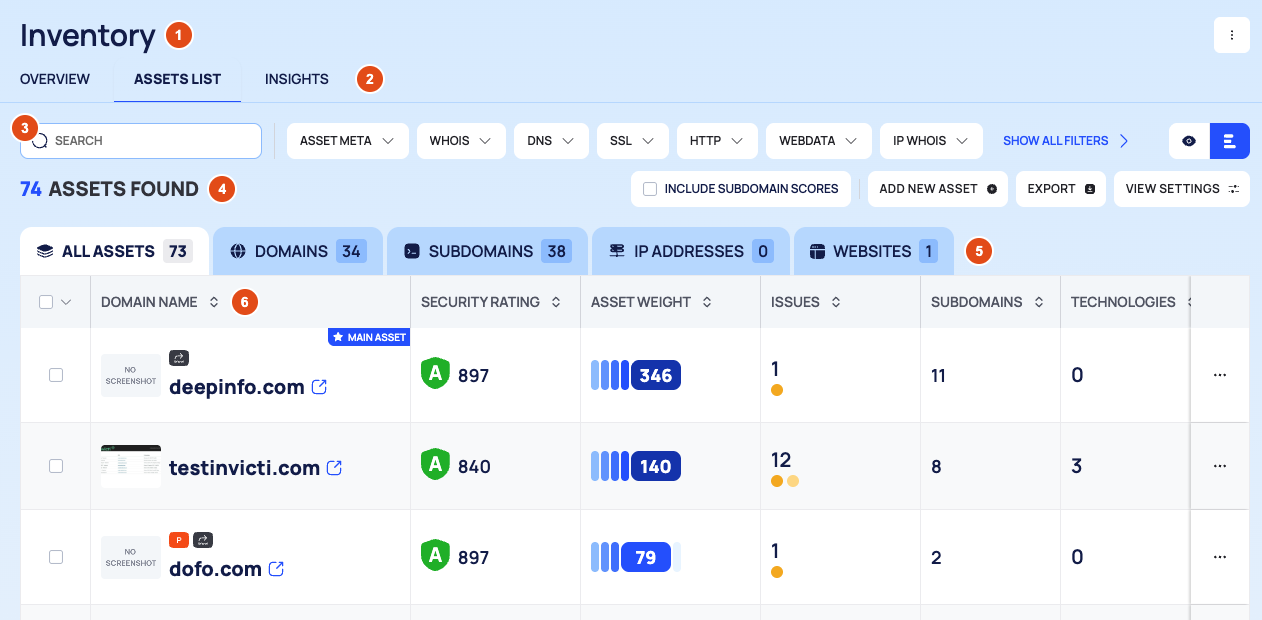
The header breadcrumb reads EASM / ASSETS / INVENTORY.
- Title and menu. The title Inventory has a ⋮ menu with DELETED ASSETS, the list of assets you removed.
- In-page tabs: OVERVIEW, ASSETS LIST and INSIGHTS.
- Filter bar: the SEARCH box, one drop-down chip per filter category (ASSET META, WHOIS, DNS, SSL, HTTP, WEBDATA, IP WHOIS, OTHER) and two icons that switch between quick view and list view. On a narrow screen, some chips fold behind SHOW ALL FILTERS.
- Result row: the number of assets found (N ASSETS FOUND), the INCLUDE SUBDOMAIN SCORES checkbox, ADD NEW ASSET, EXPORT and VIEW SETTINGS.
- Type tabs with counts: ALL ASSETS, DOMAINS, SUBDOMAINS, IP ADDRESSES and WEBSITES.
- The list, 25 rows per page by default. Select a row to open the asset drawer (see Investigate an asset).
Columns
Each tab shows the columns that fit its asset type.
| Column | What it shows | Tabs |
|---|---|---|
| DOMAIN NAME, SUBDOMAIN, IP ADDRESS, WEBSITE NAME | The asset, with its badges and a screenshot thumbnail (or NO SCREENSHOT) | one per tab |
| SECURITY RATING | The asset's security grade and score (see How security scores work) | all |
| ASSET WEIGHT | How important the asset is, as a number and a bar (see asset weight) | all |
| ISSUES | Active issues as colored severity dots; hover for the count per severity | all |
| SUBDOMAINS | Number of subdomains | ALL ASSETS, DOMAINS |
| TECHNOLOGIES | Icons of the technology categories found | all |
| OPEN PORTS | Number of open ports | all |
| VULNERABILITIES | Vulnerabilities, in total and per severity | all |
| IP ADDRESSES | Up to two addresses; hover for the rest | all except IP ADDRESSES |
| LAST CHECK DATE | When the asset was last checked | all |
| DOMAIN EXPIRE ON | WHOIS expiry date and status chip | ALL ASSETS, DOMAINS, WEBSITES |
| SSL CERTIFICATE | Certificate expiry date and status chip | all |
| HTTP STATUS | The status code, colored by class | all |
| TAGS | The tags you gave the asset | ALL ASSETS, DOMAINS, SUBDOMAINS |
| … | The asset's actions menu | all |
The ALL ASSETS tab lists every type and uses the column set of the DOMAINS tab. For subdomains and
websites, SUBDOMAINS and DOMAIN EXPIRE ON show - there.
Badges on Asset Names
| Badge or icon | Meaning |
|---|---|
| MAIN ASSET (star) | The asset is set as your main asset. A subdomain can be a main asset too |
| SEEMS INACTIVE | No active DNS records or WHOIS information were found for the asset |
| Login page icon | The asset has a login page |
| IDN | The name is internationalized; the tooltip shows its punycode form |
| P (parked) | The domain is parked; the tooltip shows where it redirects |
| Redirect icon | The asset redirects to another name, shown in the tooltip |
Hover over the screenshot thumbnail for two seconds to see a larger preview. Parked assets are shown in gray, but their risk columns keep full color.
Find Assets
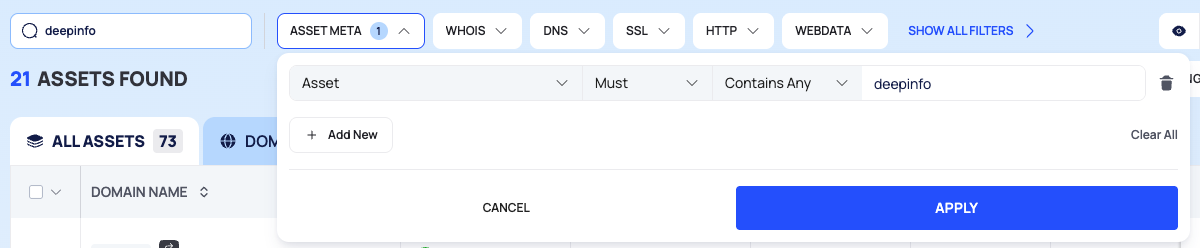
- To search by name, type in SEARCH and press Enter. This adds the condition Asset · Must · Contains Any with your text.
- For anything else, open a category chip, for example ASSET META. Under Select field, pick a field. ASSET META has fields such as Asset, Asset Type, Tags, Creation Method, Added Date, Is Main Asset and Seems Inactive; OTHER has fields such as Security Score and Open Port Count.
- Set the condition:
- the rule: Must (include), Must Not (exclude) or Should (prefer);
- the operator. Text fields offer Equal, Wildcard, Fuzzy, Contains Any, Start With and Exists. Number fields use Between, with a MINIMUM and a MAXIMUM;
- the Value.
- To add another condition in the same category, select Add New. Clear All removes the conditions in the popover.
- Select APPLY, or CANCEL to close without a change.
A chip with active conditions shows their number, for example ASSET META 1. Filters and the search are cleared when you reload the page.
The same rules work in the API; see Search & filters.
Change the View
- Quick view shows a list of assets on the left, with its own SEARCH box and a sort icon, and the selected asset's full detail on the right, with OPEN IN NEW TAB, SCAN NOW and CREATE A REPORT.
- VIEW SETTINGS opens View Options:
- Sort By (Default until you choose): pick a field and a direction in the two Select boxes, then APPLY. CLEAR removes your choice.
- Result Per Page: 25, 50, 75 or 100.
- Show Only Tagged Assets.
- Reset to Default View.
- SHOWN: a switch per column to show or hide it.
The selected type tab is part of the page address, so you can bookmark or share it.
Tag Assets
Tags let you group assets your own way, for example by owner or environment.
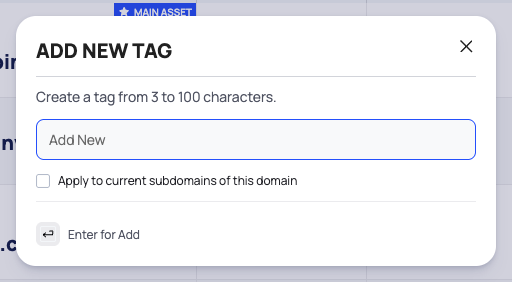
- Open the asset's … menu and, under ASSET SETTINGS, select ADD NEW TAG. You can also select ADD TAG in the TAGS block of the asset drawer or of the asset's OVERVIEW tab.
- In ADD NEW TAG, type a tag name of 3 to 100 characters in Add New.
- For a domain, tick Apply to current subdomains of this domain to tag its current subdomains too.
- Press Enter to add the tag.
To rename a tag, remove it from an asset or delete it everywhere, see Tag, weight and configure assets.
Tags appear in the TAGS column. To list only tagged assets, tick Show Only Tagged Assets in View Options; to filter by a tag, use ASSET META › Tags.
Export the List
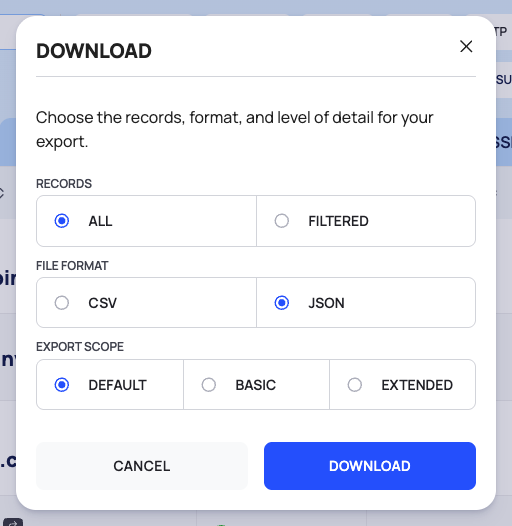
- Select EXPORT. The DOWNLOAD dialog opens.
- Under RECORDS, choose ALL to export without your filters, or FILTERED for the assets that match your filters. FILTERED is offered when filters are applied.
- Under FILE FORMAT, choose CSV or JSON. JSON is selected by default.
- Under EXPORT SCOPE, choose DEFAULT, BASIC or EXTENDED. The dialog does not describe what each scope contains.
- Select DOWNLOAD, or CANCEL to close without a file.
Rescan Assets
- Tick the assets you want to rescan. The checkbox menu has SELECT THIS PAGE and CLEAR SELECTION; selection works on the current page only.
- Select SCAN NOW in the selection bar. The scans start right away, without a confirmation.
- A progress bar shows while the scans start. The list refreshes when they are under way.
To rescan one asset, select SCAN NOW in its … menu.
Remove Assets
- Tick the assets, then select DELETE in the selection bar. For one asset, open its … menu and select REMOVE THIS ASSET (REMOVE FROM INVENTORY for an inactive asset).
- The Remove confirmation names what you are about to remove. Select REMOVE, or CANCEL to keep the assets.
- After a few seconds a message confirms the removal and the list refreshes.
Removed assets move to Deleted Assets (the ⋮ menu next to the Inventory title). From there you can add them back with RE-ADD AS ASSET. A removed asset can also be found again by discovery and show up for review in Discovery. See Remove and restore assets.
The OVERVIEW Tab
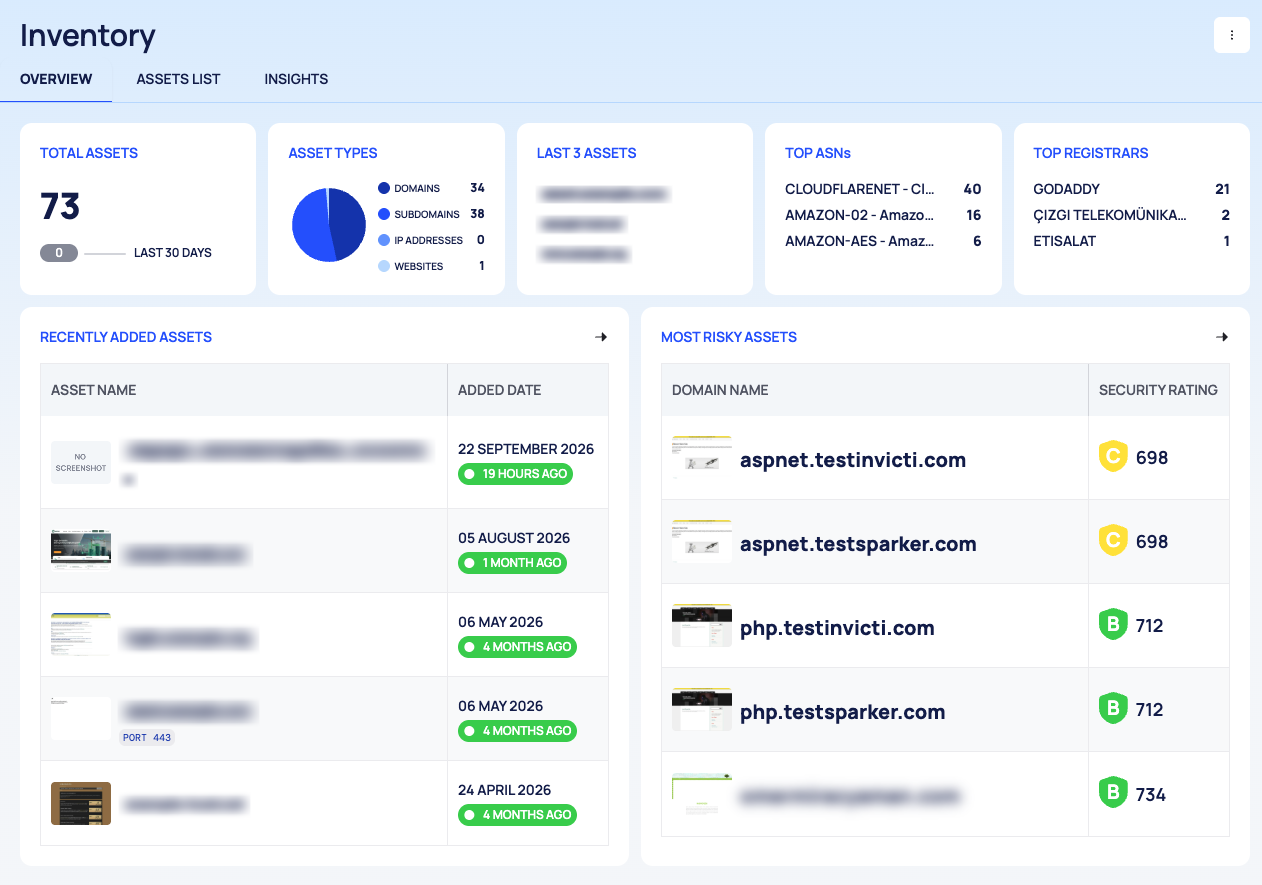
The OVERVIEW tab (breadcrumb EASM / ASSETS / OVERVIEW) summarizes your inventory:
| Card | What it shows |
|---|---|
| TOTAL ASSETS | Number of assets, with a change chip and LAST 30 DAYS |
| ASSET TYPES | Assets per type |
| LAST 3 ASSETS | The three most recently added assets. Each link opens the asset in a new tab |
| TOP ASNs | Your subdomains grouped by network (ASN) |
| TOP REGISTRARS | Your domains grouped by WHOIS registrar |
| RECENTLY ADDED ASSETS | ASSET NAME and ADDED DATE |
| MOST RISKY ASSETS | The assets with the lowest security score: DOMAIN NAME and SECURITY RATING |
States, Colors and Scores
SSL CERTIFICATE and DOMAIN EXPIRE ON chips:
| Chip | Meaning |
|---|---|
| ACTIVE | Expires more than a month from now |
| EXPIRES SOON | Expires within the next month |
| EXPIRED | The date is in the past; the date also turns red |
| INVALID CERTIFICATE | The SSL certificate has no valid expiry date |
A domain expiry without a valid date shows -.
HTTP STATUS is green for 2xx codes, orange for 3xx and red for 4xx and 5xx. The status description, for example OK, appears next to the code.
When a Tab Is Empty
A tab with no assets says there is no asset of that type in your portfolio ("portfolio" means your inventory), with a button to add some, for example ADD IP ADDRESSES. If discovery has found subdomains that are waiting for review, the SUBDOMAINS tab says so and offers GO TO DISCOVERY. See Review discovered assets.
Good to Know
- The … menu on each row has the same actions as the asset drawer and detail page: SCAN NOW and CREATE REPORT; under ASSET SETTINGS, SET AS MAIN ASSET (or REVERT TO NORMAL ASSET), SET ASSET WEIGHT, SET DISCOVERY SETTINGS and ADD NEW TAG; under OTHER ACTIONS, REMOVE THIS ASSET.
- CREATE REPORT creates a new report as soon as it opens. See Generate and download a PDF report.
- Saved searches are not available.
- For the list controls every module shares, see Search, filter and export lists.
Do This With the API
- Search your assets: Asset Search
- Export them as CSV or JSON: Asset Export
- Count them per type: Asset Type Stats
- Tag assets: Asset Set Tag
- Rescan an asset: Asset Instant Scan
- Remove assets: Asset Delete