Change Your Organization's Name and Logo
The organization's Settings page holds its name and logo. Both appear in several places in the platform, listed below.
Before You Start
- You must be an admin. Members do not see this page; if they open it, Account Details opens instead. No package is needed.
- For the logo, have an image file of 5 MB or less.
Where to Find It
Sidebar: SETTINGS › ORGANIZATION SETTINGS › Settings · https://platform.deepinfo.com/app/settings/org-settings
COMPANY SETTINGS in the profile menu opens it too.
Read the Screen
The page is headed Organization Details and has two cards: Organization Logo and Organization Name. The logo card shows the organization's initials until a logo is uploaded.
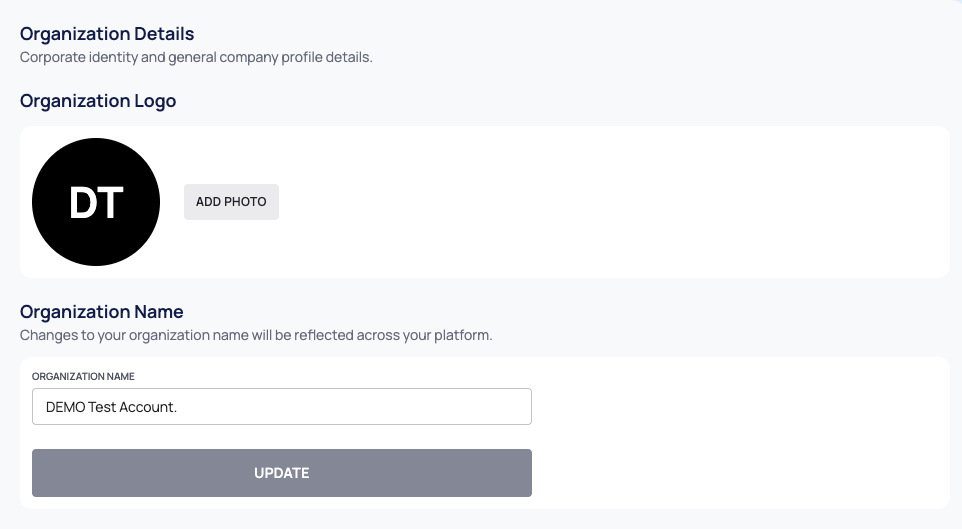
Change the Organization Name
- In Organization Name, edit ORGANIZATION NAME.
- Select UPDATE. The button stays disabled until you change the name.
The platform confirms with "Your organization has been updated."
Add or Change the Logo
- In Organization Logo, select ADD PHOTO, or CHANGE PHOTO if there is a logo already.
- Choose an image file of 5 MB or less.
- Select UPLOAD PHOTO. To cancel instead, select the × on the preview.
The platform confirms with "Your Organization logo has been updated." To remove the logo, select REMOVE PHOTO.
Where the Name and Logo Appear
- The header card at the top of Settings shows the logo and the name.
- The profile-menu button at the top right of every page shows the logo, or the organization's initials when there is no logo.
- The Global Dashboard and the Cyber Threat Intelligence (CTI) dashboard show the logo at the top. Without a logo, an empty space is shown there.
Good to Know
- One organization per account. Every user belongs to exactly one organization, and there is no way to switch between organizations.
- Two-factor authentication for everyone is set on a separate page. See Require two-factor authentication.