Account and Workspace
Settings holds your own account settings and your organization's settings, including its API keys, API usage and API logs. Some pages are for admins only.
Before You Start
No package is needed, and every user can open Settings. Admins also see Settings, Members and Security under ORGANIZATION SETTINGS; members do not. See What you can access.
Where to Find It
Sidebar: SETTINGS · https://platform.deepinfo.com/app/settings
It opens Account Details. You can also get there from the menus at the top right:
- the profile menu: USER SETTINGS opens Account Details, and COMPANY SETTINGS (admins only) opens the organization's Settings page;
- the + menu: ADD NEW MEMBER opens Members (admins only; members land on Account Details).
Read the Screen
From top to bottom:
- The breadcrumb, SETTINGS / <GROUP> / <PAGE>, for example SETTINGS / USER SETTINGS / ACCOUNT DETAILS.
- A header card with your organization's logo (or its initials) and its name.
- The Settings sidebar on the left, with the groups USER SETTINGS and ORGANIZATION SETTINGS, and the selected page on the right.
In this guide, Sidebar: SETTINGS › USER SETTINGS › Account Details means: select SETTINGS in the main sidebar, then Account Details under USER SETTINGS in the Settings sidebar.
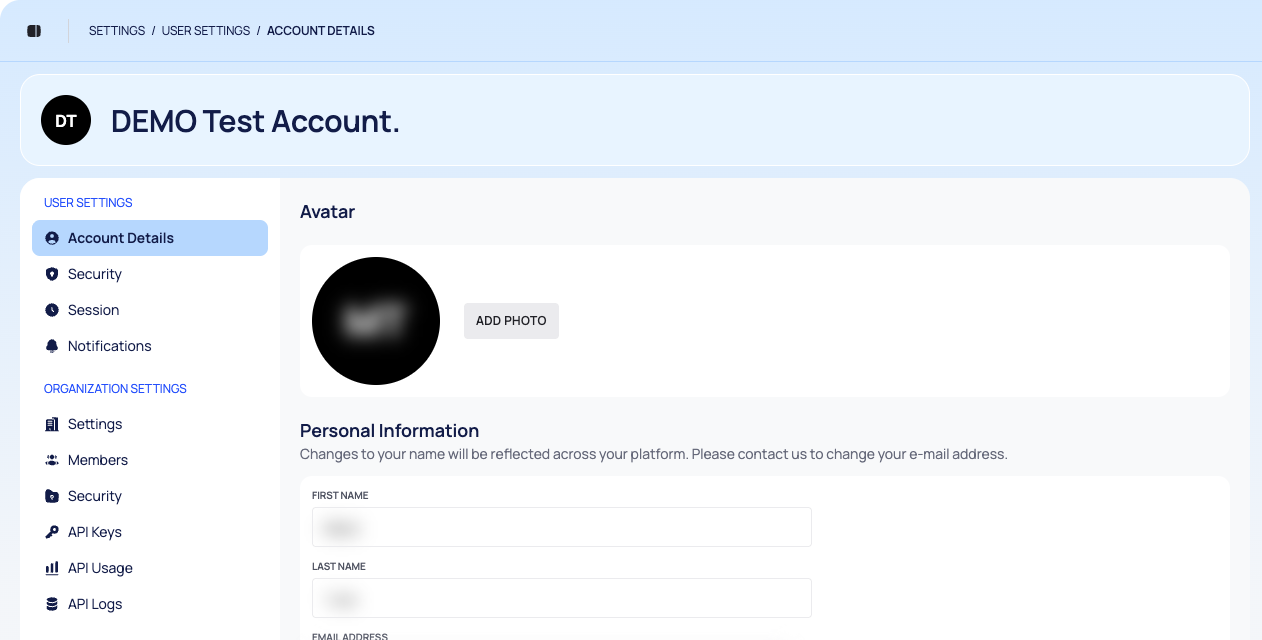
USER SETTINGS
These pages are about you, and every user has them.
| Settings sidebar item | What you do there | Guide page |
|---|---|---|
| Account Details | Change your photo, name and time zone | Update your profile |
| Security | Change your password; turn two-factor authentication on or off | Change your password, Use two-factor authentication |
| Session | See your sign-in history | Review your sign-in history |
| Notifications | Choose which Deepinfo emails you receive | Choose which Deepinfo emails you receive |
ORGANIZATION SETTINGS
These pages are about your organization.
| Settings sidebar item | Who sees it | What you do there | Guide page |
|---|---|---|---|
| Settings | Admins | Change the organization's name and logo | Change your organization's name and logo |
| Members | Admins | Invite people, change roles, deactivate or delete members | Manage members and invitations |
| Security | Admins | Require two-factor authentication for everyone | Require two-factor authentication |
| API Keys | Everyone | Create, rename, delete and choose the default API key; see who each key belongs to | Create and manage API keys |
| API Usage | Everyone | Check quota, usage and what remains | Check API usage and quota |
| API Logs | Everyone | Review and filter the log of calls to the Deepinfo API | Review API logs |
Good to Know
- Admin-only pages. Members do not see Settings, Members and Security under ORGANIZATION SETTINGS. If a member opens one of them by its address, Account Details opens instead.
- Security in both groups. Security under USER SETTINGS is for your own password and 2FA. Security under ORGANIZATION SETTINGS requires 2FA for everyone; its breadcrumb reads ORGANIZATION SECURITY.
- Names in the breadcrumb. The breadcrumb can differ slightly from the Settings sidebar: Session shows as SESSIONS. This guide uses the Settings sidebar names.
- No new browser tab. The Settings sidebar items are not links, so you cannot open them in a new browser tab. Use the page addresses in this guide instead.
- Wide tables. Some Settings tables are wider than a laptop screen. Scroll the table sideways to reach the last columns, for example ACTIVE on Members.
- Two kinds of notifications. Notifications in Settings controls Deepinfo's own emails to you. Security alerts come from notification rules, under NOTIFICATION CENTER in the sidebar.
- Times. Dates and times in Settings tables are shown in your browser's local time.