Create a Notification Rule
A rule has one event, optional filters, a frequency and a list of recipients. You set them in a popup with four numbered steps.
Before You Start
- Package: your organization's package must include Notifications. See Notification Center.
- Role: Admin or Member. A member who is not an admin can choose only themselves as the recipient.
- Recipients: every rule needs at least one member of your organization. To add people first, see Manage members and invitations.
Where to Find It
Sidebar: NOTIFICATION CENTER · https://platform.deepinfo.com/app/platform/notification/rules
Create a Rule
- Select CREATE NEW RULE. The CREATE NEW NOTIFICATION RULE popup opens.
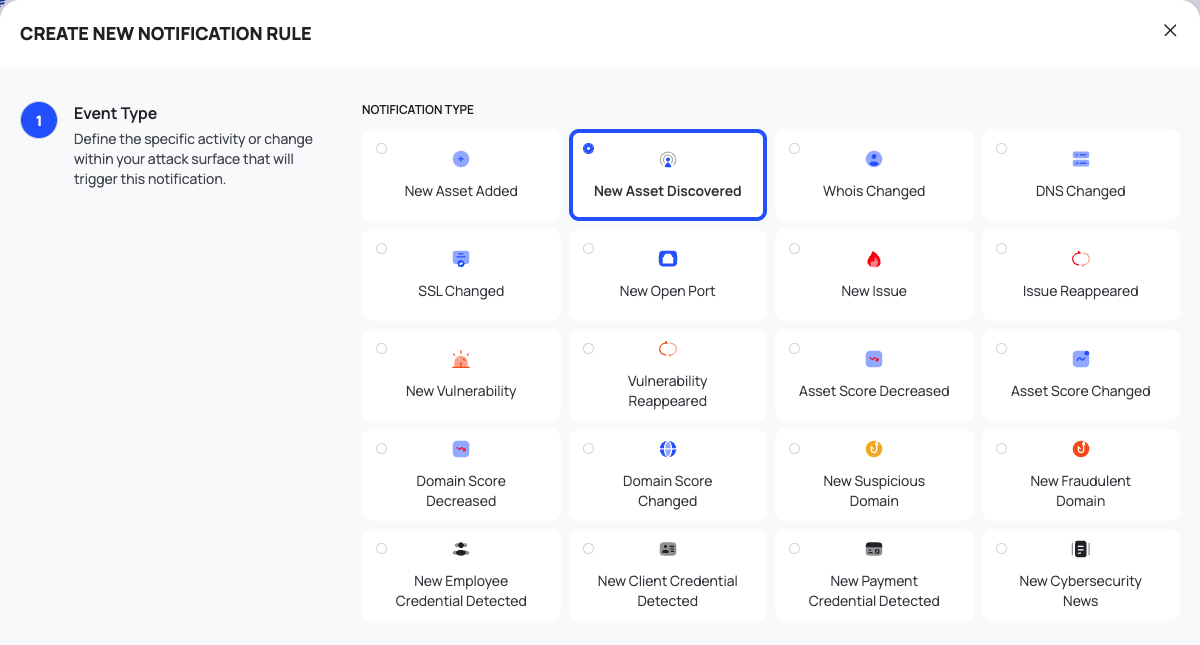
- Event Type: under NOTIFICATION TYPE, select the tile of the event that should trigger the rule. New Asset Discovered is selected by default. The events are listed in Events and filters.
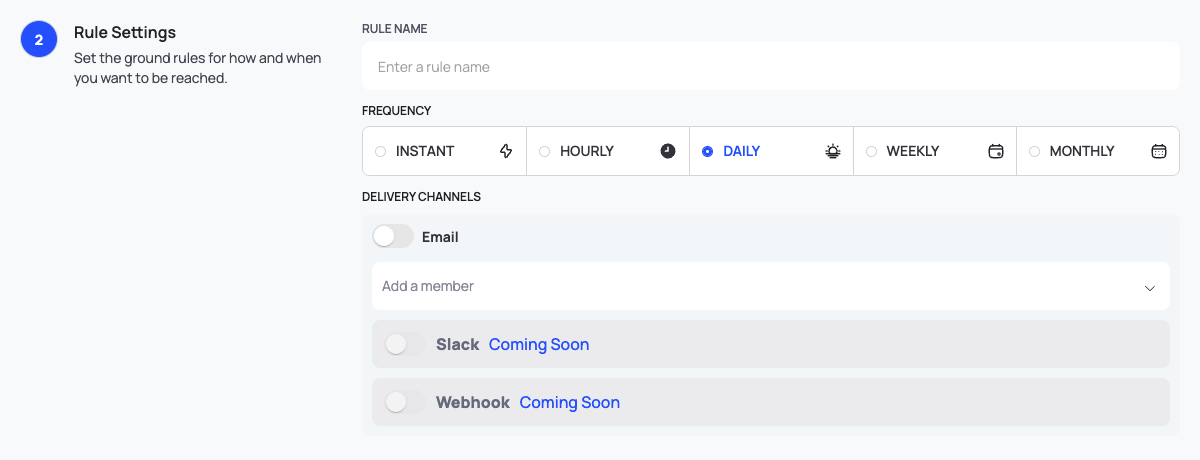
- Rule Settings:
- Enter a RULE NAME.
- Under FREQUENCY, choose INSTANT, HOURLY, DAILY, WEEKLY or MONTHLY. The default is INSTANT.
- Under DELIVERY CHANNELS, open the Add a member box for Email and choose the members who should receive the emails. You can choose more than one. The Email switch turns on by itself once a member is added.
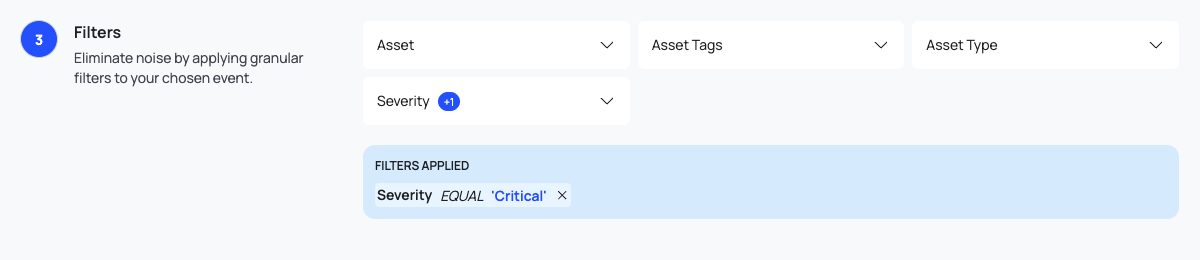
- Filters: narrow the event if you need to. Each filter is a chip; open it, set a value and select APPLY. The filter is then listed under FILTERS APPLIED. The filters on offer depend on the event (see Events and filters). Every filter is optional.
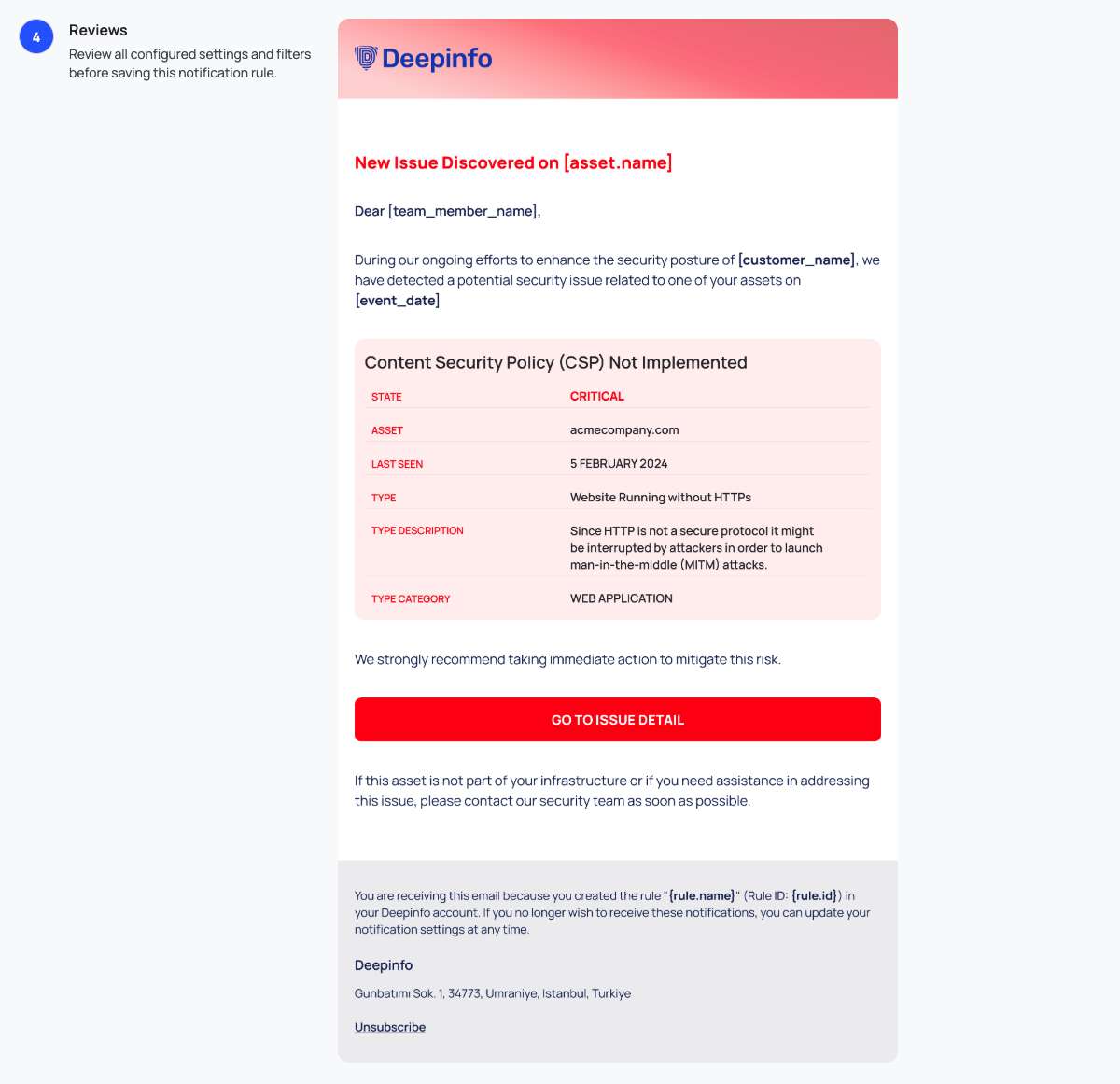
- Reviews: look at a sample notification email.
- Select CREATE RULE. The popup closes and the new rule appears in the list.
To close the popup without saving, select × at the top.
CREATE RULE checks the form when you select it:
- Without a rule name, the popup returns to Rule Settings with the message "This field cannot be left blank."
- Without a member, the popup returns to Rule Settings with the message "Add at least one member email."
If the platform cannot save the rule, the error appears at the bottom left of the popup.

Set a Filter
A filter chip opens a small popover:
- Under OPERATOR, the operator is Equal.
- Under VALUE, choose or type the value. Filters that take numbers, such as Port Number or EPSS, have +Add Value to add another value. Score takes a range, FROM and TO.
- Select APPLY to add the filter, or CANCEL to close the popover without it.
Asset Score Decreased and Domain Score Decreased start with two filters already set: Unit is Absolute and By is 800. Change them if you need a different threshold.
Good to Know
- One event per rule. To be alerted about several events, create a rule for each.
- Choose carefully: most settings are fixed once saved. After you create a rule you can change only its name, its recipients and whether it is active. To change the event, frequency or filters, duplicate the rule, adjust the copy and remove the old rule. See Manage notification rules.
- Email is the only delivery channel. Slack and Webhook carry a Coming Soon label and cannot be switched on.
- You cannot switch Email off by hand. The switch only shows whether the rule has recipients. To pause a rule, deactivate it in the list.
- You cannot choose when emails go out. There is no control for the hour or the day of HOURLY, DAILY, WEEKLY and MONTHLY emails.
- The review step shows a sample. Reviews shows an example notification email. It is not a summary of your settings.