Run Instant Lookups
Instant Lookup queries one target in real time: its registration (WHOIS), DNS records, certificate (SSL), website data, technologies, a screenshot, or a port scan. Use it when you need the current answer for a single domain or IP address, rather than a search across Deepinfo's data.
Before You Start
- Package: each lookup type is part of your package separately. A type that is not included says so in its tab.
- Role: Admin or Member.
Where to Find It
Sidebar: DEEP SEARCH & INSIGHTS › INSTANT LOOKUP · https://platform.deepinfo.com/app/dsi/instant-lookup
The breadcrumb reads DSI / INSTANT LOOKUP. Each lookup runs in a page tab named after its type, for example Whois Lookup; see Page tabs.
The Lookup Types
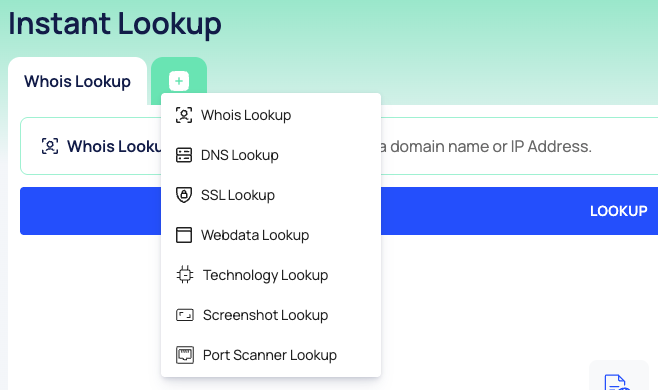
Pick a type with the + button above the page (it opens a new tab) or with the type switcher at the start of the input (it changes the current tab).
| Type | What to enter | Advanced options |
|---|---|---|
| Whois Lookup | A domain name or an IP address | None |
| DNS Lookup | A domain name or subdomain | The DNS record types to query |
| SSL Lookup | A domain name or an IP address | PORT and PROXY |
| Webdata Lookup | A domain name or a URL | PROXY |
| Technology Lookup | A domain name or an IP address | None |
| Screenshot Lookup | A domain name or an IP address | Page, image and browser options |
| Port Scanner Lookup | A domain name or an IP address | Scan mode and ports |
Run a Lookup
- Choose the lookup type.
- Type the target in the input.
- Optional: select SHOW ADVANCED OPTIONS and set the options (see below).
- Select LOOKUP.
Some lookups take a while; a WHOIS lookup can take close to a minute. The button shows a spinner meanwhile. After a result, LOOKUP stays unavailable until you change the input.
Warning
When you switch the lookup type, the input is filled again with the last target you looked up, even if you had cleared it. Check the target before you select LOOKUP. Run Port Scanner Lookup only against hosts you own or are allowed to scan.
Advanced Options
- DNS Lookup (PARAMETERS): tick the DNS Types to query. You can select up to 5 types per request. SELECT DEFAULT ONES picks A, TXT, MX, NS and CNAME; UNSELECT ALL clears the list.
- SSL Lookup (PARAMETERS): PORT (443 unless you set another) and PROXY (the address of a proxy to connect through). CLEAR PARAMETERS empties both.
- Port Scanner Lookup: Light Mode or Full Mode, and PORTS: TCP & UDP Ports, TCP Ports, UDP Ports or Custom Ports.
- Screenshot Lookup:
- checkboxes such as Full page screenshot, Lazy loading, Block Ads, No cookie banners, Disable Javascript, Retina, Mobile, Landscape and Touchscreen;
- Export Image Options: DOCUMENT TYPE, IMAGE QUALITY and THUMBNAIL;
- Browser Options: BROWSER SIZE WIDTH, BROWSER SIZE HEIGHT, SCALE, DELAY, TIMEOUT and more;
- SEE ALL adds HTML Options, such as the element to capture, headers, cookies, the user agent, a proxy, injected CSS and a location; HIDE folds them away.
Read the Result
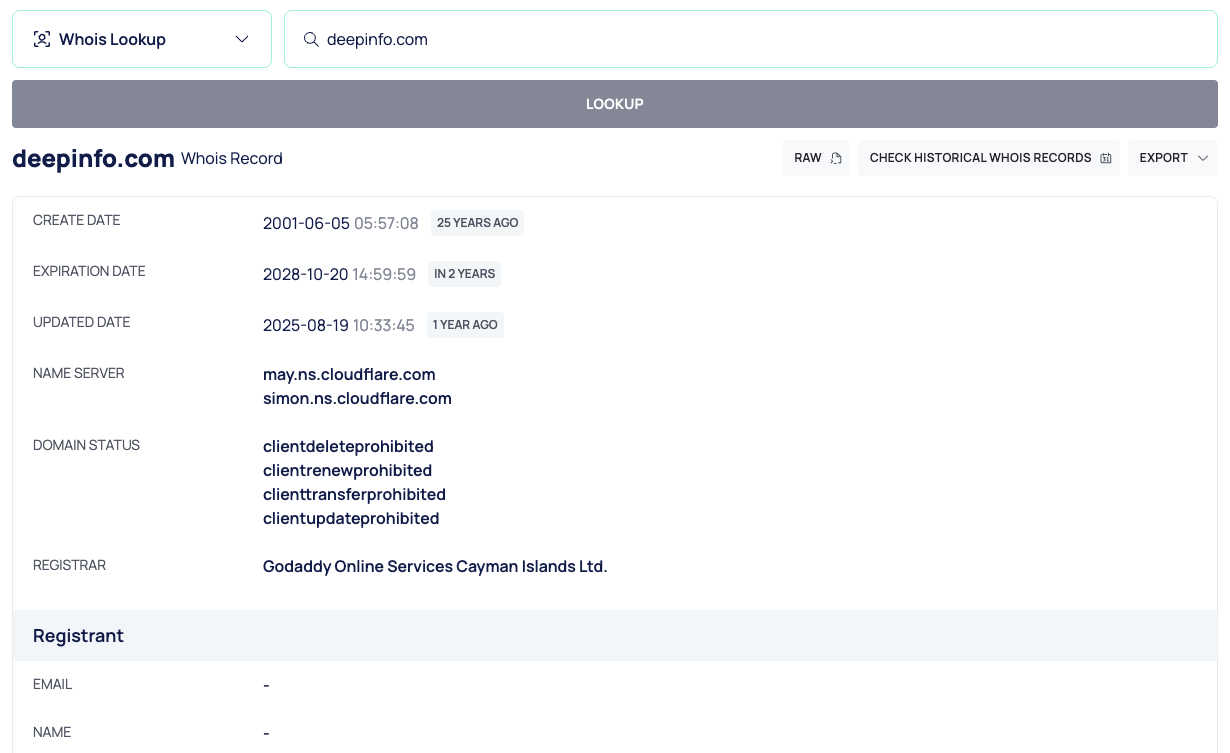
The result header shows the target, the kind of record (for example Whois Record), and:
- RAW and PARSED: switch between the raw data and a readable layout.
- CHECK HISTORICAL WHOIS RECORDS (WHOIS) or CHECK HISTORICAL DNS RECORDS (DNS): open a drawer with the stored history, for example Historical Whois Records with the number of records found and their dates. SSL results have no history button.
- EXPORT: save the result as a file.
What each result contains:
| Type | Result |
|---|---|
| Whois Lookup | The registration dates, name servers, status and registrar, and the Registrant block |
| DNS Lookup | One table per record type, for example A Records, MX Records (with PRIORITY), NS Records and TXT Records. A type with no record shows No Result Found. |
| SSL Lookup | Details (including the SAN LIST), Fingerprint (including the PUBLIC KEY), Signature (including VALID) and Extensions |
Good to Know
- An instant lookup asks for the current data at the moment you run it. Domain Search and the domain details show the data Deepinfo has already collected; see Search domains.
- Your lookup tabs and the last result are kept in this browser for your user, so they are still there after a reload. Close a tab to remove it.
Do This With the API
- WHOIS: Domain WHOIS, IP WHOIS
- DNS: DNS
- SSL: SSL
- Web data: Web Data
- Technology: Technology
- Screenshot: Screenshot
- Port scan: Port Scan
- History: WHOIS History, DNS History