Reset a Forgotten Password
If you forgot your password, request a reset link. The platform emails it to you, and you set a new password from that link.
Before You Start
You need the email address of your Deepinfo account and access to its inbox. No package or role is needed.
Where to Find It
Select Forgot your password? on the sign-in page, or open https://platform.deepinfo.com/reset-password (demo accounts: https://platform.deepinfodemo.com/reset-password).
Request a Reset Link
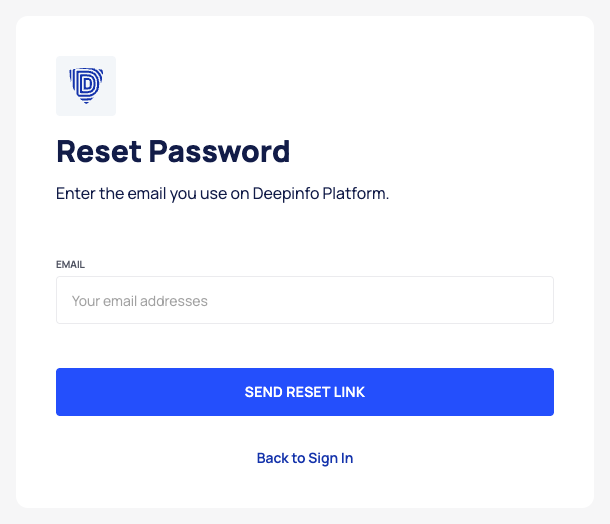
- On the sign-in page, select Forgot your password?. The Reset Password page opens.
- In EMAIL, enter the email address you use on the platform.
- Select SEND RESET LINK.
The page confirms that a password recovery link was sent, and shows the address you entered. Select BACK TO SIGN IN to return to the sign-in page.
Set a New Password
- Open the link in the email. The Change Password page opens.
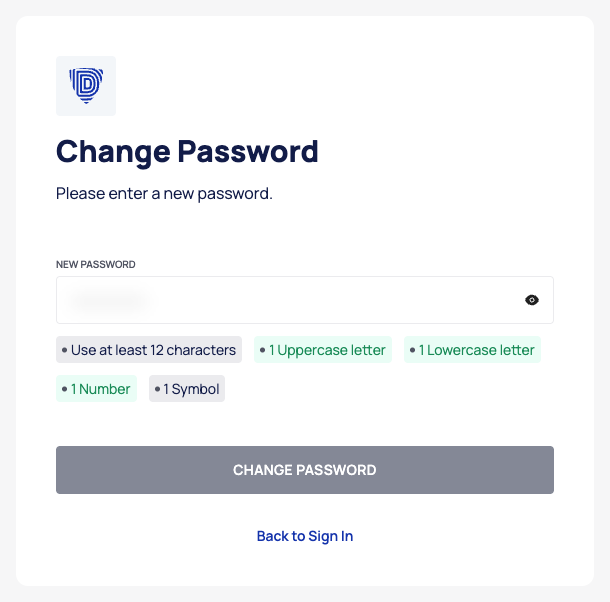
- Enter your new password in NEW PASSWORD. The rules below the field turn green as you meet them.
- When all five rules are green, select CHANGE PASSWORD.
- When Password Changed appears, select BACK TO SIGN IN and sign in with your new password.
Password Rules
The button that saves a password stays disabled until the password meets all five rules:
- Use at least 12 characters
- 1 Uppercase letter
- 1 Lowercase letter
- 1 Number
- 1 Symbol
Only these characters count as a symbol: ! @ # $ % ^ & * ( ) , . ? " : { } | < >
Other characters, such as -, _, +, =, / and ~, do not count as a symbol.
The same rules apply wherever you set a password: on this page, when you accept an invitation or activate an account, and when you change your password in Settings.
Good to Know
- The link expires after 2 hours. If it has expired, request a new one.
- You know your current password? You can change it while signed in instead. See Change your password.