Review Discovered Assets
Discovery rules look for assets related to the ones you already monitor. What they find waits on the DISCOVERED ASSETS tab until you decide: add it to your inventory, or ignore it.
Before You Start
- Package: External Attack Surface Management (EASM).
- Role: Admin or Member.
Where to Find It
Sidebar: EXTERNAL ATTACK SURFACE MANAGEMENT › ASSETS › DISCOVERY · Tab: DISCOVERED ASSETS · https://platform.deepinfo.com/app/easm/discoveries
Discovery has three in-page tabs:
| Tab | What it holds | Deep link |
|---|---|---|
| OVERVIEW | Summary cards (see The OVERVIEW tab) | /app/easm/discoveries/overview |
| DISCOVERED ASSETS | The assets waiting for review, described on this page | /app/easm/discoveries |
| SETTINGS | Smart Discovery, Custom Rules and Other Settings: the rules that find candidates; see Tune smart discovery and Create custom discovery rules | /app/easm/discoveries/settings/smart-discovery |
The ⋮ menu next to the Discovery title opens IGNORED ASSETS and APPROVED ASSETS.
Every discovered asset is IN REVIEW, APPROVED or IGNORED; see States below.
Read the Screen
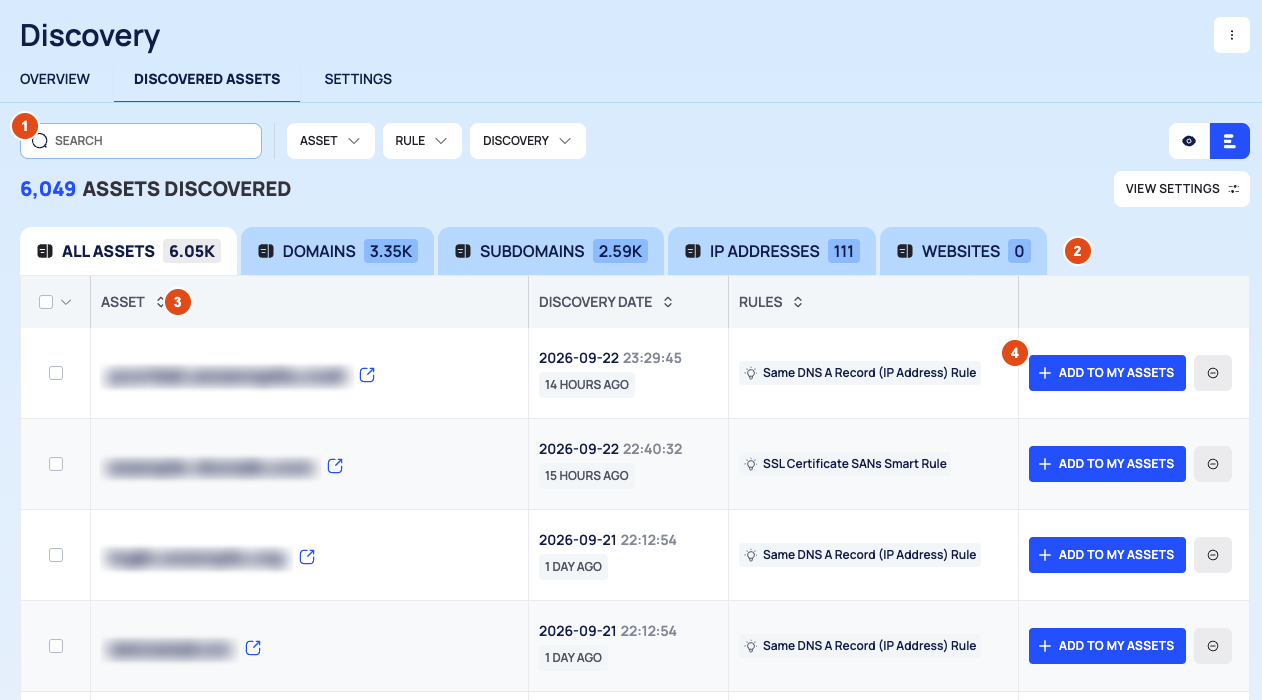
The header breadcrumb reads EASM / ASSETS / DISCOVERY.
- Filter bar: SEARCH, the filter chips ASSET, RULE and DISCOVERY, and the list and quick view icons. Then the number of assets discovered (N ASSETS DISCOVERED) and VIEW SETTINGS.
- Type tabs with counts: ALL ASSETS, DOMAINS, SUBDOMAINS, IP ADDRESSES and WEBSITES.
Large counts are shortened, for example
12.5K. - The list, 25 per page:
- ASSET
- DISCOVERY DATE, when the asset was last discovered
- RULES, a badge with the full name of each rule that found the asset. A bulb icon marks a smart rule managed by Deepinfo; a custom rule of your own has a different icon. Hover over a badge to see its seed value, the input the rule started from.
- Row actions: ADD TO MY ASSETS and an ignore button (an icon without text).

Check an Asset Before You Decide
- Select a row. The discovered-asset drawer opens.
- Read DISCOVERED DATE and RULES. The drawer's icon tabs (WHOIS for domains, then DNS, SSL and WEBSITE INFO) hold the records captured on the discovery date. The info icon next to the date reminds you that they may have changed since.
- To open the asset on its own page, select OPEN IN NEW TAB. The page has a DISCOVERY button to go back, and the same ADD TO MY ASSETS and IGNORE actions.
Subdomains have no WHOIS tab and open on DNS. IP addresses have no DNS tab.
Add Assets to Your Inventory
- On DISCOVERED ASSETS, select ADD TO MY ASSETS on the row. To add several, tick their rows first and use ADD TO MY ASSETS in the selection bar. To tick every row on the page, open the checkbox menu and select SELECT THIS PAGE; CLEAR SELECTION unticks them.
- The Add to Portfolio confirmation shows how many assets you are adding ("portfolio" means your inventory). Select ADD, or CANCEL to go back.
- After a few seconds the list refreshes. The assets are now in Inventory and listed in Approved Assets.
Ignore Assets
- Select the ignore button on the row, or tick several rows and use IGNORE in the selection bar. You can also select IGNORE at the bottom of the drawer.
- The Confirmation dialog shows how many assets you are ignoring. Select IGNORE, or CANCEL.
- After a few seconds the list refreshes. The assets move to Ignored Assets.
Undo an Ignore
- Open Ignored Assets: ⋮ › IGNORED ASSETS next to the Discovery title.
- Select UNDO IGNORE on the row, or tick several rows and use UNDO IGNORE in the selection bar. The drawer and the asset's page also have UNDO IGNORE.
- Confirm with REVERT. The asset returns to review.
Approved Assets and Ignored Assets
- Approved Assets (breadcrumb EASM / ASSETS / DISCOVERY / APPROVED ASSETS) lists the approved assets, with ASSET, DISCOVERY DATE, APPROVED DATE and RULES. It has the same filter chips and tabs as DISCOVERED ASSETS. It is a record: the list has no row or bulk actions, and the page of an approved asset has none either. Manage approved assets in Inventory.
- Ignored Assets lists what you ignored, with ASSET, DISCOVERY DATE, IGNORED DATE, RULES and UNDO IGNORE.
Find Candidates
- SEARCH filters by asset name.
- The filter chips offer:
- ASSET: Name, Organization, State
- RULE: Name, Seed Value
- DISCOVERY: Last Discovery Date, Ignore Date, Approve Date
- When Inventory's SUBDOMAINS tab is empty but discovery has found subdomains, its GO TO DISCOVERY button opens this list filtered to subdomains.
The OVERVIEW Tab
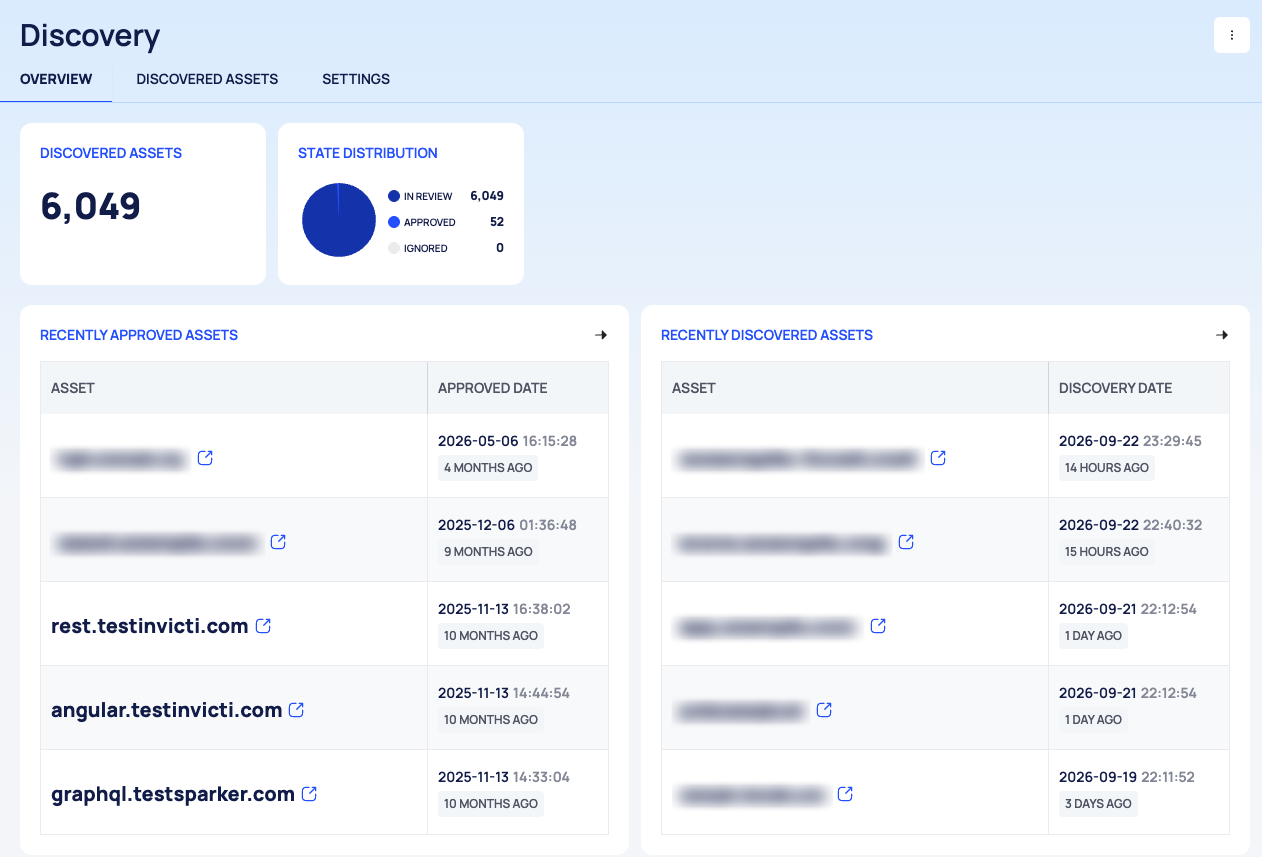
| Card | What it shows |
|---|---|
| DISCOVERED ASSETS | How many discovered assets are waiting for review |
| STATE DISTRIBUTION | A pie of IN REVIEW, APPROVED and IGNORED |
| RECENTLY APPROVED ASSETS | ASSET and APPROVED DATE |
| RECENTLY DISCOVERED ASSETS | ASSET and DISCOVERY DATE |
States, Colors and Scores
| State | Meaning | Where to find it |
|---|---|---|
| IN REVIEW | Found by a rule, waiting for a decision | DISCOVERED ASSETS |
| APPROVED | Added to your inventory | Approved Assets |
| IGNORED | Dismissed; it stays out of your inventory | Ignored Assets |
In the STATE DISTRIBUTION chart, IN REVIEW is dark blue, APPROVED blue and IGNORED light gray.
Good to Know
- Actions take a few seconds to apply; the list refreshes on its own afterwards.
- A rule with Auto Approval turned on approves matching assets in review automatically. You set this on the SETTINGS tab; see Tune smart discovery.
- An asset you removed from Inventory can be found again by discovery and come back for review.
- The Discovery lists have no export button. The API can export discovered assets (see below).
Do This With the API
- Search discovered assets: Discovered Asset Search
- Get one: Discovered Asset Detail
- Approve: Discovered Asset Approve
- Ignore: Discovered Asset Ignore
- Undo an ignore: Discovered Asset Revert
- Export (API only): Discovered Asset Export