Track Fraudulent Domains
When you mark a suspicious domain as fraudulent, it moves to the FRAUDULENT DOMAINS list. There you can see each domain's risk score over time and a screenshot of its site, when one is available, and export the list.
Before You Start
- Package: Brand Risk Protection (BRP).
- Role: Admin or Member.
- Data: domains you marked as fraudulent (see Review suspicious domains), or a detection rule with Auto Approval turned on.
Where to Find It
Sidebar: BRAND RISK PROTECTION › FRAUDULENT DOMAINS · Tab: FRAUDULENT DOMAINS › list tab FRAUDULENT DOMAINS · https://platform.deepinfo.com/app/brp/fraudulent?tab=fraudulent
The sidebar item opens the suspicious list first. Select the FRAUDULENT DOMAINS list tab above the table to switch. The FRAUDULENT DOMAINS card on the OVERVIEW tab also leads here.
Read the Screen
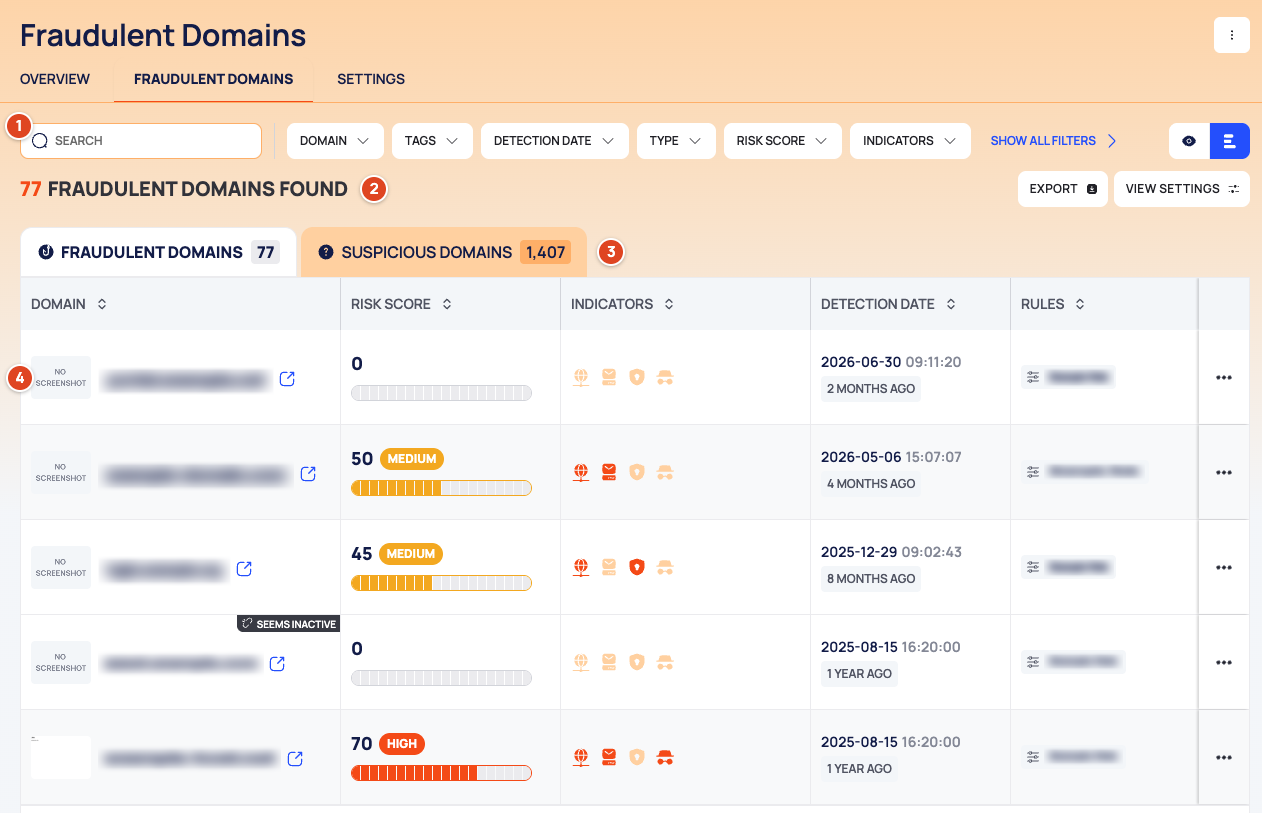
- Filter bar: SEARCH, the filter chips starting with DOMAIN, TAGS, DETECTION DATE and TYPE, SHOW ALL FILTERS for the rest, and the list view and quick view icons.
- Count line: how many fraudulent domains match, then EXPORT and VIEW SETTINGS (list view only).
- List tabs: FRAUDULENT DOMAINS and SUSPICIOUS DOMAINS, each with its count.
- The list, 25 rows per page, newest DETECTION DATE first. Select a column header to sort by it.
- DOMAIN: a thumbnail of the site's screenshot (a placeholder when there is none), the name, the SEEMS INACTIVE banner when it applies, and an external-link icon.
- RISK SCORE, INDICATORS, DETECTION DATE and RULES, as on the suspicious list.
- A ⋮ menu at the end of the row with REMOVE FROM FRAUDULENT DOMAINS.
This list has no checkboxes: you act on one domain at a time. The risk score, indicators and badges are explained in Brand Risk Protection (BRP).
Caution
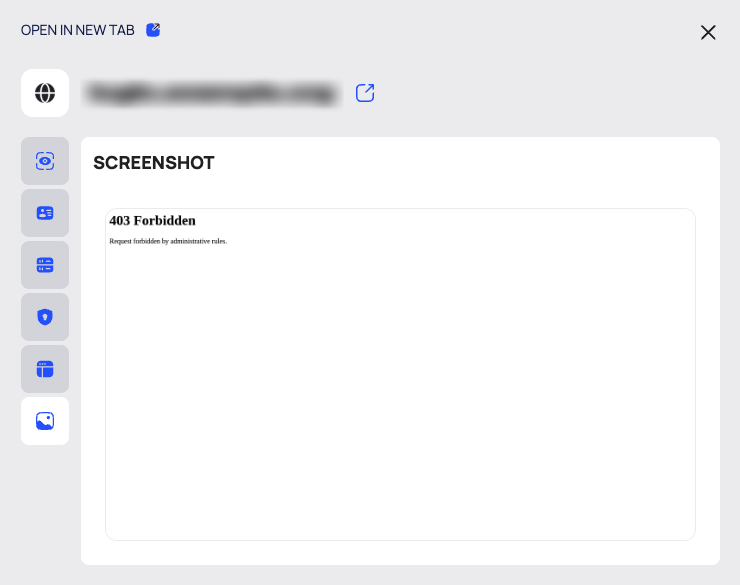
The external-link icon opens the fraudulent domain itself in your browser. It may host a phishing page or malware. When a screenshot exists, use the SCREENSHOT tab to see the site without visiting it.
Look at a Fraudulent Domain
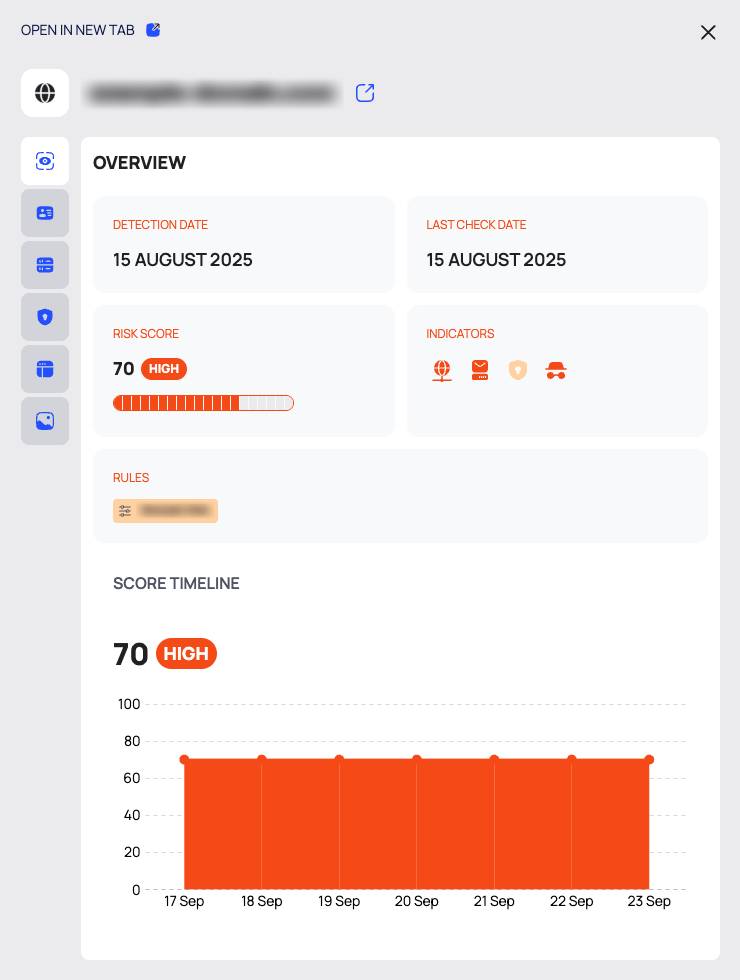
- Select a row. The domain's drawer opens on the right. Its tabs are icons; the open tab's name is shown as its heading.
- Read the tabs:
- OVERVIEW: DETECTION DATE, LAST CHECK DATE, RISK SCORE, INDICATORS, RULES and SCORE TIMELINE, a chart of the domain's risk score over time.
- WHOIS, DNS, SSL and WEBSITE INFO: the data stored for the domain at its last check. When nothing is stored, the tab says so.
- SCREENSHOT: the screenshot of the site, when one exists.
- To open the domain on a page of its own, select OPEN IN NEW TAB. The page opens in a new browser tab
(
/app/brp/fraudulent/approved/<id>) and has the same tabs, an INFO card (DETECTION DATE, LAST CHECK DATE, INDICATORS), a RULES card and a RISK SCORE chart.
The drawer and the page of a fraudulent domain have no action buttons. The data tabs do not run a new lookup when you open them; LAST CHECK DATE tells you when the stored data was collected.
Remove a Domain From the List
- On the row, open the ⋮ menu and select REMOVE FROM FRAUDULENT DOMAINS.
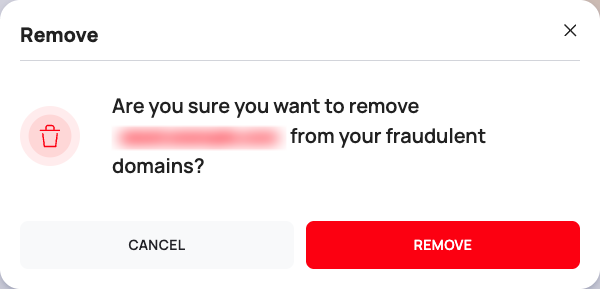
- A red Remove confirmation asks you to confirm. Select REMOVE.
- After a few seconds the list refreshes and the domain is no longer on it.
Removing is only possible from the list, one domain at a time. The drawer and the domain's page have no remove button.
Find Domains
The first filter chips are always visible; SHOW ALL FILTERS shows the rest.
| Filter | What it matches |
|---|---|
| DOMAIN, TAGS, DETECTION DATE, TYPE, RISK SCORE, INDICATORS | As on the suspicious list |
| SEEMS INACTIVE | Whether the domain seems inactive |
| ADDED DATE | When the domain was added to this list |
| IS LOGIN PAGE | Whether the site has a login page |
| SEEMS INACTIVE FIRST SEEN, SEEMS INACTIVE LAST SEEN | When the domain was first and last seen inactive |
This list has no IGNORED DATE or APPROVE DATE filter. Switching between the list tabs clears your filters. See also Search, filter and export lists.
Export the List
- Select EXPORT above the list.
- In the DOWNLOAD dialog, choose RECORDS (ALL or FILTERED) and FILE FORMAT (CSV or JSON).
- Select DOWNLOAD.
The full list is also available as All Fraudulent Domains Report under REPORTS; see Export all data as CSV or JSON.
Good to Know
- To be told when a new fraudulent domain is found, create a notification rule for New Fraudulent Domain; see Create a notification rule.
- Scans and per-layer history for a fraudulent domain are available through the API only (below).
Do This With the API
- Search fraudulent domains: Fraudulent Domain Search
- Get one: Fraudulent Domain Detail
- Risk score over time: Fraudulent Domain Risk Score Timeline
- Remove: Fraudulent Domain Delete
- Export: Fraudulent Domain Export
- API only: