Investigate Compromised Employees
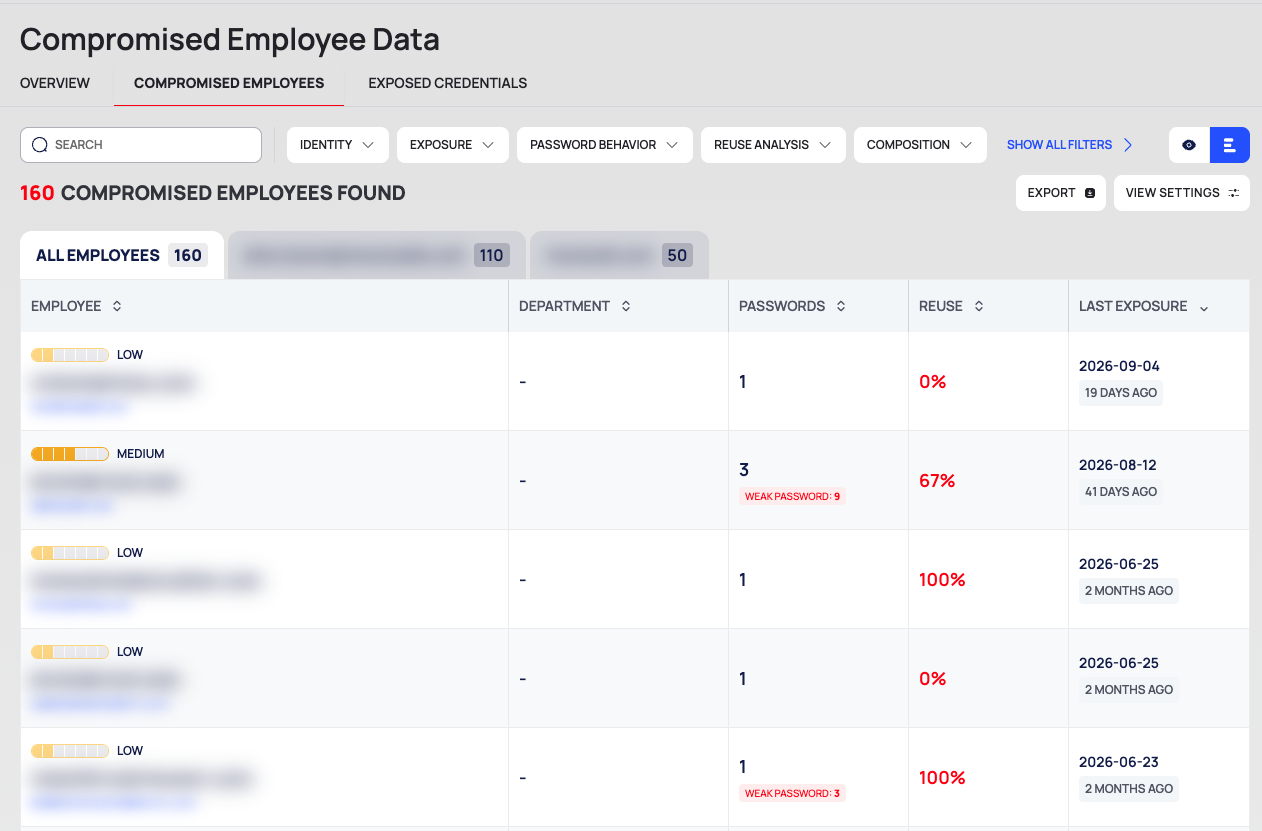
The COMPROMISED EMPLOYEES tab lists every employee account of your organization that was found in leaked credential data. Use it to find the riskiest accounts, see how their passwords were built and reused, and open each employee's credentials.
Before You Start
- Package: Cyber Threat Intelligence (CTI).
- Role: Admin or Member.
Where to Find It
Sidebar: CYBER THREAT INTELLIGENCE › COMPROMISED EMPLOYEE DATA · Tab: COMPROMISED EMPLOYEES · https://platform.deepinfo.com/app/cti/compromised-employee-data/list
The sidebar item opens this tab. The breadcrumb reads CTI / COMPROMISED EMPLOYEE DATA / COMPROMISED EMPLOYEES.
Read the List
From top to bottom:
- Filter row: the SEARCH box; the filter chips IDENTITY, EXPOSURE, PASSWORD BEHAVIOR, REUSE ANALYSIS, COMPOSITION, TEMPORAL, RISK and STATE, some of which appear only after you select SHOW ALL FILTERS ›; and, on the right, the icons that switch between quick view and list view.
- Result line: <n> COMPROMISED EMPLOYEES FOUND, EXPORT and VIEW SETTINGS.
- Domain tabs: ALL EMPLOYEES, then one tab per domain of your organization, each with its count. Select a tab to list only that domain's employees.
- The list, 25 rows per page by default:
| Column | What it shows |
|---|---|
| EMPLOYEE | The risk level (a bar and CRITICAL, HIGH, MEDIUM or LOW), the email address and the domain |
| DEPARTMENT | The employee's department, when known |
| PASSWORDS | The number of unique leaked passwords, with a red WEAK PASSWORD: <n> chip |
| REUSE | The share of reused passwords, in % |
| LAST EXPOSURE | The date of the latest exposure, with the time since then |
The list is sorted by LAST EXPOSURE, newest first. To sort by another column, select the sort icon in its header. VIEW SETTINGS opens View Options: Sort By, Result Per Page (25, 50, 75 or 100), Reset to Default View, and the SHOWN list of columns.
Filter the List
Select a filter chip to add a condition on one of its fields: choose the field, the rule (Must, Must Not or Should), the operator and the value, then select APPLY. Add New adds another condition and Clear All removes them. The general filter controls are described in Search, filter and export lists.
| Chip | Fields |
|---|---|
| IDENTITY | Email, Domain, Is Executive, First Name, Last Name, Title, LinkedIn URL, Department |
| EXPOSURE | First Exposure Date, Last Exposure Date, Exposure Span Days |
| PASSWORD BEHAVIOR | Unique Password Count, Avg Password Length, Avg Strength Score, Min Strength Score, Max Strength Score, Very Weak Password Count, Weak Password Count, Medium Password Count, Strong Password Count, Very Strong Password Count, Weak Password Percentage |
| REUSE ANALYSIS | Password Reuse Count, Password Reuse Percentage |
| COMPOSITION | Common Password Count, Dictionary Word Count, Keyboard Pattern Count, Date Pattern Count, Avg Character Classes, All Four Classes Percentage, Dominant Structure, Structure Variety Count |
| TEMPORAL | Days Since Last Exposure, Exposure Accelerating, Exposure Velocity |
| RISK | Risk Score, Risk Level |
| STATE | State, Total Credentials, Active Credential Count, Inactive Credential Count, Unresolved Credential Count, Resolved Credential Count, Risk Accepted Credential Count, Ignored Credential Count, False Positive Credential Count |
The STATE chip is useful for follow-up: for example, Active Credential Count finds the employees who still have active credentials.
Open an Employee
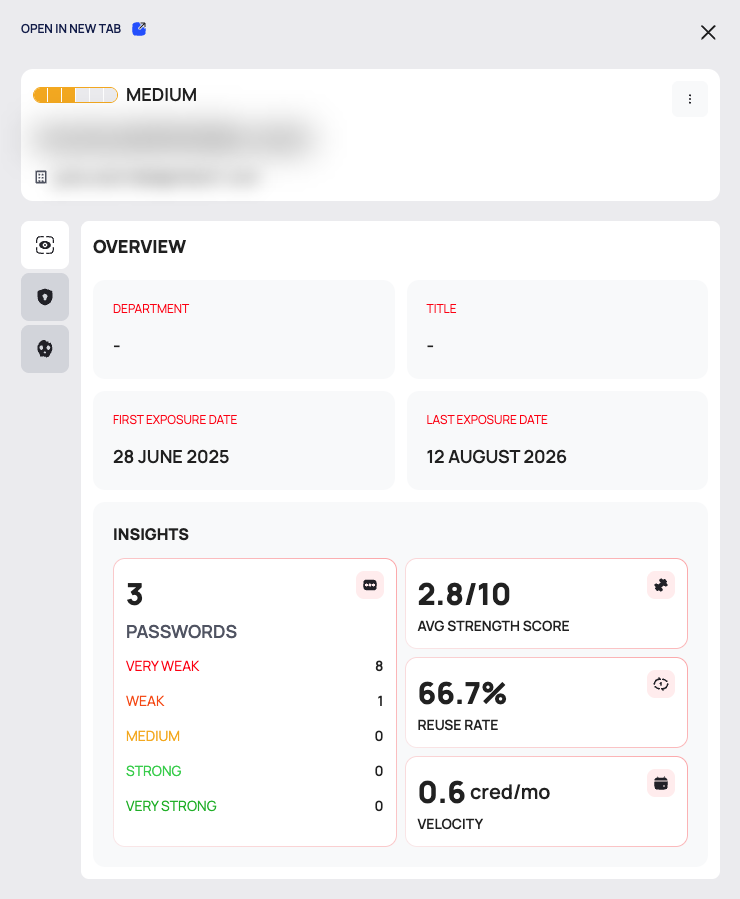
Select a row. A drawer opens on the right:
- At the top: OPEN IN NEW TAB, which opens the employee's own page; the risk level, email address and domain; and a ⋮ menu with EDIT DETAILS.
- On the left, three icon tabs. Hover over an icon to see its name.
| Tab | What it shows |
|---|---|
| OVERVIEW | DEPARTMENT, TITLE, FIRST EXPOSURE DATE and LAST EXPOSURE DATE, then INSIGHTS: PASSWORDS with a breakdown into VERY WEAK, WEAK, MEDIUM, STRONG and VERY STRONG; AVG STRENGTH SCORE (out of 10); REUSE RATE (%); VELOCITY (credentials per month) |
| SECURITY PROFILE | The four blocks described under Security profile |
| CREDENTIALS | The employee's leaked credentials: CREDENTIAL (service, platform and host) and STATE. Tick SHOW INACTIVES to include inactive ones. This tab shows no passwords |
Open the Employee's Page
Select OPEN IN NEW TAB in the drawer, or a row of RECENTLY EXPOSED EMPLOYEES on the CTI dashboard or the overview. The breadcrumb reads CTI / COMPROMISED EMPLOYEE DATA / EMPLOYEES / <email address>.
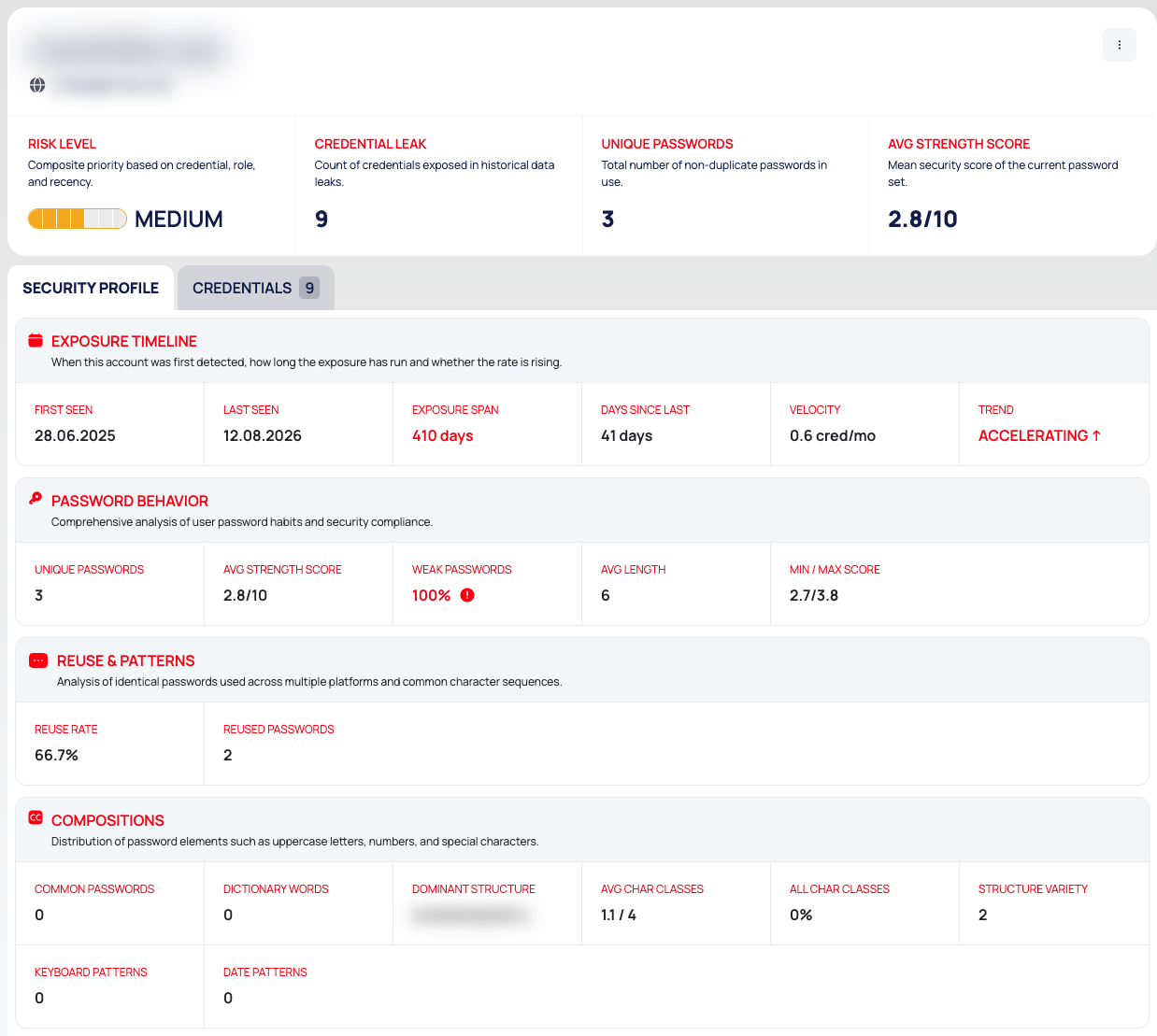
The header shows the email address, the domain, a ⋮ menu with EDIT DETAILS, and four figures:
| Figure | The platform's description |
|---|---|
| RISK LEVEL | "Composite priority based on credential, role, and recency." |
| CREDENTIAL LEAK | "Count of credentials exposed in historical data leaks." |
| UNIQUE PASSWORDS | "Total number of non-duplicate passwords in use." |
| AVG STRENGTH SCORE | "Mean security score of the current password set." |
Below are two tabs:
- SECURITY PROFILE (open first): the four blocks described below.
- CREDENTIALS, with the number of credentials: a SEARCH box, SHOW INACTIVES, SHOW PASSWORD, and a checkbox in the header to select rows. The columns are CREDENTIAL, STATE, PASSWORD (masked), STRENGTH and ADDED DATE. Select a row to open the credential.
To show the passwords, see Handle leaked data safely.
Security Profile
The drawer and the employee's page show the same four blocks. On the employee's page, each block carries the platform's description of it.
| Block | Description | Figures |
|---|---|---|
| EXPOSURE TIMELINE | "When this account was first detected, how long the exposure has run and whether the rate is rising." | FIRST SEEN, LAST SEEN, EXPOSURE SPAN, DAYS SINCE LAST, VELOCITY, TREND (for example STABLE) |
| PASSWORD BEHAVIOR | "Comprehensive analysis of user password habits and security compliance." | UNIQUE PASSWORDS, AVG STRENGTH SCORE, WEAK PASSWORDS, AVG LENGTH, MIN / MAX SCORE |
| REUSE & PATTERNS | "Analysis of identical passwords used across multiple platforms and common character sequences." | REUSE RATE, REUSED PASSWORDS |
| COMPOSITIONS | "Distribution of password elements such as uppercase letters, numbers, and special characters." | COMMON PASSWORDS, DICTIONARY WORDS, DOMINANT STRUCTURE, AVG CHAR CLASSES, ALL CHAR CLASSES, STRUCTURE VARIETY, KEYBOARD PATTERNS, DATE PATTERNS |
DOMINANT STRUCTURE shows the pattern of character types in the employee's passwords. It stays visible while passwords are masked; see Handle leaked data safely.
Edit an Employee's Details
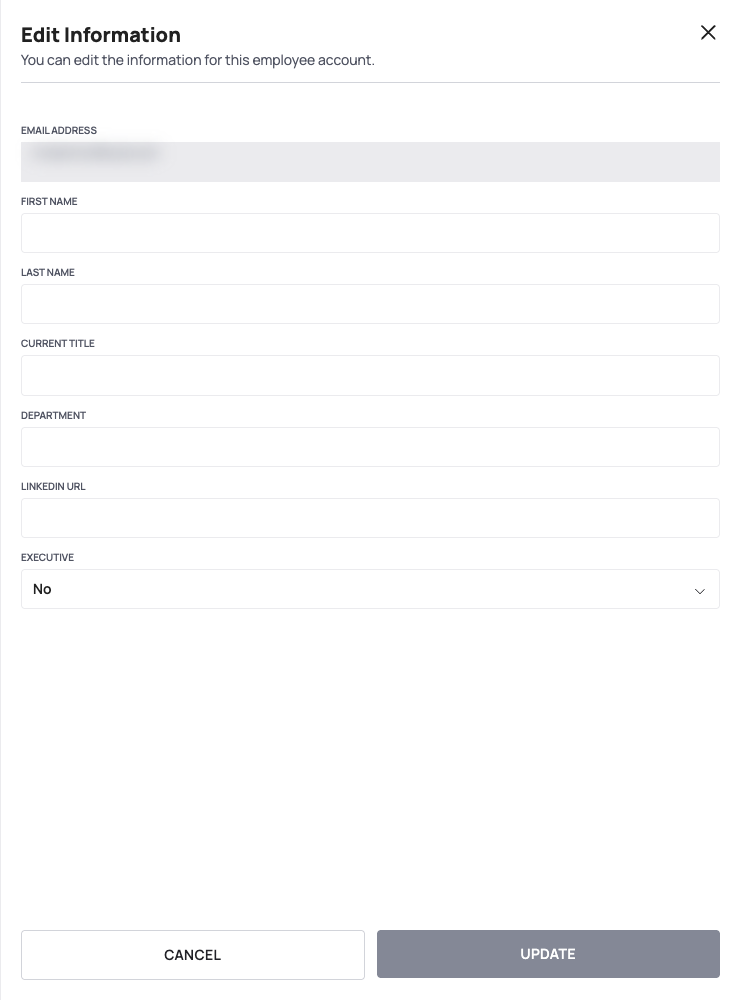
You can add or correct the details the platform holds for an employee, such as the name, title, department and whether the person is an executive. The IDENTITY filters use these details.
- Open the employee's drawer or page.
- Open the ⋮ menu and select EDIT DETAILS.
- The Edit Information drawer opens: "You can edit the information for this employee account." Change any of FIRST NAME, LAST NAME, CURRENT TITLE, DEPARTMENT, LINKEDIN URL and EXECUTIVE. EMAIL ADDRESS cannot be changed.
- Select UPDATE. The button becomes active once you change a field.
To leave without saving, select CANCEL.
Export the List
- Filter the list if you want only part of it.
- Select EXPORT. The DOWNLOAD window opens: "Choose the records, format, and level of detail for your export."
- Choose:
- RECORDS: ALL, or FILTERED for the records that match your filters;
- FILE FORMAT: CSV or JSON;
- EXPORT SCOPE: DEFAULT, BASIC or EXTENDED.
- Select EXPORT. CANCEL closes the window without a download.
The file name starts with COMPROMISED-EMPLOYEE-ACCOUNTS, followed by the date and time.
Good to Know
- Password counts. PASSWORDS and UNIQUE PASSWORDS count unique passwords, and CREDENTIAL LEAK counts credentials. The strength breakdown under INSIGHTS and the red WEAK PASSWORD chip can count credentials too, so they can show more than PASSWORDS.
- States are set per credential. To close an employee's credentials, see Change the state of exposed credentials.
- Passwords are elsewhere. The drawer's CREDENTIALS tab has no passwords. Use the employee's page or the EXPOSED CREDENTIALS tab.
Do This With the API
- Compromised Employee Account Search
- Compromised Employee Account Detail
- Compromised Employee Account Update
- Compromised Employee Account Export
- Search & filters: the MUST, MUST NOT and SHOULD model the filter chips use.