Remove and Restore Assets
Removing an asset takes it out of your inventory, so External Attack Surface Management (EASM) stops monitoring it. Removed assets are kept in Deleted Assets, where you can add them back.
Before You Start
- Package: EASM.
- Role: Admin or Member.
Where to Find It
- Remove assets: Sidebar: EXTERNAL ATTACK SURFACE MANAGEMENT › ASSETS › INVENTORY · Tab: ASSETS LIST · https://platform.deepinfo.com/app/easm/assets
- Deleted Assets: Sidebar: EXTERNAL ATTACK SURFACE MANAGEMENT › ASSETS › INVENTORY, then the ⋮ menu next to the Inventory title › DELETED ASSETS · https://platform.deepinfo.com/app/easm/assets/deleted
Remove an Asset
- On ASSETS LIST, open the … menu on the asset's row. The same menu is in the asset drawer and on the asset's page.
- Under OTHER ACTIONS, select REMOVE THIS ASSET. For an asset that seems inactive, the item is called REMOVE FROM INVENTORY.
- The Remove confirmation asks whether you want to remove the asset from your assets. Select REMOVE.
After a few seconds the list refreshes. The asset is no longer in Inventory and is listed in Deleted Assets.
Remove Several Assets at Once
- On ASSETS LIST, tick the rows you want to remove. To tick every row on the page, open the checkbox menu in the header and select SELECT THIS PAGE.
- The selection bar shows how many assets are selected, with SCAN NOW and DELETE.
- Select DELETE, then REMOVE in the Remove confirmation.
Caution
SCAN NOW sits next to DELETE in the selection bar and starts scanning the selected assets at once, without asking. Check which button you select.
Inventory selects at most one page at a time. To remove more, repeat on the next page or raise Result Per Page under VIEW SETTINGS.
Remove an Inactive Asset
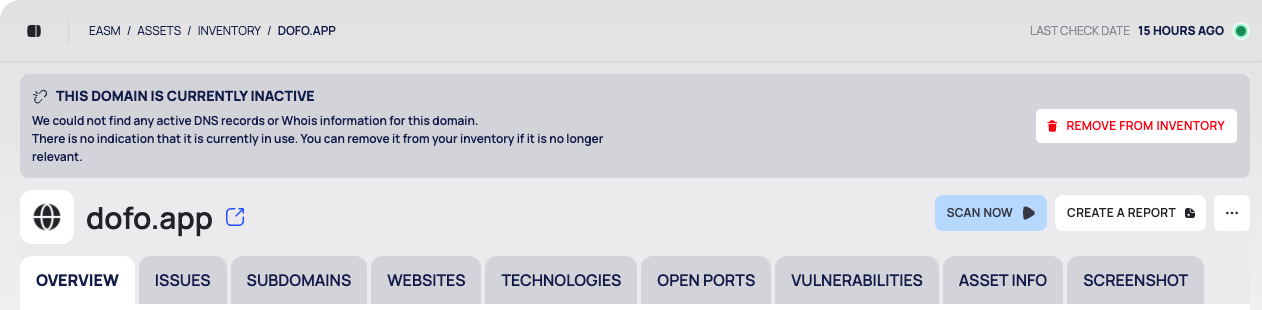
An asset that seems inactive carries a SEEMS INACTIVE ribbon in lists. Its page shows a red banner, for example THIS DOMAIN IS CURRENTLY INACTIVE, saying that no active DNS records or WHOIS information were found and that there is no sign the asset is in use.
- Open the asset's page.
- Select REMOVE FROM INVENTORY in the banner.
- Confirm with REMOVE.
To find inactive assets first, filter Inventory by ASSET META › Seems Inactive.
Read Deleted Assets
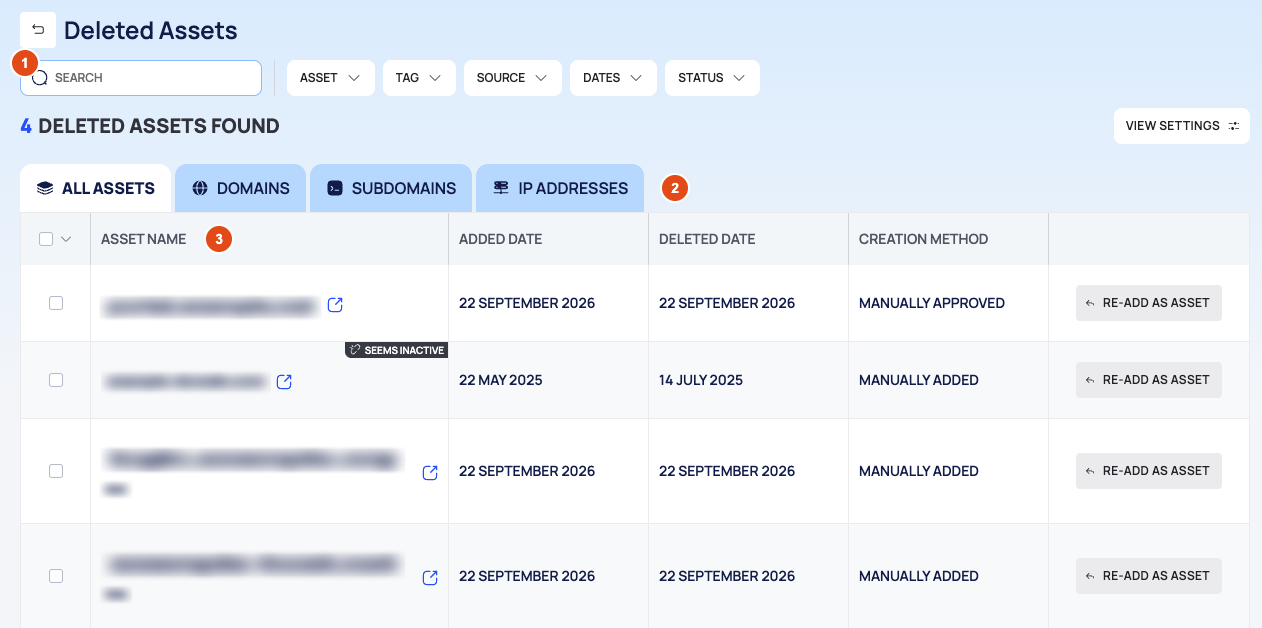
- Filter bar: the SEARCH box, the filter chips ASSET, TAG, SOURCE, DATES and STATUS, the number of deleted assets found, and VIEW SETTINGS.
- Tabs: ALL ASSETS, DOMAINS, SUBDOMAINS and IP ADDRESSES. There is no WEBSITES tab, and the tabs show no counts.
- The list:
| Column | What it shows |
|---|---|
| ASSET NAME | The asset, with SEEMS INACTIVE if it was inactive |
| ADDED DATE | When it was added to your inventory |
| DELETED DATE | When it was removed |
| CREATION METHOD | How it entered your inventory (see below) |
| RE-ADD AS ASSET | Adds it back |
| Creation method | Meaning |
|---|---|
| MANUALLY ADDED | It was added directly, for example on Add assets |
| MANUALLY APPROVED | Someone approved it in Discovery |
| AUTO APPROVED | A discovery rule with auto approval added it |
Add an Asset Back
- On Deleted Assets, select RE-ADD AS ASSET on the row.
- The Re-Add As Asset confirmation asks whether you want to re-add the asset. Select RE-ADD AS ASSET.
- The asset is back in Inventory.
To add several back, tick their rows and use RE-ADD AS ASSET in the selection bar.
Good to Know
- A removed asset can come back through discovery. Removing an asset does not stop discovery rules from finding it again. If a rule finds it, it appears in the Discovery review list, and approving it adds it back to your inventory. To keep an asset out of the discovery lists for good, add it to Ignored Assets under Other Settings on the Discovery SETTINGS tab; see Tune smart discovery.
- The same asset can be listed more than once in Deleted Assets if it was removed more than once.
- Removing is also the way to undo an approval from Discovery: an approved asset cannot be sent back to review.
- Deleted Assets has no export button. The API can export the list (see below).
Do This With the API
- Remove assets: Asset Delete
- List deleted assets: Deleted Asset Search
- Export deleted assets (API only): Deleted Asset Export
- Add assets back: Asset Create