Update Your Profile
Account Details holds your photo, your name and your time zone. Your email address is shown but cannot be changed here.
Before You Start
No package is needed, and any role can use this page. It is about your own account only.
Where to Find It
Sidebar: SETTINGS › USER SETTINGS › Account Details · https://platform.deepinfo.com/app/settings/user-detail
USER SETTINGS in the profile menu opens it too.
Read the Screen
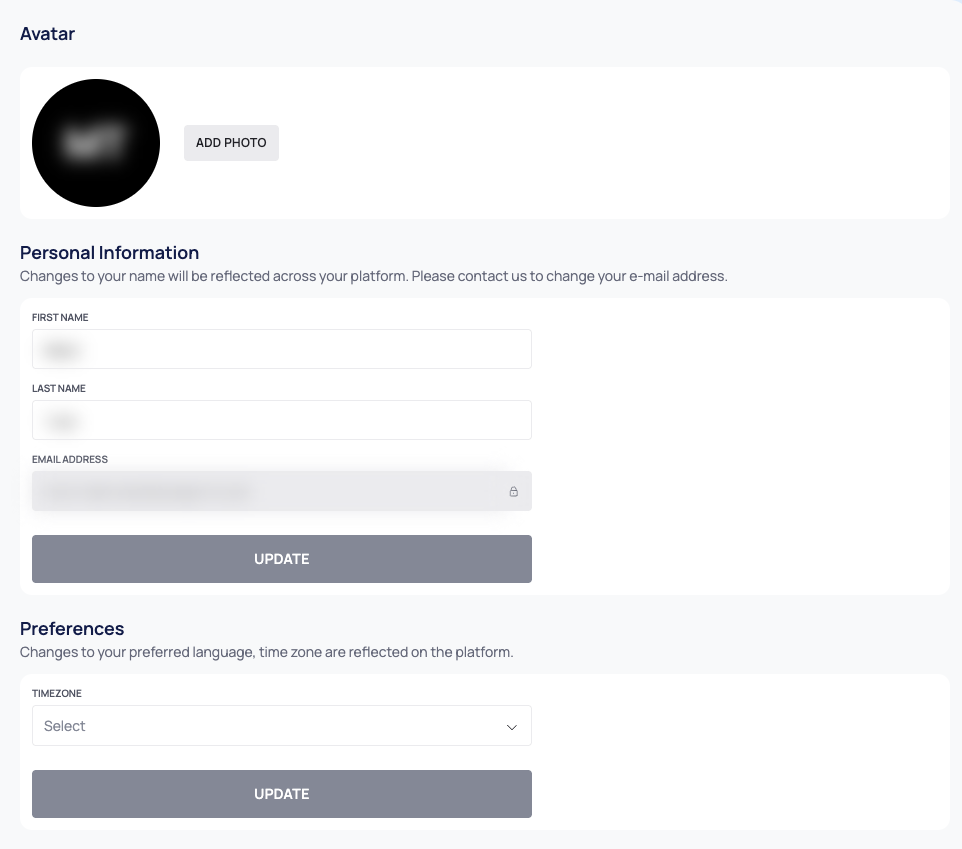
The page has three cards:
- Avatar: your photo, or your initials when you have no photo.
- Personal Information: FIRST NAME, LAST NAME and EMAIL ADDRESS. The email address cannot be edited.
- Preferences: TIMEZONE. It shows "Select" until you choose a time zone.
Personal Information and Preferences each have their own UPDATE button. It stays disabled until you change something in that card.
Add or Change Your Photo
- In Avatar, select ADD PHOTO, or CHANGE PHOTO if you already have one.
- Choose an image file of 5 MB or less.
- Select UPLOAD PHOTO. To cancel instead, select the × on the preview.
The platform confirms with "Your avatar has been updated." To remove your photo, select REMOVE PHOTO.
Change Your Name
- In Personal Information, edit FIRST NAME and LAST NAME.
- Select UPDATE.
Your new name is used across the platform.
Set Your Time Zone
- In Preferences, open TIMEZONE. Each entry shows the offset and the time zone name, for example (GMT+0000) Africa/Abidjan.
- Choose your time zone.
- Select UPDATE. The platform confirms with "Your preferences information has been updated."
Good to Know
- Changing your email address. You cannot change it yourself. Contact support@deepinfo.com.
- Photo files. Only image files are accepted, up to 5 MB.
- Times on screen. Tables show dates and times in your browser's local time. The TIMEZONE setting does not change what the web app shows.
- No language setting. The text of the Preferences card mentions a preferred language, but the only preference you can set is the time zone. The platform is in English.
- Your photo and the profile menu. The button at the top right shows your organization's logo or initials, not your photo. See Change your organization's name and logo.