Review Exposed Credentials
The EXPOSED CREDENTIALS tab of Compromised Employee Data lists every leaked login of your employees: the site or app it was used on, the employee account, the password (masked), its state and how strong the password is. Each credential also has a detailed analysis of its target and its password.
Before You Start
- Package: Cyber Threat Intelligence (CTI).
- Role: Admin or Member.
Where to Find It
Sidebar: CYBER THREAT INTELLIGENCE › COMPROMISED EMPLOYEE DATA · Tab: EXPOSED CREDENTIALS · https://platform.deepinfo.com/app/cti/compromised-employee-data/credential-exposures
The breadcrumb reads CTI / COMPROMISED EMPLOYEE DATA / EXPOSED CREDENTIALS. The EXPOSED CREDENTIALS card on the Global dashboard and the RECENTLY EXPOSED CREDENTIALS heading on the CTI dashboard also open this tab.
Read the List
From top to bottom:
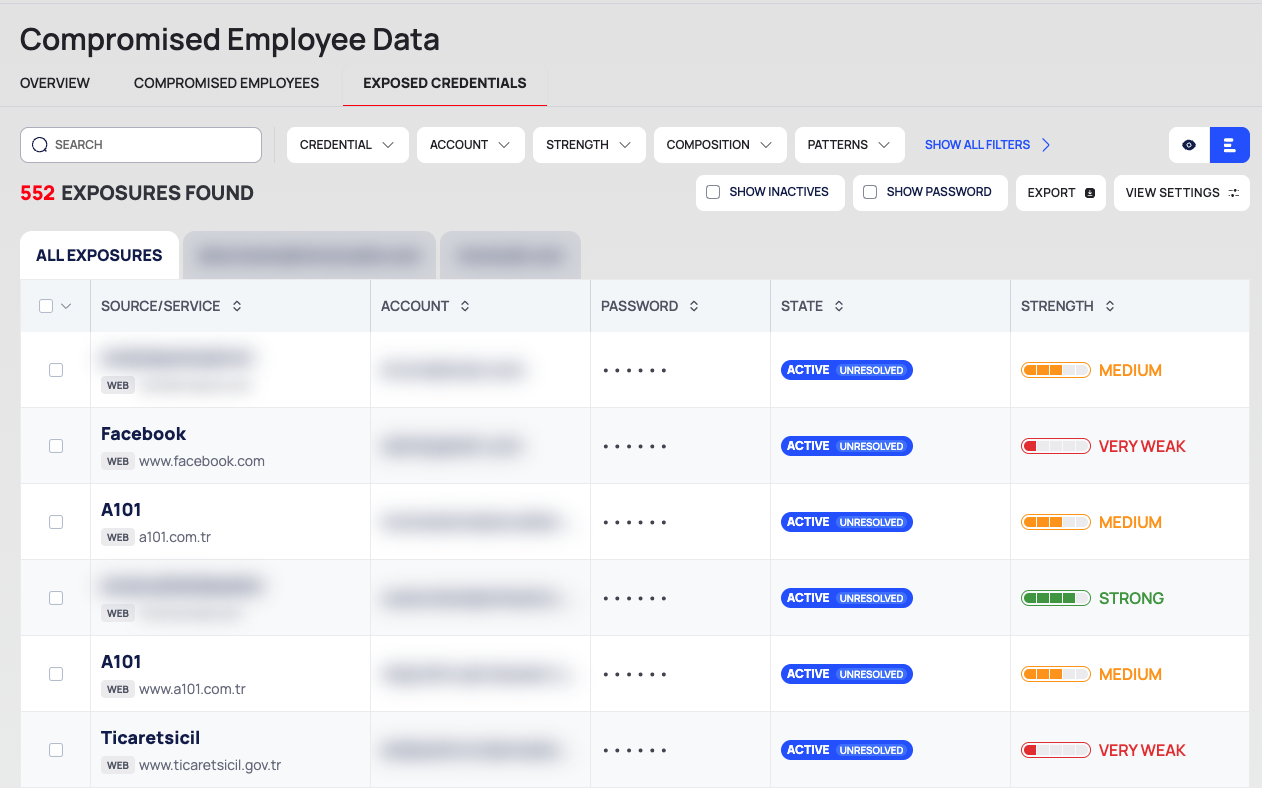
- Filter row: the SEARCH box; the filter chips CREDENTIAL, ACCOUNT, STRENGTH, COMPOSITION, PATTERNS, DICTIONARY and TARGET, some of which appear only after you select SHOW ALL FILTERS ›; and, on the right, the icons that switch between quick view and list view.
- Result line: <n> EXPOSURES FOUND, SHOW INACTIVES, SHOW PASSWORD, EXPORT and VIEW SETTINGS.
- Domain tabs: ALL EXPOSURES, then one tab per domain of your organization.
- The list, 25 rows per page by default:
| Column | What it shows |
|---|---|
| SOURCE/SERVICE | The service the credential was used on, a platform tag such as WEB or ANDROID, and the host |
| ACCOUNT | The employee account |
| PASSWORD | The leaked password, masked as •••••• |
| STATE | The credential's state, for example ACTIVE · UNRESOLVED |
| STRENGTH | A bar and a label from VERY WEAK to VERY STRONG |
| ADDED DATE | When the credential was added, with the time since then |
- Tick SHOW INACTIVES to include credentials in an inactive state.
- To sort, select the sort icon in a column header.
- VIEW SETTINGS opens View Options: Sort By, Result Per Page (25, 50, 75 or 100), Reset to Default View, and the SHOWN list of columns.
- The checkbox in the header selects rows for a bulk state change; see Change the state of exposed credentials.
Filter the List
Select a filter chip, choose a field, the rule (Must, Must Not or Should), the operator and the value, then select APPLY. The general filter controls are described in Search, filter and export lists.
| Chip | Fields |
|---|---|
| CREDENTIAL | URL, Added At, Password, State |
| ACCOUNT | Email, Domain, Is Executive, First Name, Last Name, Department, Title, LinkedIn URL |
| STRENGTH | Strength Level, Strength Score, Strength Label, Entropy Bits |
| COMPOSITION | Length, Character Classes Used, Structure, Contains Uppercase, Contains Lowercase, Contains Number, Contains Special, Starts With Uppercase, Ends With Numbers, Ends With Special |
| PATTERNS | Has Keyboard Pattern, Has Date Pattern, Has Leet Speak, Has Sequential Chars, Has Repeated Chars |
| DICTIONARY | Is Common Password, Common Password Rank, Is Dictionary Word, Dictionary Word Found |
| TARGET | Target URL, Target FQDN, Target Domain, Target Service, Target Platform, Target Main Category, Target Sub Category, Target Risk Tier, Target Is Corporate, Target Requires MFA |
For example, TARGET › Target Is Corporate finds leaked logins to corporate services, and CREDENTIAL › State narrows the list to one state.
Open a Credential
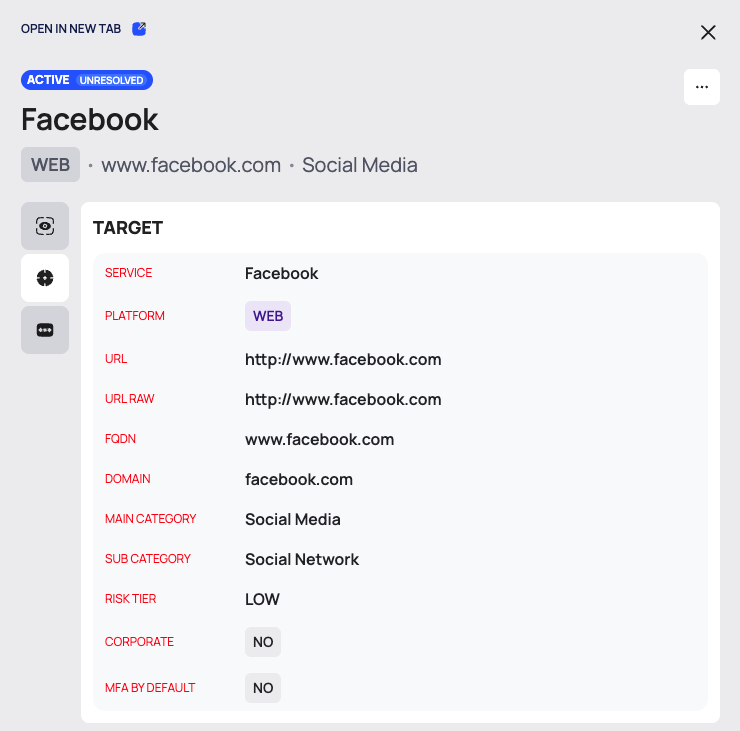
Select a row. A drawer opens on the right:
- At the top: OPEN IN NEW TAB, which opens the credential's own page; the state chip; the service name; the platform tag and host; and a ⋮ menu with CHANGE STATE.
- On the left, three icon tabs. Hover over an icon to see its name.
| Tab | What it shows |
|---|---|
| OVERVIEW | ACCOUNT; PASSWORD, masked as ●●●●●●●●, with an eye icon to show it; STRENGTH; ADDED DATE |
| TARGET | The site or app the credential belongs to: SERVICE, PLATFORM, URL, URL RAW, FQDN, DOMAIN, MAIN CATEGORY, SUB CATEGORY, RISK TIER, CORPORATE (whether it is a corporate service) and MFA BY DEFAULT (whether the service enforces multi-factor authentication by default) |
| PASSWORD ANALYSIS | How the password is built: see below |
Password Analysis
The PASSWORD ANALYSIS tab describes the leaked password without showing it:
- LENGTH: the number of characters.
- CONTAINS: chips for the character types the password uses: AG (uppercase letters), ag (lowercase letters), 17 (digits) and ? (special characters).
- CHARACTER CLASSES: how many of these character types it uses.
- STRUCTURE: the pattern of character types.
- ENTROPY: an estimate of how hard the password is to guess.
- YES or NO for each check: COMMON PASSWORD, KEYBOARD PATTERN, DATE PATTERN, LEET SPEAK, SEQUENTIAL CHARACTER, REPEATED CHARACTER, START WITH UPPERCASE, END WITH NUMBERS and END WITH SPECIAL CHARACTER.
STRUCTURE reveals the shape of the password even while the password itself is masked; see Handle leaked data safely.
Use the Quick View
Select the quick view icon at the right of the filter row. The left side lists the credentials by host under CREDENTIALS; LOAD MORE loads more. The right side shows the selected credential: OPEN IN NEW TAB, the state chip, the host and URL, four figures and the TARGET and PASSWORD ANALYSIS tabs.
| Figure | The platform's description |
|---|---|
| ACCOUNT | "Employee account associated with this credential." |
| PASSWORD | "Leaked password associated with this credential." (masked) |
| STRENGTH | "Evaluated strength score of the leaked password." |
| ADDED DATE | "Date this credential was added to the dataset." |
SHOW INACTIVES, SHOW PASSWORD and VIEW SETTINGS are not available in quick view. Switch back to list view to use them.
Open the Credential's Own Page
Select OPEN IN NEW TAB in the drawer or in the quick view. The breadcrumb reads CTI / COMPROMISED EMPLOYEE DATA / EXPOSED CREDENTIALS / <host>. The header shows the state chip, the host, the full URL and the same four figures as the quick view. Below are the TARGET and PASSWORD ANALYSIS tabs; PASSWORD ANALYSIS opens first.
Show Passwords
Passwords are masked. In list view, tick SHOW PASSWORD to show the passwords of the list in plain text in your browser. In the drawer, select the eye icon next to PASSWORD. Before you do, read Handle leaked data safely.
Export the List
- Filter the list if you want only part of it.
- Select EXPORT. The DOWNLOAD window opens.
- Choose RECORDS (ALL or FILTERED), FILE FORMAT (CSV or JSON) and EXPORT SCOPE (DEFAULT, BASIC or EXTENDED).
- Select EXPORT.
The file name starts with COMPROMISED-EMPLOYEE-CREDENTIALS, followed by the date and time.
Good to Know
- Old bookmarks. This tab replaced the former credentials page. Bookmarks to
/app/cti/compromised-employee-data/credentialsnow open PAGE NOT FOUND; use the address above. - States. To ignore a credential, accept its risk, or mark it as resolved or as a false positive, see Change the state of exposed credentials.
Do This With the API
- Compromised Employee Credential Search
- Compromised Employee Credential Export
- Search & filters: the filter model the chips use.