How Security Scores Work
External Attack Surface Management (EASM) gives a security score and an A to F grade to your organization, to each asset and to each issue type. A higher score is better. This page explains the grades, how asset weight affects your organization's score, and where each score appears.
Before You Start
- Package: EASM.
- Role: Admin or Member.
Where You See Scores
A score appears as a grade letter with the number next to it.
| Score | Where |
|---|---|
| Your organization | The radar on the Global dashboard and the dial on the EASM dashboard |
| One asset | The SECURITY RATING column on the ASSETS LIST tab of Inventory, the INSIGHTS block in the asset drawer, and the SCORE widget on the asset's OVERVIEW tab (see Investigate an asset) |
| One domain with its subdomains | The SCORE widget of a domain, with Include the impact of subdomains turned on |
| One issue type | SCORE on the issue type page (see Issue type details) |
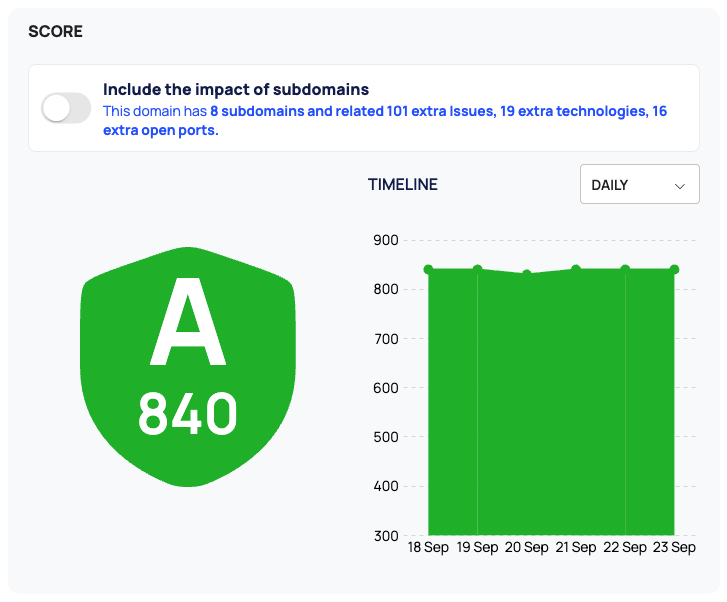
The SCORE widgets on the asset and issue type pages include a TIMELINE chart. Choose DAILY, WEEKLY or MONTHLY in its drop-down to change the interval.
Inventory also has an INCLUDE SUBDOMAIN SCORES checkbox above the list. It is not shown on the SUBDOMAINS and IP ADDRESSES tabs.
Grades
| Score | Grade | Color |
|---|---|---|
| 800 and above | A | green |
| 700 and above | B | light green |
| 600 and above | C | yellow |
| 500 and above | D | orange |
| 400 and above | E | red |
| 300 and above | F | dark red |
| below 300 or no score | - (no grade) |
gray |
Asset and issue-type scores use the same bands. An inactive asset has no score and shows -.
A Grade Is Not the Whole Story
A grade sums up an asset, but it does not list what is wrong. An asset with a good grade can still have active high or critical issues. Before you move on from an asset, check its ISSUES column in Inventory, or the ISSUES block in its drawer, for red and orange severities.

Asset Weight
Asset weight tells EASM how important an asset is to your organization. A higher weight marks a more critical asset, and the weight affects your organization's overall security score.
- SYSTEM WEIGHT is calculated automatically.
- USER WEIGHT is a value from 0 to 1000 that you enter to override it.
The weight shown on an asset is the user weight if one is set, otherwise the system weight. You find it as ASSET WEIGHT in the asset drawer and on the asset's OVERVIEW tab, and as the ASSET WEIGHT column in Inventory.
Change an Asset's Weight
- Open the asset's … menu: in the Inventory row, in the asset drawer header or on the asset detail page.
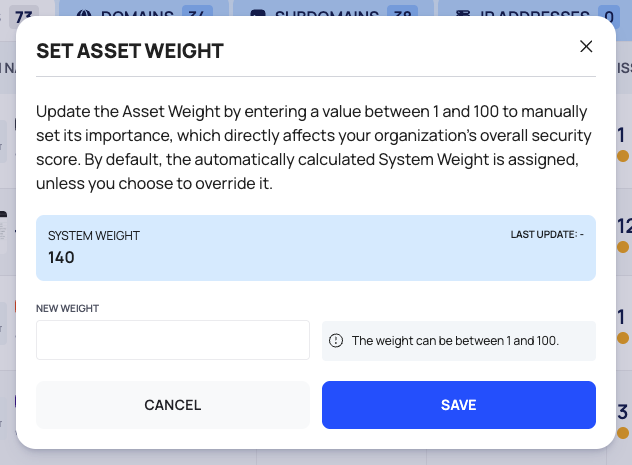
- Under ASSET SETTINGS, select SET ASSET WEIGHT. The popup shows the SYSTEM WEIGHT with its LAST UPDATE: date, and your USER WEIGHT if you have set one.
- In NEW WEIGHT, enter a value from 0 to 1000. To remove your override and go back to the system weight, leave the field empty.
- Select SAVE. A message confirms that the asset weight has been updated. To close without a change, select CANCEL.
Domain-Level Score
For a domain that has subdomains, the SCORE widget on its OVERVIEW tab has the switch Include the impact of subdomains. Next to it, the widget says how many subdomains the domain has and how many extra issues, technologies and open ports they bring. Turn the switch on to show the domain-level score, which includes that impact.
Issue-Type Scores
Each issue type also has a score and a grade. The issue type page shows it under SCORE, with its TIMELINE.
Good to Know
Note
Other scores in the platform use different scales. Do not compare them with the security score: the Brand Risk Protection (BRP) risk score runs from 0 to 100, a CVSS score from 0 to 10, and EPSS and the average exploitability score are percentages.
Do This With the API
- Organization score over time: Security Score Timeline
- One asset's score over time: Asset Security Score Timeline
- A domain with its subdomains: Domain Security Score Timeline
- One issue type's score over time: Issue Type Security Score Timeline
- Change asset weights: Asset Set Weight